Saltar al contenido principal
Únete a la Comunidad de Reparación - Crear Cuenta

Lenovo G50-70 Fan Replacement

Vistas: 3 k

Ver estadísticas:

Últimas 24 horas:
5
Últimos 7 días:
22
Últimos 30 días:
100
Todo El Tiempo:
3,018
Comentarios: 1

1 guide comment.

Go to guide comments
Completado: 8

8 personas han marcado esta guía como "completada". ¿Serás tú la próxima persona en hacerlo?

Favoritos: 0

Nadie ha marcado como "Favorita" ni se ha suscrito a esta guía. ¿Quieres hacerlo tú?

Tiempo Requerido: 5 Minuto
Dificultad: Moderado
Lenovo G50-70 Fan Replacement

Introducción

Ir al paso 1 ↓

The fan on a computer is important for cooling the parts that generate a lot of heat. If fan is not running properly, there is a risk of other parts overheating and causing damage to critical components. Most computers have thermal throttling; this means speeds will decrease when it starts to overheat to prevent from damage.

Qué necesitas

Herramientas

    1. Lenovo G50-70 Fan Replacement, Battery: paso 1, imagen 1 de 3 Lenovo G50-70 Fan Replacement, Battery: paso 1, imagen 2 de 3 Lenovo G50-70 Fan Replacement, Battery: paso 1, imagen 3 de 3
      • Push the left switch (labeled 1) to the left to show red underneath. This will unlock battery.

      • Push the right switch (labeled 2) to the right. This will eject battery.

      Pregunta a FixBot

      Agregar Comentario

    2. Lenovo G50-70 Fan Replacement: paso 2, imagen 1 de 1
      • Rotate the battery away from the laptop.

      Pregunta a FixBot

      Agregar Comentario

    1. Lenovo G50-70 Fan Replacement, Back Access Panel: paso 3, imagen 1 de 2 Lenovo G50-70 Fan Replacement, Back Access Panel: paso 3, imagen 2 de 2
      • Remove the three 6mm Phillips #0 screws holding the back access panel on.

      Pregunta a FixBot

      Agregar Comentario

    2. Lenovo G50-70 Fan Replacement: paso 4, imagen 1 de 2 Lenovo G50-70 Fan Replacement: paso 4, imagen 2 de 2
      • Slide the cover toward you to unlatch it.

      • The edge of the panel will slide away from the laptop so it can be lifted.

      Pregunta a FixBot

      Agregar Comentario

    1. Lenovo G50-70 Fan Replacement, Fan: paso 5, imagen 1 de 2 Lenovo G50-70 Fan Replacement, Fan: paso 5, imagen 2 de 2
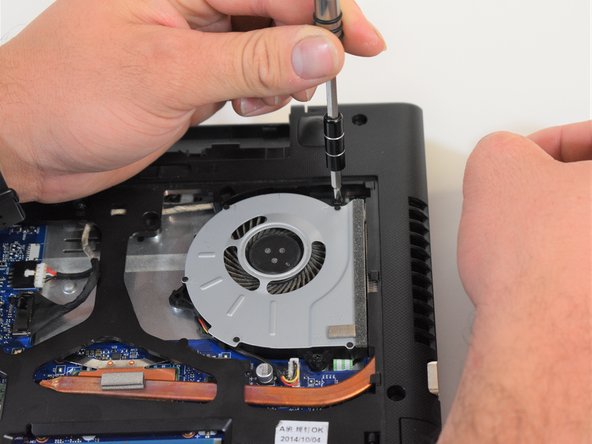
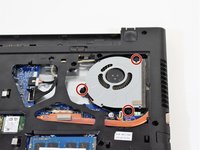
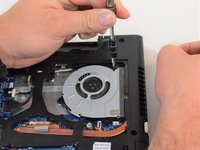
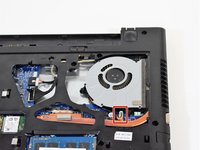
      • Remove the three 6mm Phillips #0 screws on the perimeter of the fan.

      Pregunta a FixBot

      Agregar Comentario

    2. Lenovo G50-70 Fan Replacement: paso 6, imagen 1 de 2 Lenovo G50-70 Fan Replacement: paso 6, imagen 2 de 2
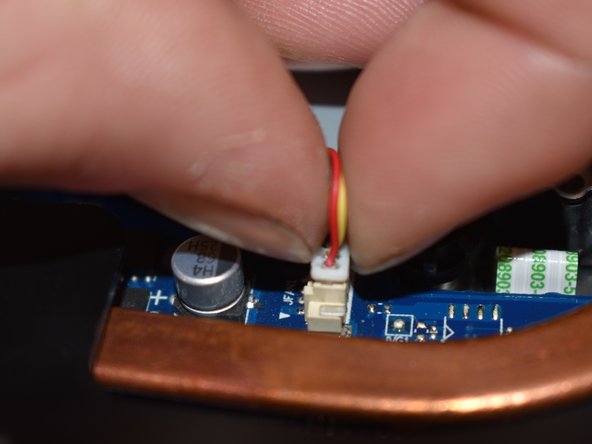
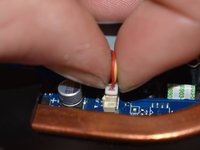
      • The fan is plugged into the motherboard next to the copper heat sync.

      • Unplug the bundled wire connector by pulling up on the white plug.

      • Do not pull up by the wires.

      Pregunta a FixBot

      Agregar Comentario

    3. Lenovo G50-70 Fan Replacement: paso 7, imagen 1 de 2 Lenovo G50-70 Fan Replacement: paso 7, imagen 2 de 2
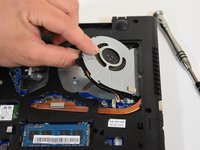
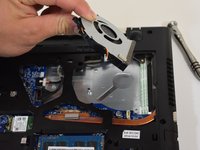
      • Lift fan out of case.

      Pregunta a FixBot

      Agregar Comentario

Conclusión

To reassemble your device, follow these instructions in reverse order.

Cancelar: No complete esta guía.

8 personas más completaron esta guía.

1Guía Comentario

can it take a .5 amp fan??

Basil Jabir - Contestar Compartir

Agregar Comentario

Ver Estadísticas:

Ultimas 24 horas: 5

Ultimos 7 días: 22

Ultimos 30 días: 100

Todo El Tiempo: 3,018