Saltar al contenido principal
Únete a la Comunidad de Reparación - Crear Cuenta

Canon Powershot SX500 IS LCD Screen Replacement

Qué necesitas

    1. Canon Powershot SX500 IS LCD Screen Replacement, Battery: paso 1, imagen 1 de 1
      • Rotate the camera to expose the underside of the camera.

      Pregunta a FixBot

      Agregar Comentario

    2. Canon Powershot SX500 IS LCD Screen Replacement: paso 2, imagen 1 de 1
      • Slide the rounded rectangle tab to the left to release the battery cover.

      Pregunta a FixBot

      Agregar Comentario

    3. Canon Powershot SX500 IS LCD Screen Replacement: paso 3, imagen 1 de 1
      • Push the small orange tab forward to release the battery (Battery is ready for removal).

      Pregunta a FixBot

      Agregar Comentario

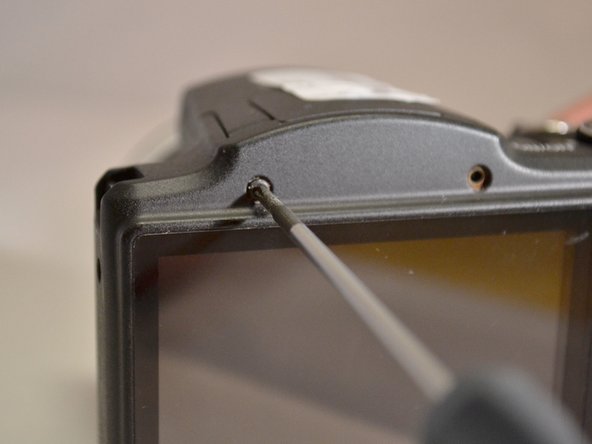
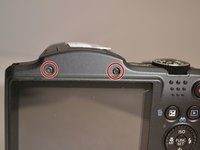
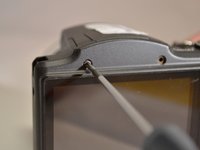
    1. Canon Powershot SX500 IS LCD Screen Replacement, Back Cover: paso 4, imagen 1 de 3 Canon Powershot SX500 IS LCD Screen Replacement, Back Cover: paso 4, imagen 2 de 3 Canon Powershot SX500 IS LCD Screen Replacement, Back Cover: paso 4, imagen 3 de 3
      • Using the Phillips 00 screwdriver, remove the two 4mm top screws above the LCD screen.

      Pregunta a FixBot

      Agregar Comentario

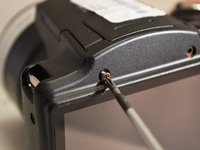
    2. Canon Powershot SX500 IS LCD Screen Replacement: paso 5, imagen 1 de 1
      • Using the Phillips 00 screwdriver, remove the two 4mm side screws to the left of the LCD screen.

      Pregunta a FixBot

      Agregar Comentario

    3. Canon Powershot SX500 IS LCD Screen Replacement: paso 6, imagen 1 de 1
      • Using the Phillips 00 screwdriver, remove the two 4mm side screws to the left of the LCD screen.

      Pregunta a FixBot

      Agregar Comentario

    4. Canon Powershot SX500 IS LCD Screen Replacement: paso 7, imagen 1 de 1
      • Using the Phillips 00 screwdriver, remove the three 4mm screws from the underside of the camera.

      Pregunta a FixBot

      Agregar Comentario

    5. Canon Powershot SX500 IS LCD Screen Replacement: paso 8, imagen 1 de 2 Canon Powershot SX500 IS LCD Screen Replacement: paso 8, imagen 2 de 2
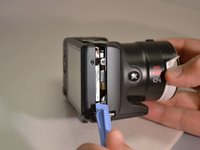
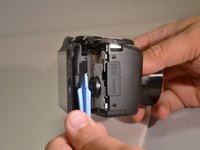
      • Using the plastic pry tool, remove the back cover from camera.

      Pregunta a FixBot

      Agregar Comentario

    1. Canon Powershot SX500 IS LCD Screen Replacement, Control Dial: paso 9, imagen 1 de 1
      • Using the Phillips 00 screwdriver, remove the two 3mm screws closest to the right of the LCD screen.

      Pregunta a FixBot

      Agregar Comentario

    2. Canon Powershot SX500 IS LCD Screen Replacement: paso 10, imagen 1 de 1
      • Using the Phiillips 00 screwdriver, remove the 4mm screw to the right of the control dial.

      Pregunta a FixBot

      Agregar Comentario

    3. Canon Powershot SX500 IS LCD Screen Replacement: paso 11, imagen 1 de 1
      • Using the spudger, lift the control dial to the right of the LCD screen.

      Pregunta a FixBot

      Agregar Comentario

    4. Canon Powershot SX500 IS LCD Screen Replacement: paso 12, imagen 1 de 1
      • Using the spudger, lift the connection tab and remove the control dial's orange ribbon from motherboard.

      Pregunta a FixBot

      Agregar Comentario

    1. Canon Powershot SX500 IS LCD Screen Replacement, LCD Screen: paso 13, imagen 1 de 1
      • Using spudger, lift the tab on the connector and remove the orange ribbon from motherboard (LCD screen is separated from camera).

      Pregunta a FixBot

      Agregar Comentario

Conclusión

To reassemble your device, follow these instructions in reverse order.

Cancelar: No complete esta guía.

2 personas más completaron esta guía.

2Guía Comentarios

Hello, my LCD screen is not working. One day it was fine, the next day I powered my camera and the LCD screen is only half visible. I appreciate the directions on how to take out/repair LCD screen, though where am I able to purchase a new LCD screen for my PowerShot SX500IS? Many thanks.

dana karavias - Contestar Compartir

Disassembly of SX510HS is exactly the same. No special pry tool is required - it is very easy to remove the cover with your fingernail. Replacement LCD on Aliexpress is 8-12 USD.

Witold Kardyś - Contestar Compartir

Agregar Comentario

Ver Estadísticas:

Ultimas 24 horas: 0

Ultimos 7 días: 7

Ultimos 30 días: 32

Todo El Tiempo: 1,662