Esta traducción la ha hecho un programa y todavía no la ha revisado nadie. ¿Hablas este idioma? Échale un vistazo.
Introducción
Actualizar o sustituir la memoria RAM en el Asus ROG G20CB puede ayudar a mejorar el rendimiento del sistema, especialmente en juegos, multitarea o cargas de trabajo profesionales. Esta guía te explicará cómo acceder, retirar e instalar la memoria RAM de forma segura en el chasis compacto del G20CB.
Importante:
- El G20CB utiliza memoria RAM DDR4 SO-DIMM (tipo portátil), no módulos DIMM estándar de escritorio.
- La memoria máxima admitida depende del modelo de tu CPU y placa madre, pero generalmente tiene un límite de 32 GB (2x16 GB).
Qué necesitas
-
-
-
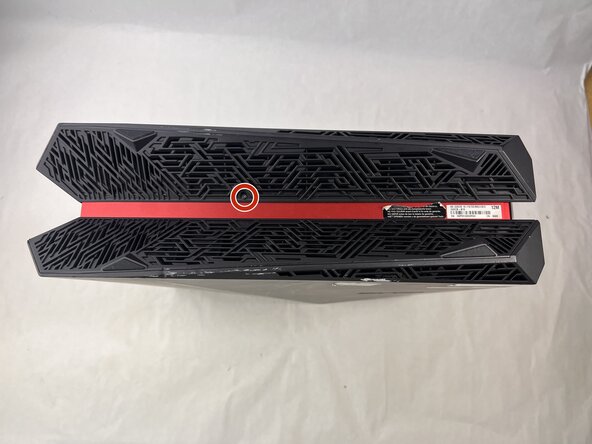
Quita cada uno de los dos tornillos Phillips de 4.6 mm situados en la parte superior e inferior de la torre.
 Pregunta a FixBot
-
-
-
Desliza el panel frontal hacia la izquierda y levántalo suavemente.
-
-
-
Desconecta el cable con cuidado tirando suavemente de ambos lados del conector.
-
-
-
Quita los cinco tornillos Phillips de 4.6 mm que sujetan la bandeja del ventilador y extrae la bandeja del sistema.
-
-
-
-
Desenchufa con cuidado los dos cables del ventilador de la placa madre tirando directamente hacia arriba desde la base del conector.
-
-
-
Quita los seis tornillos Phillips de 4.6 mm que conectan los ventiladores a la bandeja de ventiladores.
-
-
-
-
-
Quita el tornillo Phillips de 4.6 mm que sujeta el disco óptico.
-
-
-
Tira de la cinta del disipador de calor y utiliza un destornillador Phillips de cuello largo para quitar los cuatro tornillos que sujetan el disipador de calor.
-
-
-
Quita el tornillo Phillips de 4.6 mm del disipador de calor en la parte superior de la carcasa.
-
Extrae el disipador de calor de la CPU del sistema.
-
Asegúrate de aplicar pasta térmica nueva antes de volver a instalar el disipador.
-
-
-
-
-
Empuja suavemente hacia afuera las dos pestañas de retención situadas a ambos lados de la memoria RAM.
-
-



Para volver a montar el dispositivo, sigue los pasos anteriores en orden inverso.
Lleva tus desechos electrónicos a un centro de reciclaje certificado R2 o e-Stewards.
¿La reparación no ha ido como estaba previsto? Prueba con alguna solución de problemas básicos o pide ayuda a nuestra comunidad.
Cancelar: No complete esta guía.
Una persona más ha completado esta guía.

Equipo

UMass Dartmouth, Team 3-3, Botvin Spring 2025 Miembro de UMass Dartmouth, Team 3-3, Botvin Spring 2025
UMASSD-BOTVIN-S25S3G3
Miembros de 3
44 Guías creadas
