Wiki con Contribuciónes de Estudiantes
Esta wiki ha sido creada por un increíble grupo de estudiantes de nuestro programa educativo.
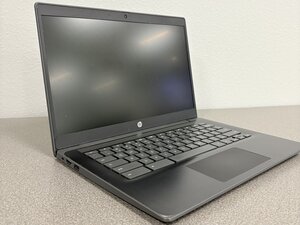
Si tu HP Chromebook 14 G6 tiene dificultades para conectarse a una red Wi-Fi, sigue esta página para obtener posibles soluciones.
Conflicto de red guardada
ChromeOS a veces tiene problemas para conectarse a una red si a tu dispositivo se le asigna automáticamente una dirección IP. Este problema puede resolverse olvidando la red Wi-Fi y volviendo a conectarte.
Haz clic en el icono de Wi-Fi: Haz clic en el icono de Wi-Fi en la bandeja del sistema para abrir la lista de redes.
Busca la red Wi-Fi afectada: Localiza la red Wi-Fi a la que tu Chromebook tiene problemas para conectarse. Haz clic en el nombre de la red para expandir las opciones de conexión.
Haz clic en "Olvidar": Una vez expandidas las opciones de conexión, haz clic en el botón "Olvidar" junto al nombre de la red. Esto eliminará la red de tu lista de guardadas.
Vuelve a conectarte a la red: Después de olvidar la red, haz clic en el icono de Wi-Fi de nuevo y selecciona la red de la lista. Introduce la contraseña correcta e intenta conectarte.
Comprueba la conexión: Una vez conectado, verifica si tu Chromebook puede acceder a internet a través de la red Wi-Fi.
Fallo de VPN o proxy
Si estás usando un servicio de VPN o proxy, intenta desactivarlo temporalmente e intenta conectarte a la red Wi-Fi de nuevo. En algunos casos, estos pueden causar una contradicción con la configuración de tu red local o solaparse con las direcciones IP de tu red.
El sitio web oficial de HP ofrece una solución: HP Chromebook - Resolución de problemas de conectividad (Windows)
Problema con los datos almacenados en caché
Si un archivo en caché se corrompe, puede causar problemas al conectarse a tu red. Borrar los datos de la red Wi-Fi puede ayudar a resolver problemas con la configuración de red guardada.
Para borrar los datos en caché en un HP Chromebook:
Abre el navegador Chrome, haz clic en el menú de tres puntos (arriba a la derecha)
Más herramientas
Borrar datos de navegación.
Selecciona "Imágenes y archivos almacenados en caché" y elige un intervalo de tiempo (por ejemplo, "Desde siempre").
Para problemas de conexión, usa el HP Support Assistant para comprobar la conectividad.

Equipo

Texas Tech, Team 21-1, Samson Spring 2026 Miembro de Texas Tech, Team 21-1, Samson Spring 2026
TTU-SAMSON-S26S21G1
Miembros de 4
35 Guías creadas

0 comentarios