Saltar al contenido principal
Únete a la Comunidad de Reparación - Crear Cuenta

VTech InnoTab Max Screen Replacement

Qué necesitas

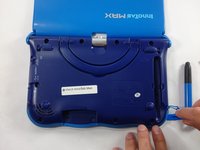
  1. VTech InnoTab Max Screen Replacement, Cover: paso 1, imagen 1 de 3 VTech InnoTab Max Screen Replacement, Cover: paso 1, imagen 2 de 3 VTech InnoTab Max Screen Replacement, Cover: paso 1, imagen 3 de 3
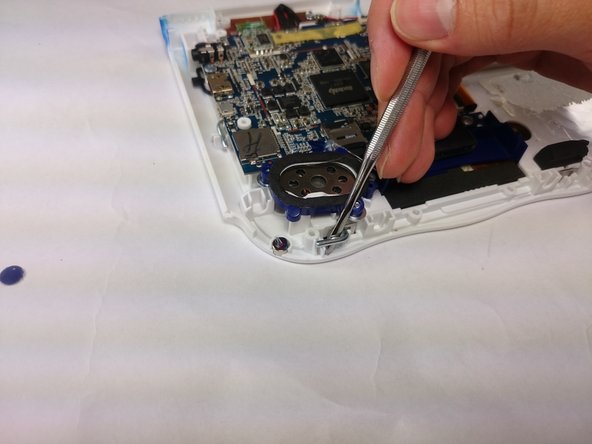
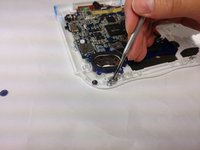
    • Remove all screw caps from the back panel using a metal spudger.

    Pregunta a FixBot

    Agregar Comentario

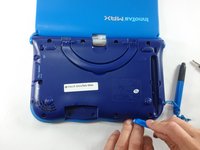
  2. VTech InnoTab Max Screen Replacement: paso 2, imagen 1 de 3 VTech InnoTab Max Screen Replacement: paso 2, imagen 2 de 3 VTech InnoTab Max Screen Replacement: paso 2, imagen 3 de 3
    • Next remove all of the now uncovered screws.

    • If there is a cartridge in the device make sure to remove it.

    Pregunta a FixBot

    Agregar Comentario

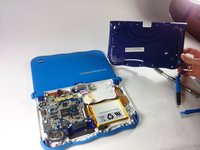
  3. VTech InnoTab Max Screen Replacement: paso 3, imagen 1 de 2 VTech InnoTab Max Screen Replacement: paso 3, imagen 2 de 2
    • Now that all of the screws have been removed, pry the back cover off using a plastic opening tool.

    Pregunta a FixBot

    Agregar Comentario

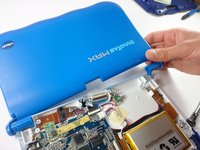
  4. VTech InnoTab Max Screen Replacement: paso 4, imagen 1 de 2 VTech InnoTab Max Screen Replacement: paso 4, imagen 2 de 2
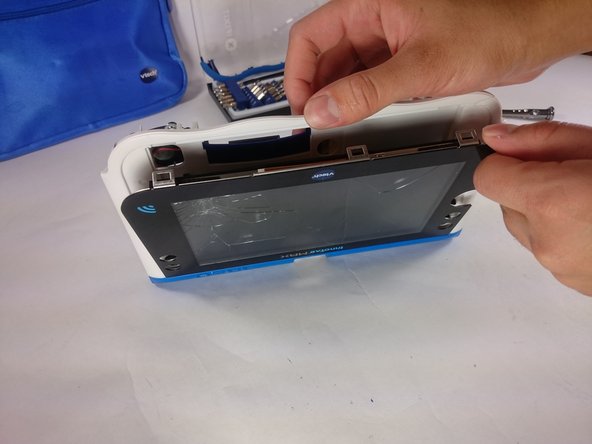
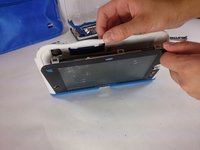
    • Here you can see the back cover has been fully removed and you can now access the front cover.

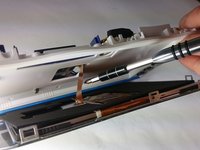
    • To remove the front cover, remove the springs holding the pictured brackets in place, then pull it away.

    Pregunta a FixBot

    Agregar Comentario

  5. VTech InnoTab Max Screen Replacement, Battery: paso 5, imagen 1 de 1
    • Once the back cover is removed the battery will be located in the bottom right as you can see in the image to the right.

    Pregunta a FixBot

    Agregar Comentario

  6. VTech InnoTab Max Screen Replacement: paso 6, imagen 1 de 3 VTech InnoTab Max Screen Replacement: paso 6, imagen 2 de 3 VTech InnoTab Max Screen Replacement: paso 6, imagen 3 de 3
    Herramienta utilizada en este paso:
    Plastic Cards
    $2.99
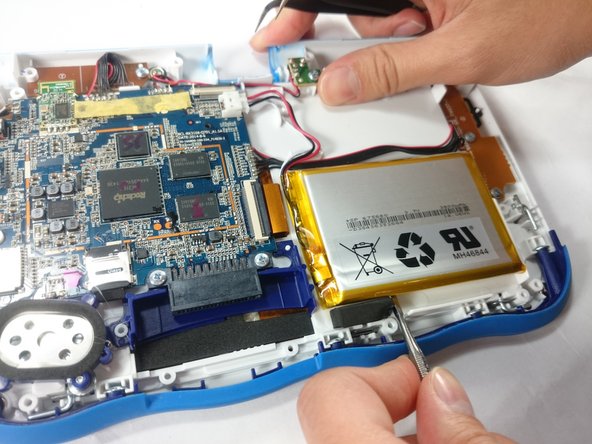
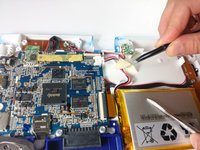
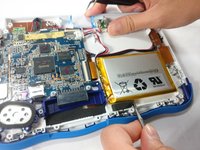
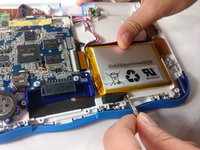
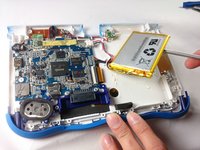
    • Remove the tape holding down the wires, and carefully pry the battery off of the base of the device.

    • Pry carefully to avoid damaging the battery. The battery may start to bend slightly, this is normal and not a cause for concern.

    • It is best to use a plastic card or nylon spudger to remove the battery. Metal tools can puncture a battery, potentially causing a fire.

    Pregunta a FixBot

    Agregar Comentario

  7. VTech InnoTab Max Screen Replacement: paso 7, imagen 1 de 3 VTech InnoTab Max Screen Replacement: paso 7, imagen 2 de 3 VTech InnoTab Max Screen Replacement: paso 7, imagen 3 de 3
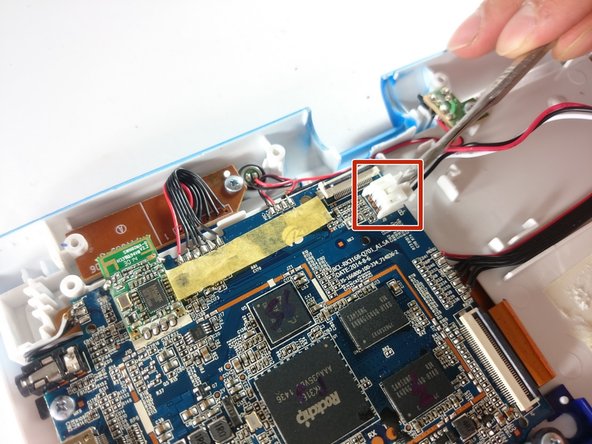
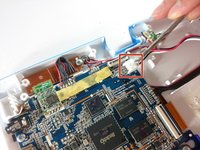
    • Now that the battery is free to be moved, unplug the wire connecting the battery to the motherboard.

    Pregunta a FixBot

    Agregar Comentario

  8. VTech InnoTab Max Screen Replacement: paso 8, imagen 1 de 1
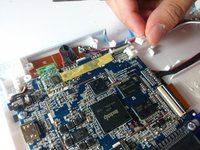
    • The battery is now fully disconnected.

    Pregunta a FixBot

    Agregar Comentario

  9. VTech InnoTab Max Screen Replacement, Screen: paso 9, imagen 1 de 2 VTech InnoTab Max Screen Replacement, Screen: paso 9, imagen 2 de 2
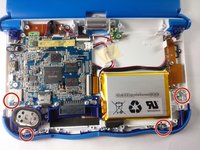
    • In order to unlock the screen you need to remove the 4 pins that can be seen in the picture.

    • To remove simply just turn and pull them out. Use a metal or nylon spudger if they are too small to grip.

    Pregunta a FixBot

    Agregar Comentario

  10. VTech InnoTab Max Screen Replacement: paso 10, imagen 1 de 3 VTech InnoTab Max Screen Replacement: paso 10, imagen 2 de 3 VTech InnoTab Max Screen Replacement: paso 10, imagen 3 de 3
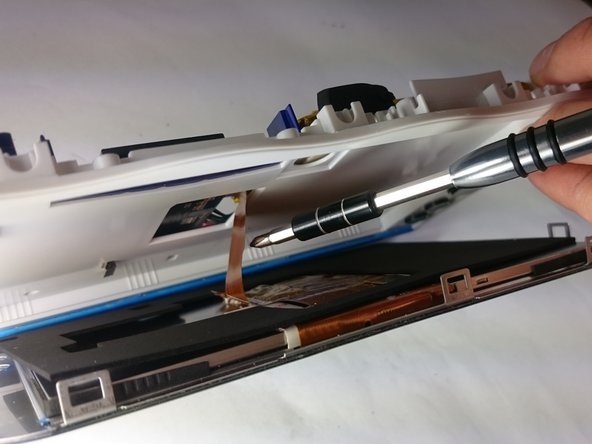
    • Once the pins are removed the screen should be loose from the frame and only connected by the brown film pictured.

    Pregunta a FixBot

    Agregar Comentario

  11. VTech InnoTab Max Screen Replacement: paso 11, imagen 1 de 3 VTech InnoTab Max Screen Replacement: paso 11, imagen 2 de 3 VTech InnoTab Max Screen Replacement: paso 11, imagen 3 de 3
    Herramienta utilizada en este paso:
    Tweezers
    $4.99
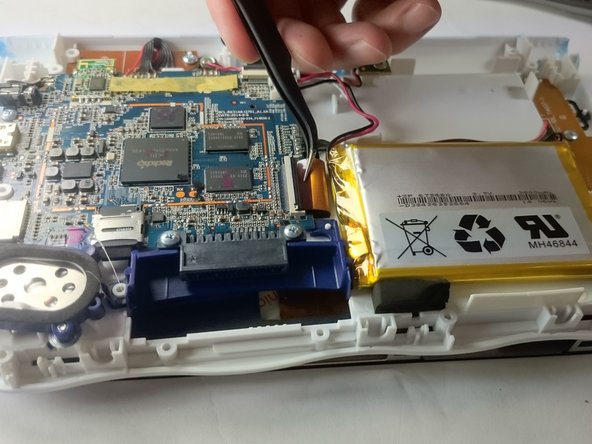
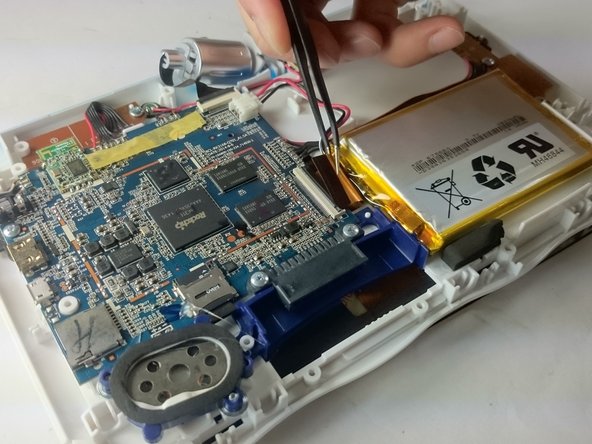
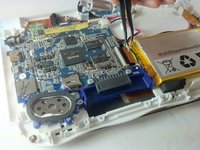
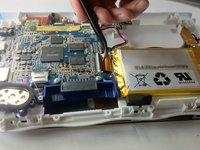
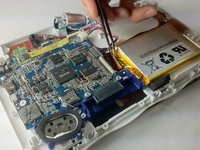
    • In order to completely remove the screen you need to unclip the film from the motherboard by simply using a pair of tweezers and gently pulling.

    • Be careful not to tear the film when pulling.

    Pregunta a FixBot

    Agregar Comentario

  12. VTech InnoTab Max Screen Replacement: paso 12, imagen 1 de 2 VTech InnoTab Max Screen Replacement: paso 12, imagen 2 de 2
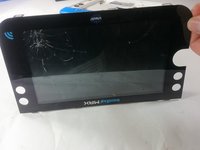
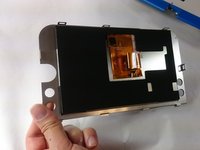
    • Once unclipped from the motherboard the screen should be entirely free from the device

    Pregunta a FixBot

    Agregar Comentario

Conclusión

To reassemble your device, follow these instructions in reverse order.

Cancelar: No complete esta guía.

4 personas más completaron esta guía.

Equipo

USF Tampa, Team S5-G5, Lacy Spring 2017 Miembro de USF Tampa, Team S5-G5, Lacy Spring 2017

USFT-LACY-S17S5G5

Miembros de 3

10 Guías creadas

5Guía Comentarios

Where can I buy a screen

Damien Hennigan - Contestar Compartir
Where can I buy a screen? Can't find any sites that sell the innotab Max screens.

Damien Hennigan - Contestar Compartir
i can not seem to find a replacement screen online, where can i buy one? Innotab Max from Vtech… HELP please..

fanny_muller - Contestar Compartir

Hello, where can i buy a KIDICOM MAX Rose Screen. Our daughter here is broken!.thanks a lot!

hans.depre@gmail.com

Hans Depre - Contestar Compartir

bonjour je cherche a raplasser l ecran du kidicom max car le mien ne salume plus pas merci

theobald - Contestar Compartir

Agregar Comentario

Ver Estadísticas:

Ultimas 24 horas: 1

Ultimos 7 días: 8

Ultimos 30 días: 39

Todo El Tiempo: 5,816