Saltar al contenido principal
Únete a la Comunidad de Reparación - Crear Cuenta

Screen Replacement

Qué necesitas

  1. Screen Replacement, Back Cover: paso 1, imagen 1 de 3 Screen Replacement, Back Cover: paso 1, imagen 2 de 3 Screen Replacement, Back Cover: paso 1, imagen 3 de 3
    • Insert the plastic opening tool into the middle of the bottom edge of the device. The tool should be inserted within the seam between the back and front covers.

    • Slide the opening tool to the right and slowly continue to separate the back cover from the device.

    • Avoid prying on the buttons, as they are easily damaged.

    Pregunta a FixBot

    Agregar Comentario

  2. Screen Replacement: paso 2, imagen 1 de 1
    • Pull the cover off of the device once about three quarters of the cover has been pried open using the plastic opening tool.

    Pregunta a FixBot

    Agregar Comentario

  3. Screen Replacement, Battery: paso 3, imagen 1 de 1
    • Remove masking tape from the battery.

    Pregunta a FixBot

    Agregar Comentario

  4. Screen Replacement: paso 4, imagen 1 de 3 Screen Replacement: paso 4, imagen 2 de 3 Screen Replacement: paso 4, imagen 3 de 3
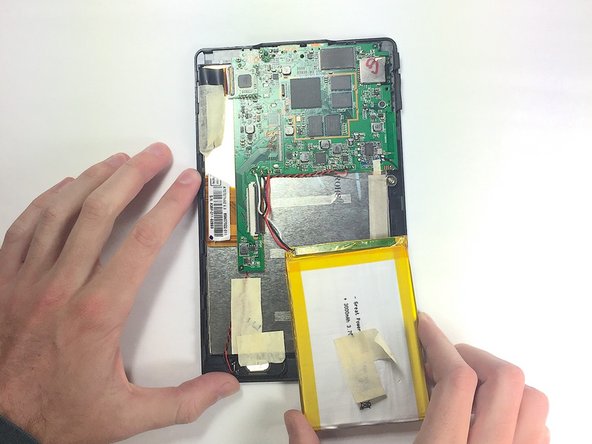
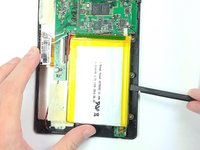
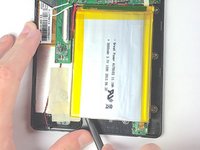
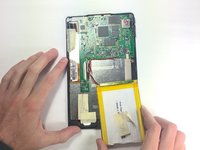
    • Pry the battery from the base using the nylon spudger and move it away from the motherboard.

    • Handle the battery with care to avoid damaging it.

    Pregunta a FixBot

    Agregar Comentario

  5. Screen Replacement: paso 5, imagen 1 de 3 Screen Replacement: paso 5, imagen 2 de 3 Screen Replacement: paso 5, imagen 3 de 3
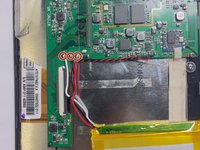
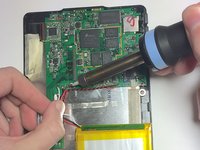
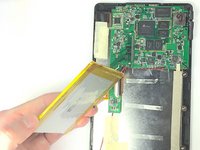
    • De-solder the three contact points and remove the battery.

    • See the following guide for instructions on how to solder. Cómo soldar y desoldar conexiones

    • Use caution when operating the soldering iron.

    Pregunta a FixBot

    Agregar Comentario

  6. Screen Replacement, Motherboard: paso 6, imagen 1 de 3 Screen Replacement, Motherboard: paso 6, imagen 2 de 3 Screen Replacement, Motherboard: paso 6, imagen 3 de 3
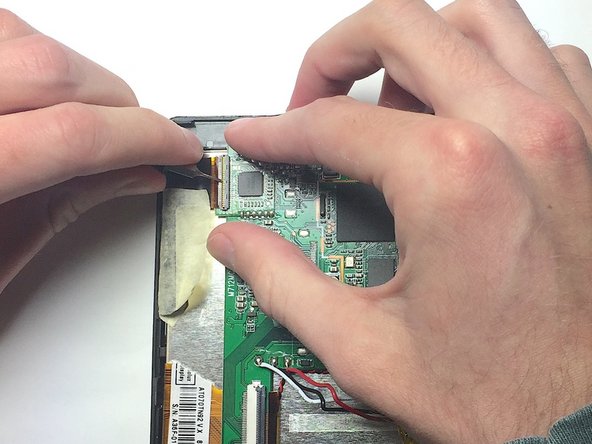
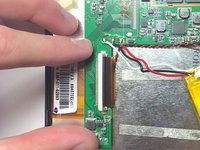
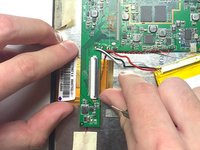
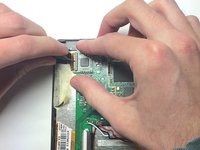
    • Remove the two ZIF connectors attached to the motherboard by flipping up the black tabs before pulling the ribbon cable away.

    • Only use a fingernail or nylon spudger to flip up the retaining flap. Using metal tools may damage delicate components.

    Pregunta a FixBot

    Agregar Comentario

  7. Screen Replacement: paso 7, imagen 1 de 1
    • Use the nut driver and J00 bit to remove the three 4 mm screws.

    Pregunta a FixBot

    Agregar Comentario

  8. Screen Replacement: paso 8, imagen 1 de 3 Screen Replacement: paso 8, imagen 2 de 3 Screen Replacement: paso 8, imagen 3 de 3
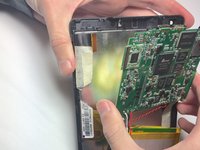
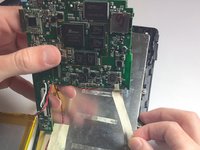
    • Peel back metal tape that is hiding the auxiliary port wires.

    • Remove tape that is holding the speaker wires in place.

    • Lift up on the motherboard to release it from the tablet.

    Pregunta a FixBot

    Agregar Comentario

  9. Screen Replacement, Screen: paso 9, imagen 1 de 1
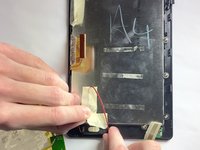
    • Use the nut driver and the J0 bit to unscrew the four 4 mm screws

    Pregunta a FixBot

    Agregar Comentario

  10. Screen Replacement: paso 10, imagen 1 de 2 Screen Replacement: paso 10, imagen 2 de 2
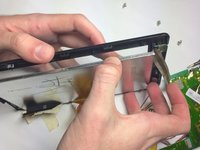
    • If your are replacing a broken screen be careful when handling broken glass.

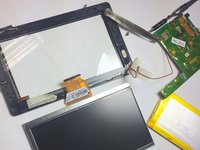
    • Remove the screen from the front cover of the device. At this point there should be no other component holding the screen down.

    Pregunta a FixBot

    Agregar Comentario

Conclusión

To reassemble your device, follow these instructions in reverse order.

Cancelar: No complete esta guía.

Una persona más ha completado esta guía.

Equipo

Baylor, Team 4-1, Williams Fall 2016 Miembro de Baylor, Team 4-1, Williams Fall 2016

BU-WILLIAMS-F16S4G1

Miembros de 4

14 Guías creadas

0Guía Comentarios

Agregar Comentario

Ver Estadísticas:

Ultimas 24 horas: 4

Ultimos 7 días: 23

Ultimos 30 días: 87

Todo El Tiempo: 3,505