Saltar al contenido principal
Únete a la Comunidad de Reparación - Crear Cuenta

Google Pixel C Power Button Replacement

Qué necesitas

  1. Google Pixel C Power Button Replacement, Screen: paso 1, imagen 1 de 1
    • Ensure that the device is completely powered down before beginning to take it apart

    • Use a heat gun to melt the adhesive that holds the screen to the device

    • Move the heat gun around the edge of the screen for approximately 1 minute, or until the screen can be lifted off in the next step.

    • Make sure not to heat the screen for too long because too much can damage other components inside the tablet.

    Pregunta a FixBot

    Agregar Comentario

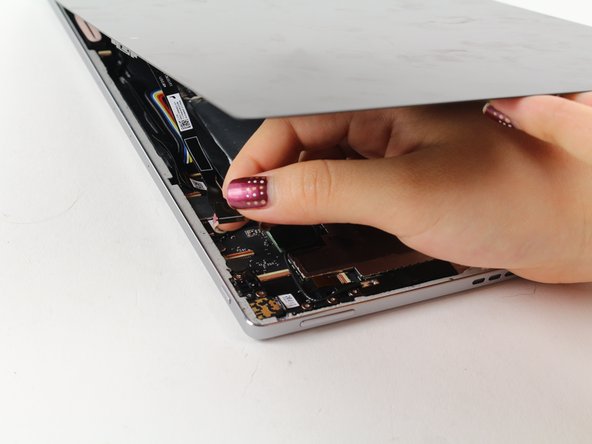
  2. Google Pixel C Power Button Replacement: paso 2, imagen 1 de 2 Google Pixel C Power Button Replacement: paso 2, imagen 2 de 2
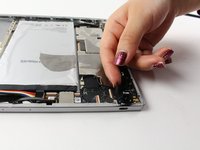
    • Use a suction cup to assist in lifting the screen while prying around its edges with a plastic spudger.

    • If necessary use a metal spudger to pry the screen up, taking care not to scratch the device.

    • Be careful not to pull the screen too far off. It will still be attached to the device by a cable for the front facing camera and the wide display data cable.

    • Reattaching the screen will require adhesive to ensure that it stays in place.

    Pregunta a FixBot

    Agregar Comentario

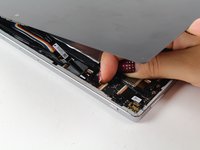
  3. Google Pixel C Power Button Replacement: paso 3, imagen 1 de 2 Google Pixel C Power Button Replacement: paso 3, imagen 2 de 2
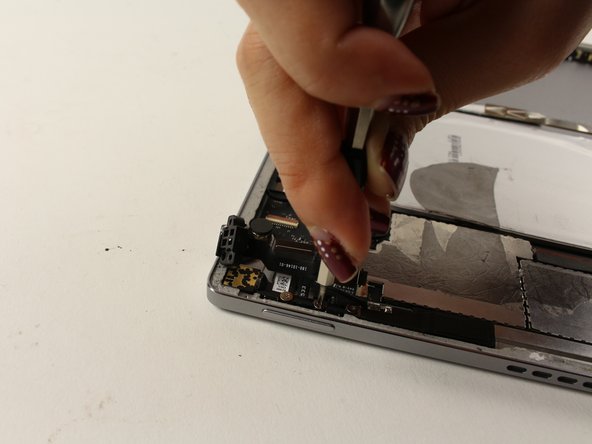
    • Detach the cables for the camera by lifting the small flap using the tip of your fingernail or a spudger. Gently pull the ribbon cable out.

    Pregunta a FixBot

    Agregar Comentario

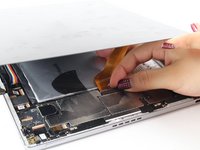
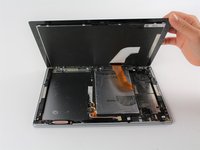
  4. Google Pixel C Power Button Replacement: paso 4, imagen 1 de 2 Google Pixel C Power Button Replacement: paso 4, imagen 2 de 2
    Herramienta utilizada en este paso:
    Tweezers
    $4.99
    • Follow the same removal procedure to detach the wide gold cable.

    • When reattaching cables, it is helpful to use tweezers to slide the cable in before securing it down with the flap.

    • This device is missing a battery, so the device that you are working on may appear slightly different inside.

    Pregunta a FixBot

    Agregar Comentario

  5. Google Pixel C Power Button Replacement, Power Button: paso 5, imagen 1 de 1
    • Locate the power button along the edge of the tablet.

    • The actual power button technology is the black plastic piece located directly inside the device behind the silver button; this is what will be replaced.

    Pregunta a FixBot

    Agregar Comentario

  6. Google Pixel C Power Button Replacement: paso 6, imagen 1 de 2 Google Pixel C Power Button Replacement: paso 6, imagen 2 de 2
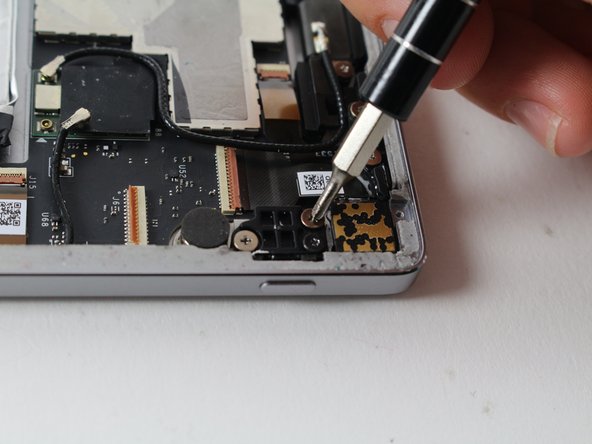
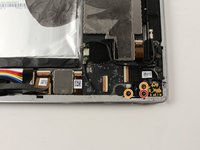
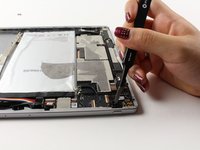
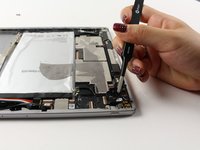
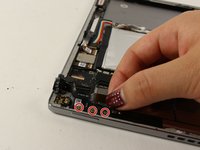
    • Locate and remove the black 4.3mm Phillips #000 screw.

    • Remove the remaining two silver 4.2mm Phillips #000 screws.

    Pregunta a FixBot

    Agregar Comentario

  7. Google Pixel C Power Button Replacement: paso 7, imagen 1 de 2 Google Pixel C Power Button Replacement: paso 7, imagen 2 de 2
    Herramienta utilizada en este paso:
    Tweezers
    $4.99
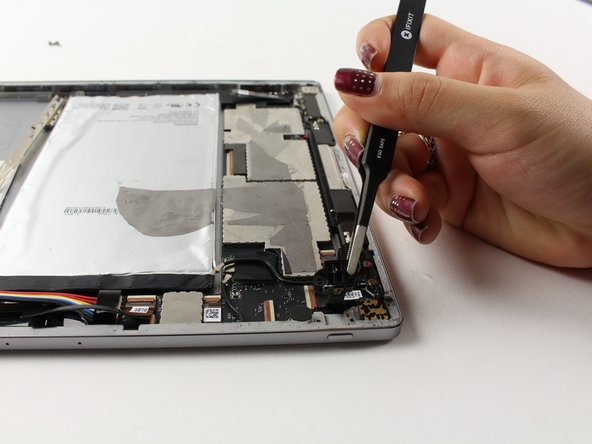
    • Use tweezers to slowly pull up on the power button technology as far as possible without pulling out the two black wires attached.

    • Don't pull up too hard, as the wires could be ripped out and damaged.

    Pregunta a FixBot

    Agregar Comentario

  8. Google Pixel C Power Button Replacement: paso 8, imagen 1 de 2 Google Pixel C Power Button Replacement: paso 8, imagen 2 de 2
    • Detach the larger connector wire by flipping the copper hinge located at the base of the connection with your fingernail.

    Pregunta a FixBot

    Agregar Comentario

  9. Google Pixel C Power Button Replacement: paso 9, imagen 1 de 1
    • Flip the hinge of the second, more narrow wire to release the connection.

    • Don't pull the power button technology out yet. This wire is attached at one more place in the device.

    Pregunta a FixBot

    Agregar Comentario

  10. Google Pixel C Power Button Replacement: paso 10, imagen 1 de 2 Google Pixel C Power Button Replacement: paso 10, imagen 2 de 2
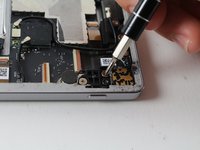
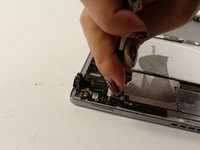
    • Locate and remove the three 4.2mm Phillips #000 screws at the base of where the second wire is still connected.

    Pregunta a FixBot

    Agregar Comentario

  11. Google Pixel C Power Button Replacement: paso 11, imagen 1 de 2 Google Pixel C Power Button Replacement: paso 11, imagen 2 de 2
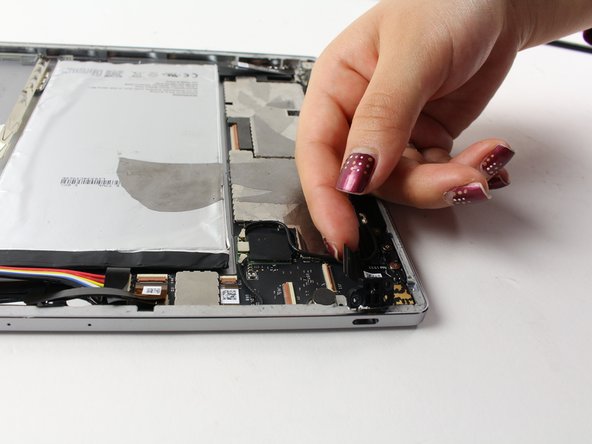
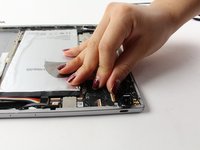
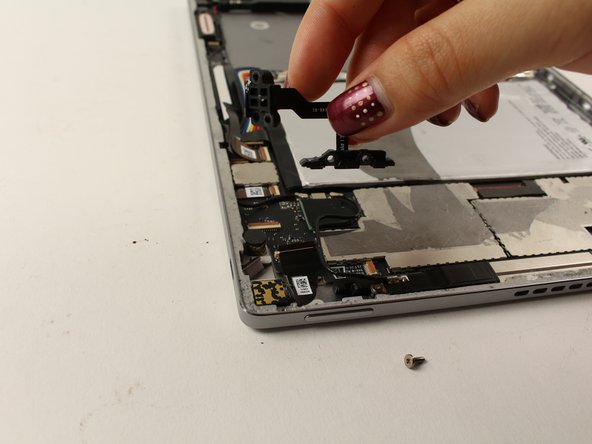
    • Once all the screws are removed, gently pull up on the entire power button technology piece, to remove it from the device.

    Pregunta a FixBot

    Agregar Comentario

Conclusión

To reassemble your device, follow these instructions in reverse order. New adhesive will be needed to re-apply the screen.

Cancelar: No complete esta guía.

Una persona más ha completado esta guía.

Isabelle Tang

Miembro Desde 04/26/17

225 Reputación

2 Guías creadas

Equipo

Cal Poly, Team S21-G4, Livingston Spring 2017 Miembro de Cal Poly, Team S21-G4, Livingston Spring 2017

CPSU-LIVINGSTON-S17S21G4

Miembros de 4

11 Guías creadas

1Guía Comentario

I have replaced the power/volume button flex with these instructions with a reportably working item, but power button still doesn't work. The volume buttons work just fine. Any other ideas about what might be the problem?

Colleen Price - Contestar Compartir

Agregar Comentario

Ver Estadísticas:

Ultimas 24 horas: 2

Ultimos 7 días: 8

Ultimos 30 días: 49

Todo El Tiempo: 3,121