Saltar al contenido principal
Únete a la Comunidad de Reparación - Crear Cuenta

Ematic Genesis Screen Replacement

Qué necesitas

  1. Ematic Genesis Screen Replacement, Ematic Genesis Casing: paso 1, imagen 1 de 3 Ematic Genesis Screen Replacement, Ematic Genesis Casing: paso 1, imagen 2 de 3 Ematic Genesis Screen Replacement, Ematic Genesis Casing: paso 1, imagen 3 de 3
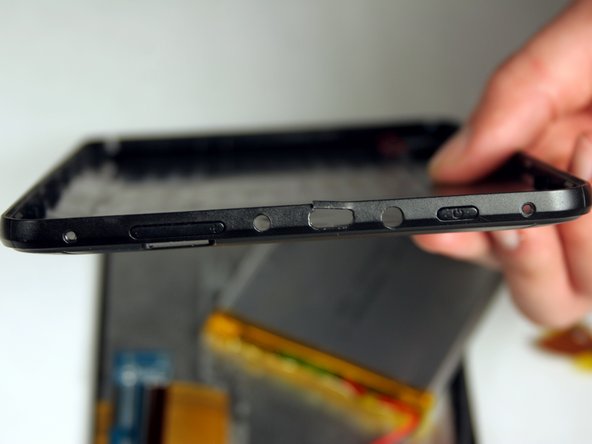
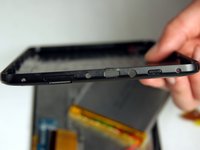
    • Unscrew the two (2) 1.3mm Phillips #00 screws found on the bottom edge of the tablet, where the power and volume buttons are located.

    Pregunta a FixBot
  2. Ematic Genesis Screen Replacement: paso 2, imagen 1 de 3 Ematic Genesis Screen Replacement: paso 2, imagen 2 de 3 Ematic Genesis Screen Replacement: paso 2, imagen 3 de 3
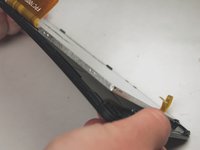
    • Insert plastic opening tool into the edge between the screen plate and the back plate to create a separation between the casings.

    • Insert the flat end of the spudger next to the plastic opening tool and carefully pry the edges apart. Continue this all around the edges until the casings separate.

    • There may be cracking sounds when prying them apart. If carefully done, this is only the locks coming apart and is not harmful.

    • Be careful when separating the two plates as they are connected by the speaker wires and could be disconnected during this process.

    Pregunta a FixBot
  3. Ematic Genesis Screen Replacement: paso 3, imagen 1 de 1
    • Remove back plate from screen plate and lay both down flat next to each other.

    • Be careful when separating the two plates as they are connected by the speaker wires and could be disconnected during this process.

    Pregunta a FixBot
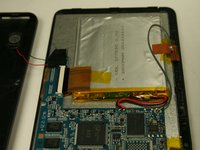
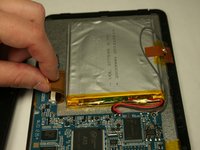
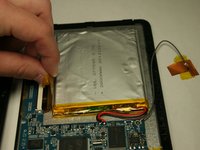
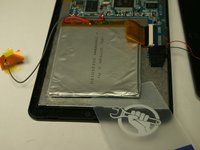
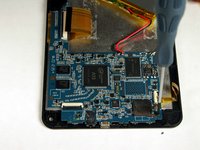
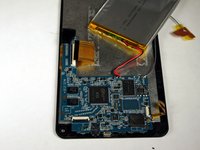
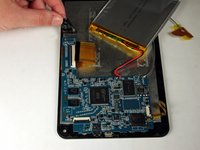
  4. Ematic Genesis Screen Replacement, Battery: paso 4, imagen 1 de 3 Ematic Genesis Screen Replacement, Battery: paso 4, imagen 2 de 3 Ematic Genesis Screen Replacement, Battery: paso 4, imagen 3 de 3
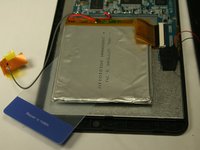
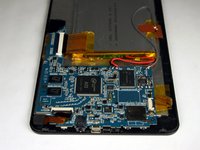
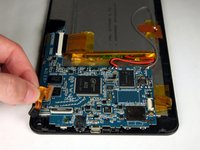
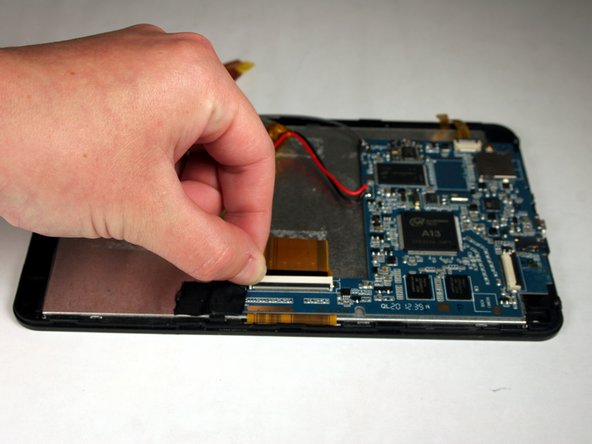
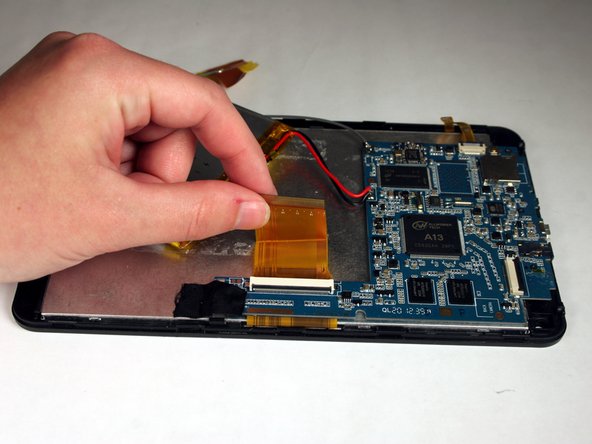
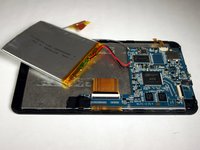
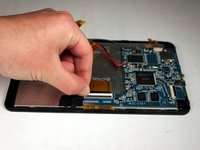
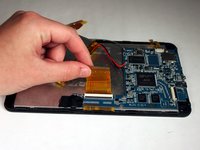
    • Lift up the two pieces of tape holding the copper plate and the connector ribbon to the battery. Gently hold or place away from the battery.

    Pregunta a FixBot
  5. Ematic Genesis Screen Replacement: paso 5, imagen 1 de 3 Ematic Genesis Screen Replacement: paso 5, imagen 2 de 3 Ematic Genesis Screen Replacement: paso 5, imagen 3 de 3
    Herramienta utilizada en este paso:
    Plastic Cards
    $2.99
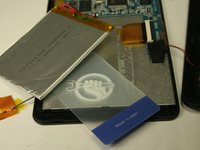
    • Using a plastic card, gently break the adhesive that holds the battery to the metal screen plate.

    • The battery is very bendable. Although it may not be working, there are still dangerous contents inside batteries.

    Pregunta a FixBot
  6. Ematic Genesis Screen Replacement: paso 6, imagen 1 de 1
    • If replacing the battery, disconnect the wires that connect the battery to the motherboard.

    • If not replacing the battery, do NOT disconnect the wires.

    • To reconnect the new battery, a soldering kit will be necessary. Use the iFixit soldering guide to gain further information on how to complete this step.

    • Cómo soldar y desoldar conexiones

    Pregunta a FixBot
  7. Ematic Genesis Screen Replacement, Camera: paso 7, imagen 1 de 2 Ematic Genesis Screen Replacement, Camera: paso 7, imagen 2 de 2
    • Once the panels are separated, remove the tape holding down the ribbon connector that is connecting the camera to the motherboard.

    Pregunta a FixBot
  8. Ematic Genesis Screen Replacement: paso 8, imagen 1 de 2 Ematic Genesis Screen Replacement: paso 8, imagen 2 de 2
    • Lift up the black lever of the connector that holds the camera ribbon in place.

    Pregunta a FixBot
  9. Ematic Genesis Screen Replacement: paso 9, imagen 1 de 2 Ematic Genesis Screen Replacement: paso 9, imagen 2 de 2
    • Gently pull the ribbon out of the connector and lift the camera out of the casing.

    • There is adhesive holding the camera in the case. Pull up strong enough to separate the camera from the casing without damaging the components.

    Pregunta a FixBot
  10. Ematic Genesis Screen Replacement, Button: paso 10, imagen 1 de 3 Ematic Genesis Screen Replacement, Button: paso 10, imagen 2 de 3 Ematic Genesis Screen Replacement, Button: paso 10, imagen 3 de 3
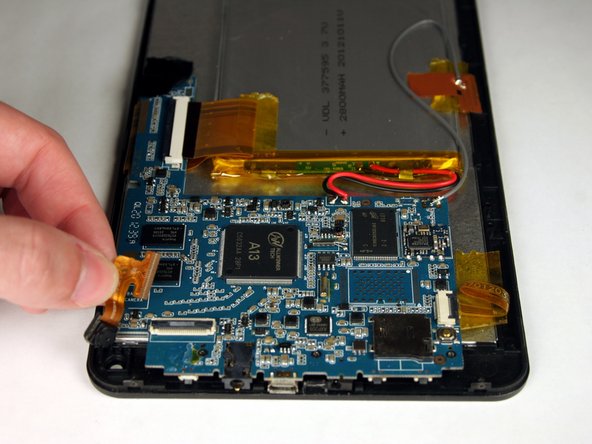
    • Once battery is removed, flip up the black lever of the connector that is holding the wide ribbon in place for the screen. Remove the ribbon from the connector.

    Pregunta a FixBot
  11. Ematic Genesis Screen Replacement: paso 11, imagen 1 de 3 Ematic Genesis Screen Replacement: paso 11, imagen 2 de 3 Ematic Genesis Screen Replacement: paso 11, imagen 3 de 3
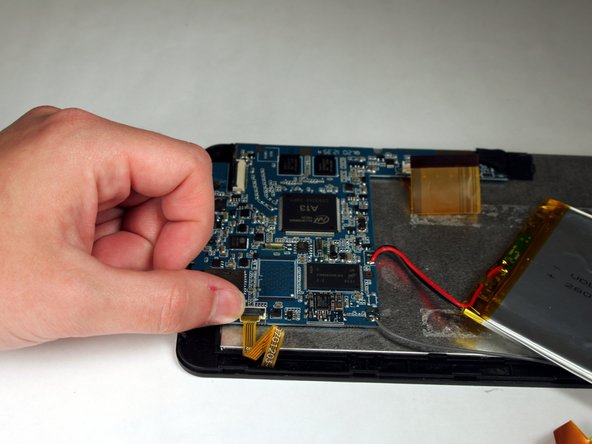
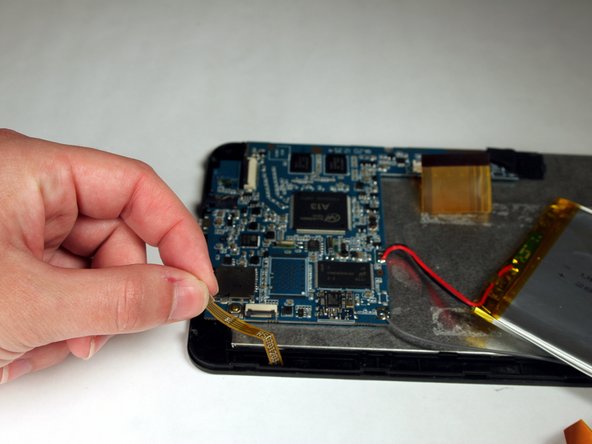
    • Rotate the tablet 180 degrees and flip up the black lever of the connector holding the small, yellow ribbon. Remove ribbon from the connector.

    Pregunta a FixBot
  12. Ematic Genesis Screen Replacement: paso 12, imagen 1 de 3 Ematic Genesis Screen Replacement: paso 12, imagen 2 de 3 Ematic Genesis Screen Replacement: paso 12, imagen 3 de 3
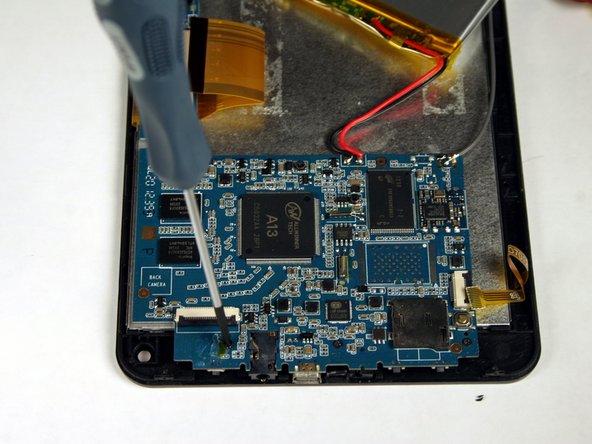
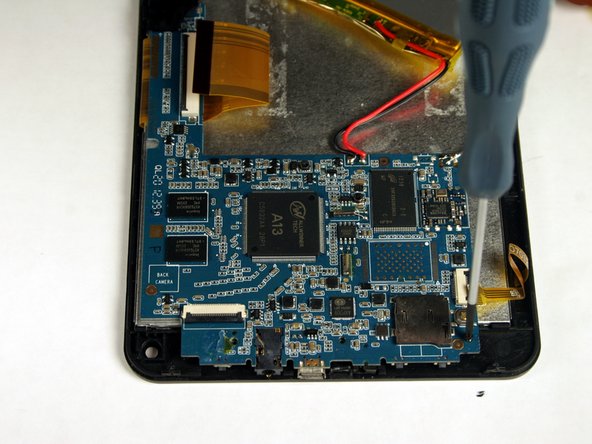
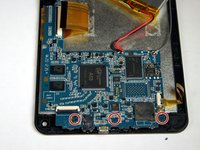
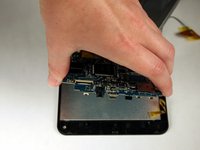
    • Rotate the tablet 90 degrees and remove the three (3) 1.3 mm Phillips #00 screws that hold the motherboard in place.

    Pregunta a FixBot
  13. Ematic Genesis Screen Replacement: paso 13, imagen 1 de 2 Ematic Genesis Screen Replacement: paso 13, imagen 2 de 2
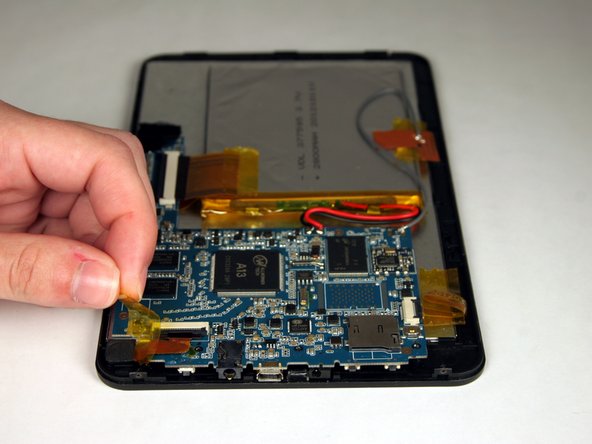
    • Lift up the tape that covers the speaker wires and holds the motherboard in place.

    • This picture does not show speaker wires attached. These do NOT have to be disconnected for this.

    • Be careful not to disconnect the speaker wires from the motherboard. Otherwise, they will need to be soldered back on.

    Pregunta a FixBot
  14. Ematic Genesis Screen Replacement: paso 14, imagen 1 de 2 Ematic Genesis Screen Replacement: paso 14, imagen 2 de 2
    • With the motherboard detached from the screen plate, there is now access to the electrical components under the motherboard and the mechanical button components on the back plate.

    Pregunta a FixBot
  15. Ematic Genesis Screen Replacement, Screen: paso 15, imagen 1 de 2 Ematic Genesis Screen Replacement, Screen: paso 15, imagen 2 de 2
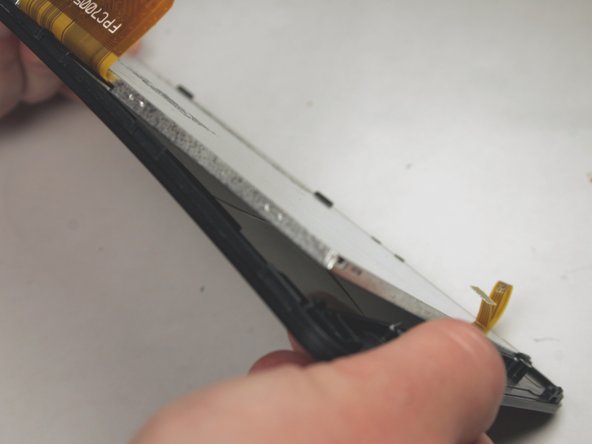
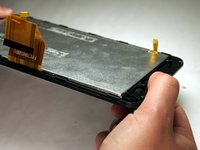
    • Once the battery and motherboard have been removed, gently bend the screen plate to pop out the metal digitizer that sits on the glass and plastic screen.

    • Be careful when bending as glass could break.

    Pregunta a FixBot
Conclusión

To reassemble your device, follow these instructions in reverse order.

Una persona más ha completado esta guía.

Equipo

Baylor, Team 4-3, Williams Spring 2015 Miembro de Baylor, Team 4-3, Williams Spring 2015

BU-WILLIAMS-S15S4G3

Miembros de 3

12 Guías creadas

0Guía Comentarios

Agregar Comentario

Ver Estadísticas:

Ultimas 24 horas: 0

Ultimos 7 días: 4

Ultimos 30 días: 54

Todo El Tiempo: 1,429