Introducción
Acceder a la RAM de este ordenador es sencillo y requiere un desmontaje mínimo.
El modelo de mediados de 2009 a 2,13 GHz es el único MacBook A1181 que utiliza RAM PC2-6400.
Qué necesitas
-
-
Utiliza una moneda o un spudger para girar el tornillo de bloqueo de la batería 90 grados en el sentido de las agujas del reloj.
-
-
-
-
Desatornilla los tres tornillos Phillips espaciados uniformemente a lo largo de la pared posterior del compartimento de la batería.
-
-
-
Tire hacia atrás la palanca de metal y deslice el chip RAM hacia afuera de su compartimiento.
-


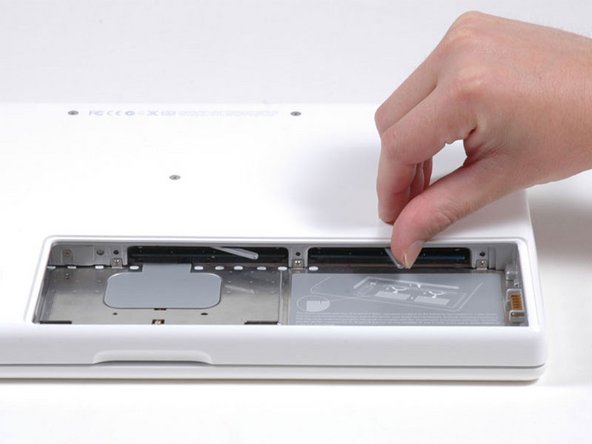
Para volver a ensamblar el dispositivo, siga estas instrucciones en orden inverso.
Cancelar: No complete esta guía.
455 personas más completaron esta guía.
Un agradecimiento especial a estos traductores:
100%

¡ Angel nos está ayudando a reparar el mundo! ¿Quieres contribuir?
Empezar a traducir ›

19Guía Comentarios
another great tutorial ~ this was very easy, took maybe 10 minutes max, and now i have a noticeably faster computer. i agree with the previous comment that you need to push the new ram in rather firmly.
Success! Fifth time was the charm! I tried to move up from the original 2x1Gb RAM configuration in my MacBook 6.4 Ghz Core 2 Duo to 6 Gb RAM (1x4 Gb + 1x2 Gb, all from iFixit). Followed instructions exactly after grounding myself several times etc, put the 4Gb module on the left and 2 Gb on the right but got the dreaded "three beep." Tried re-installing w/ the 4Gb module on the right--no joy. Tried re-installing old 1+1; no problem, so obviously I was seating the modules correctly. Fourth time: Just installed the new 2 GB and left on of the old 1 Gb--success! The 4 Gb module seemed to be the problem. Tried one more time--attempt number FIVE. Put the 4 Gb back in for the third time (in place of one of the old 1 Gb of course--SUCCESS. I heard a different click this time too. Anyway--I now have six times the RAM I originally had installed--Yea! Thanks, iFixit! Now, I'll work in my iMac!
someone told me that the macbook 2,1 could take 4 gb ram but only make use of 3 gb.... ?
can someone verify if this is true ?? and is it then posible to combine 1gb and 2gb of 2ddr pc5300 ?
