Saltar al contenido principal

Framework Desktop DIY Edition Quick Start Guide

Qué necesitas

  1. Framework Desktop DIY Edition Quick Start Guide, Unbox your Framework Desktop: paso 1, imagen 1 de 2 Framework Desktop DIY Edition Quick Start Guide, Unbox your Framework Desktop: paso 1, imagen 2 de 2
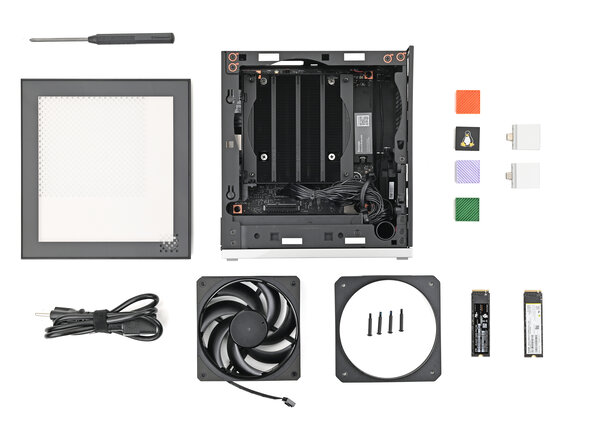
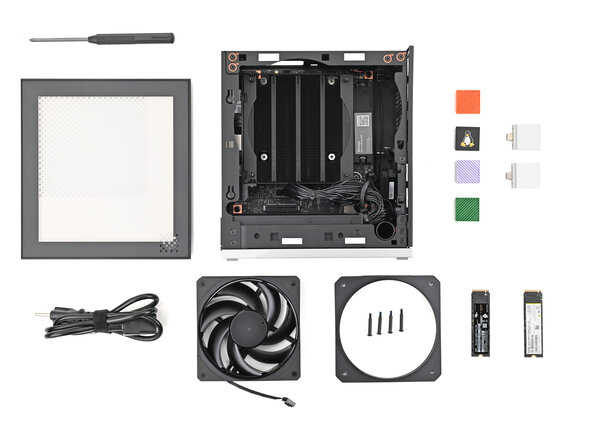
    • Unbox your Framework Desktop and make sure you've received the following items:

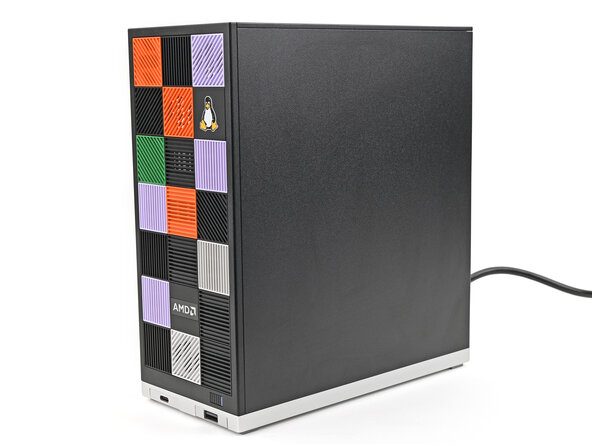
    • Framework Desktop chassis with pre-installed Mainboard, Heatsink, Power Supply, Top Panel, and Front Panel

    • Left Panel—either the Black or Translucent version

    • Framework Desktop Screwdriver

    • At least 21 Tiles for the Front Panel

  2. Framework Desktop DIY Edition Quick Start Guide: paso 2, imagen 1 de 2 Framework Desktop DIY Edition Quick Start Guide: paso 2, imagen 2 de 2
    • Additionally, make sure you've received the optional items you purchased from Framework:

    • AC Cable

    • Your choice of Fan and Mounting Kit

    • Expansion Card(s)

    • Primary and Secondary Storage

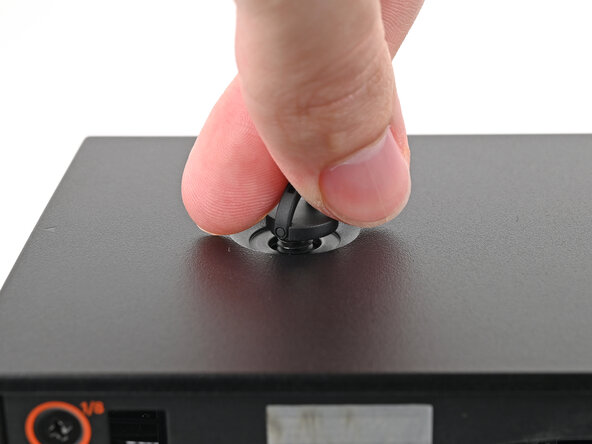
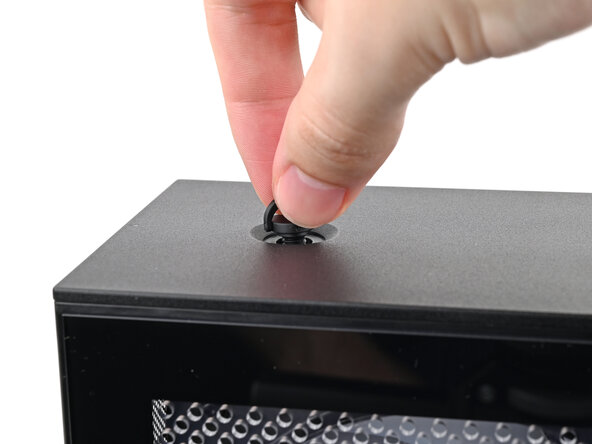
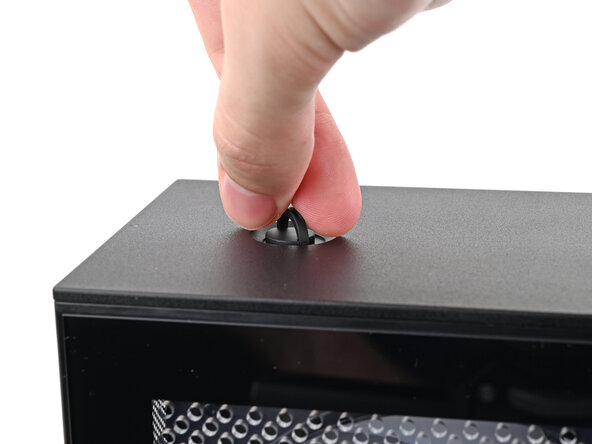
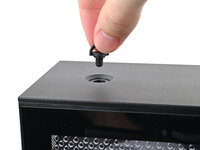
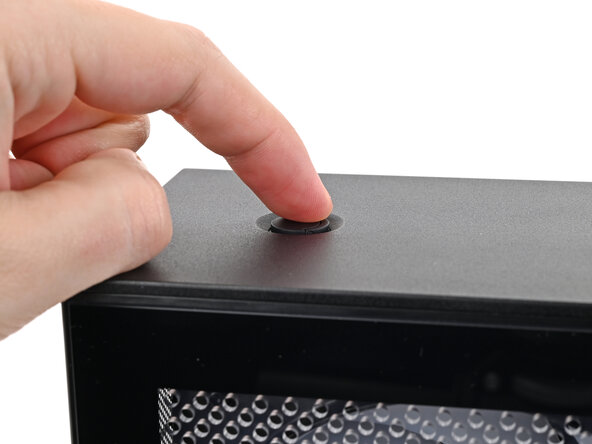
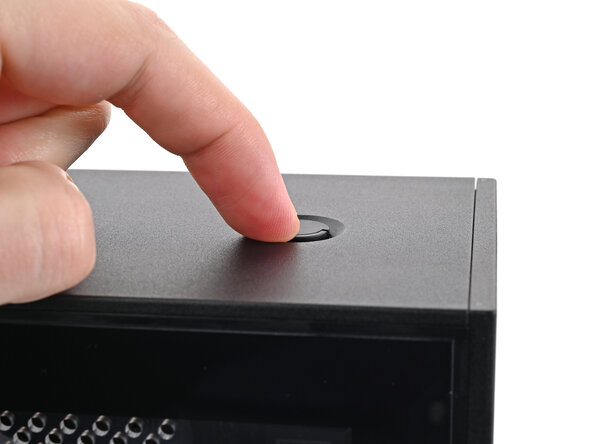
  3. Framework Desktop DIY Edition Quick Start Guide, Remove the Top Panel screws: paso 3, imagen 1 de 3 Framework Desktop DIY Edition Quick Start Guide, Remove the Top Panel screws: paso 3, imagen 2 de 3 Framework Desktop DIY Edition Quick Start Guide, Remove the Top Panel screws: paso 3, imagen 3 de 3
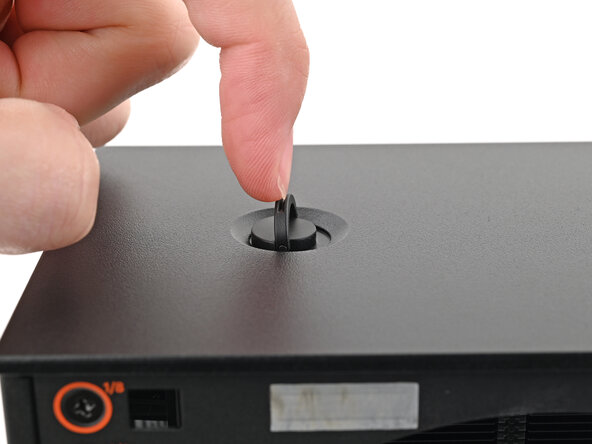
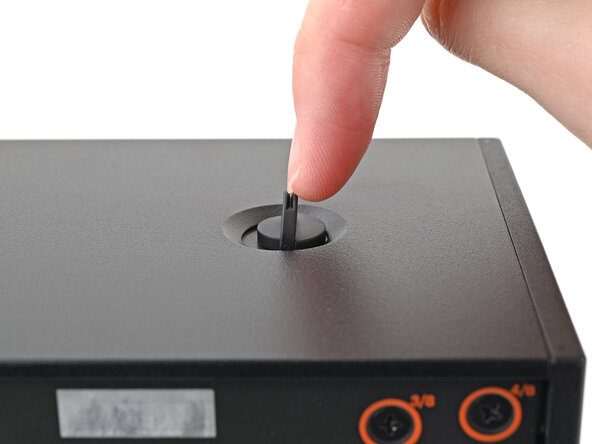
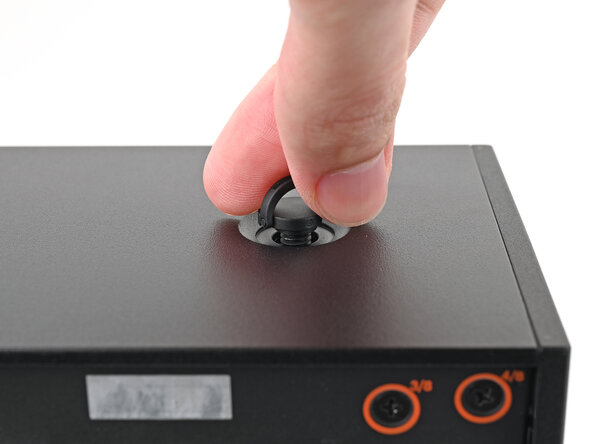
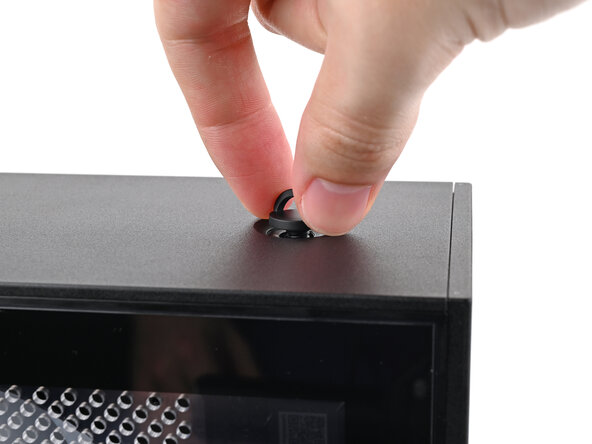
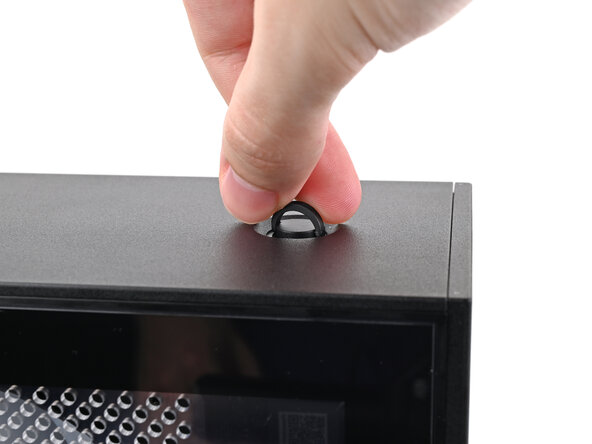
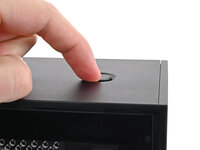
    • Use your finger to lift up the two D-rings on the Top Panel screws.

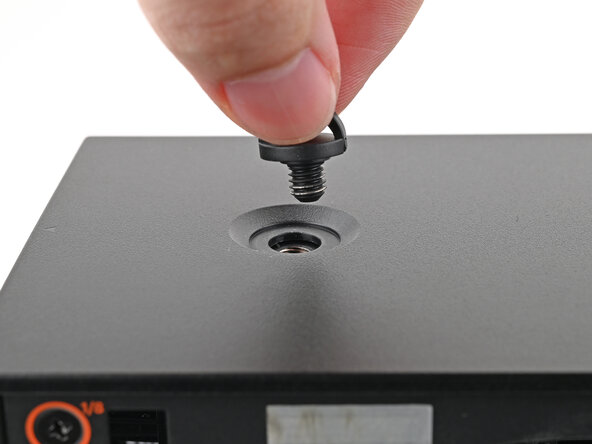
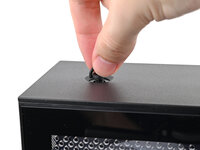
  4. Framework Desktop DIY Edition Quick Start Guide: paso 4, imagen 1 de 3 Framework Desktop DIY Edition Quick Start Guide: paso 4, imagen 2 de 3 Framework Desktop DIY Edition Quick Start Guide: paso 4, imagen 3 de 3
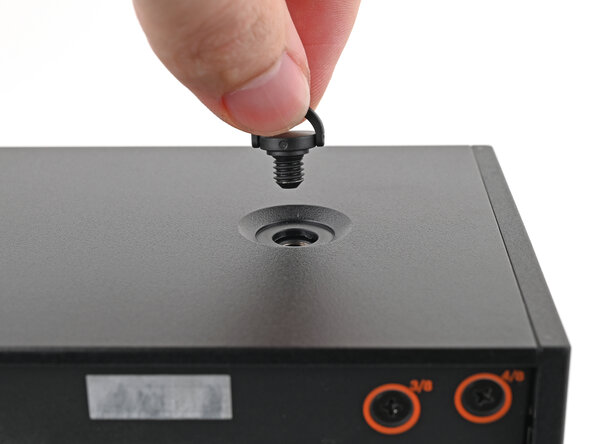
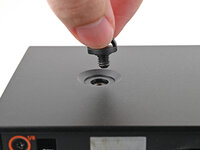
    • Use your fingers to twist the screw counter-clockwise and loosen it.

    • Remove the Top Panel screw.

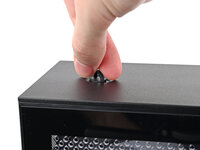
  5. Framework Desktop DIY Edition Quick Start Guide: paso 5, imagen 1 de 3 Framework Desktop DIY Edition Quick Start Guide: paso 5, imagen 2 de 3 Framework Desktop DIY Edition Quick Start Guide: paso 5, imagen 3 de 3
    • Repeat the same procedure for the other Top Panel screw.

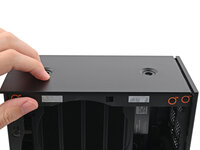
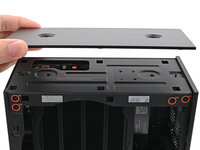
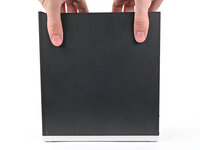
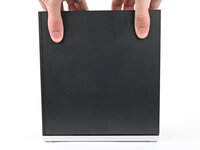
  6. Framework Desktop DIY Edition Quick Start Guide, Remove the Top Panel: paso 6, imagen 1 de 3 Framework Desktop DIY Edition Quick Start Guide, Remove the Top Panel: paso 6, imagen 2 de 3 Framework Desktop DIY Edition Quick Start Guide, Remove the Top Panel: paso 6, imagen 3 de 3
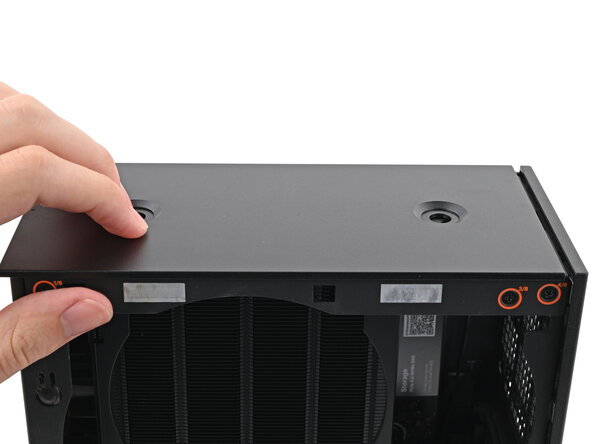
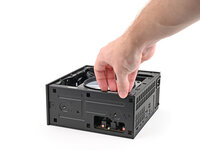
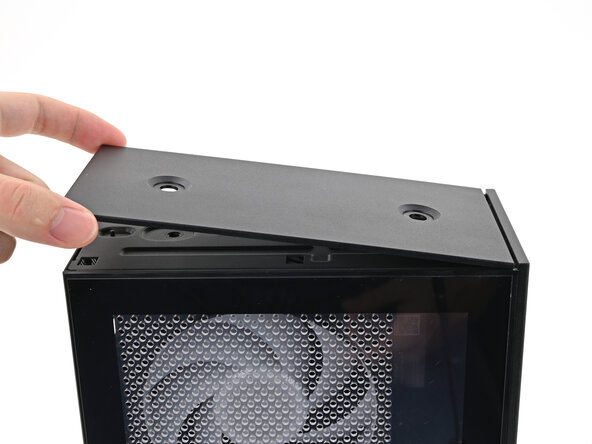
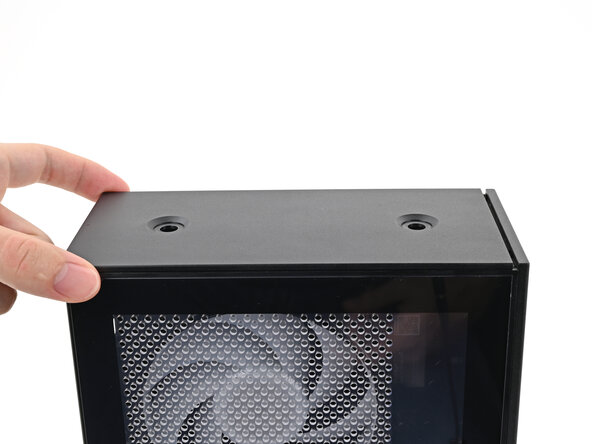
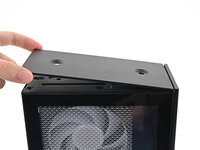
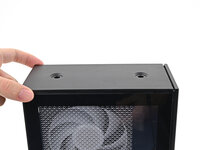
    • Slide the Top Panel towards the rear of the computer to release the clips securing it to the chassis.

    • If you're having a hard time gripping the Top Panel, use the screw holes to get a better handhold.

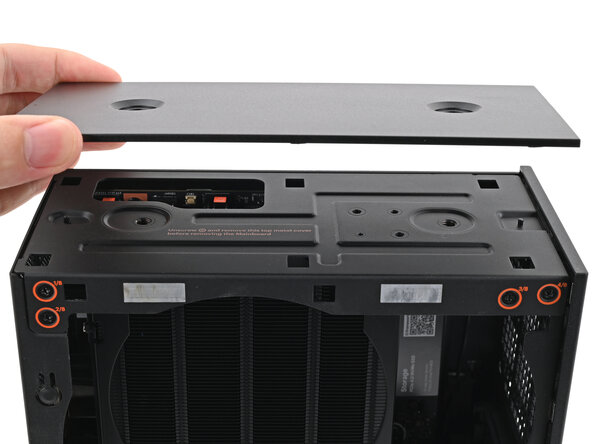
    • Lift the Top Panel off the chassis and remove it.

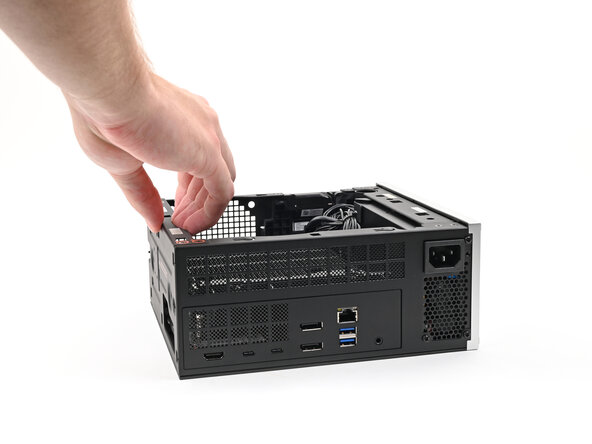
  7. Framework Desktop DIY Edition Quick Start Guide, Reposition the Desktop: paso 7, imagen 1 de 2 Framework Desktop DIY Edition Quick Start Guide, Reposition the Desktop: paso 7, imagen 2 de 2
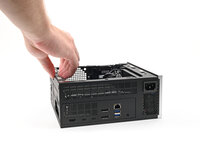
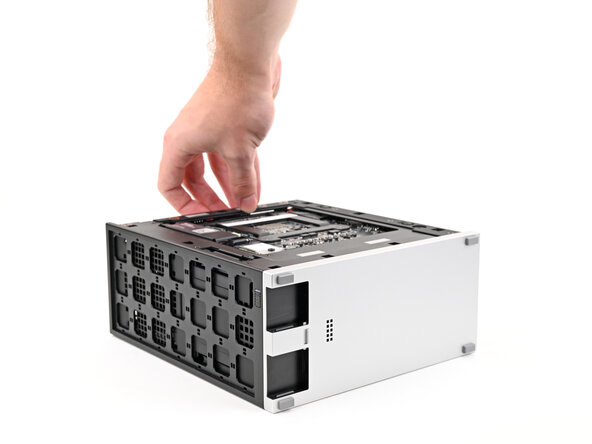
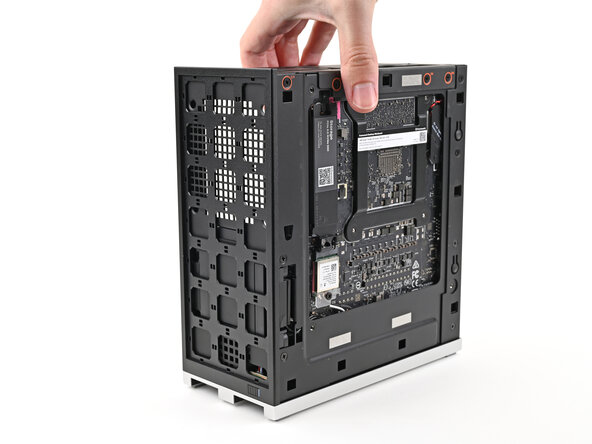
    • Lay the Desktop on its right side so its exposed internals are facing upward.

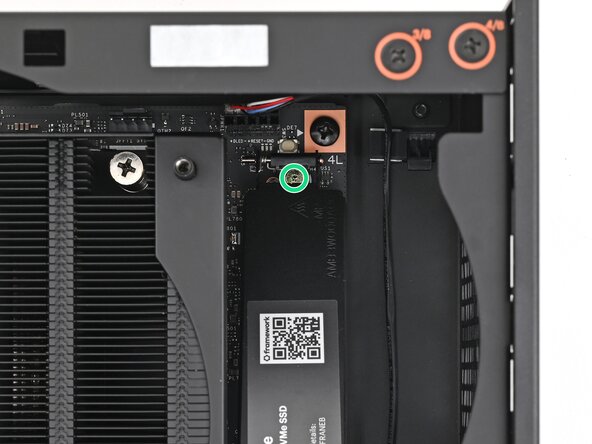
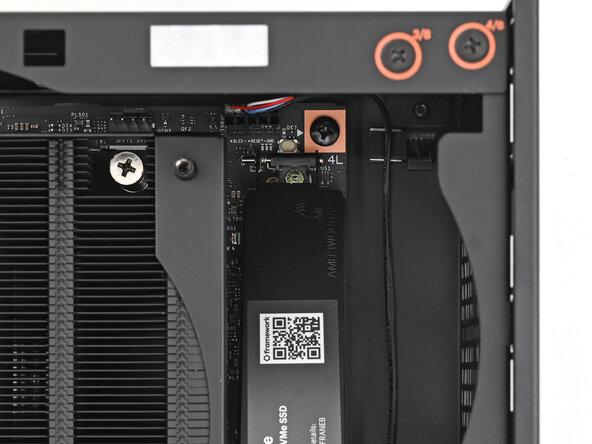
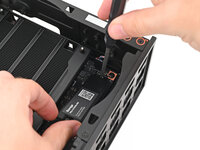
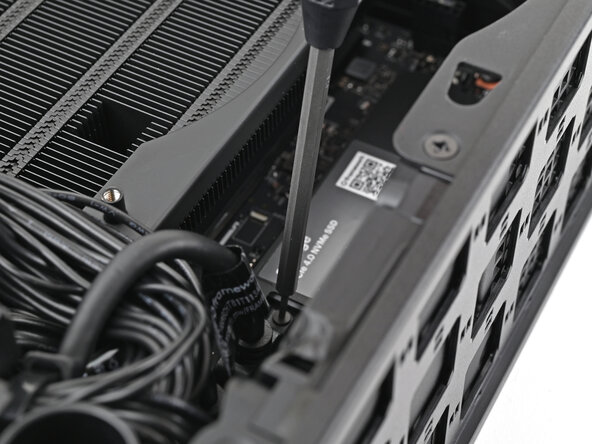
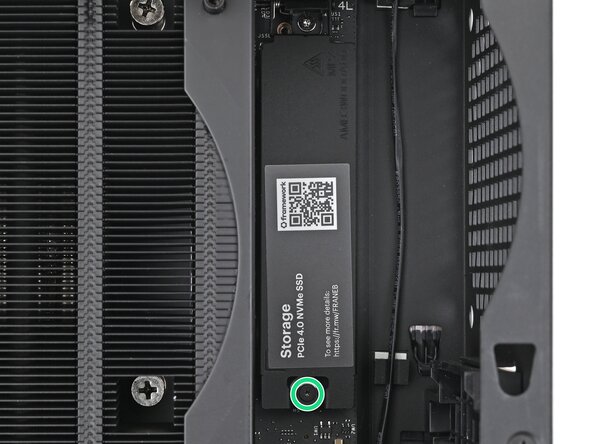
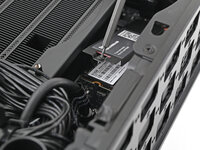
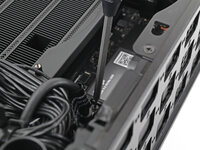
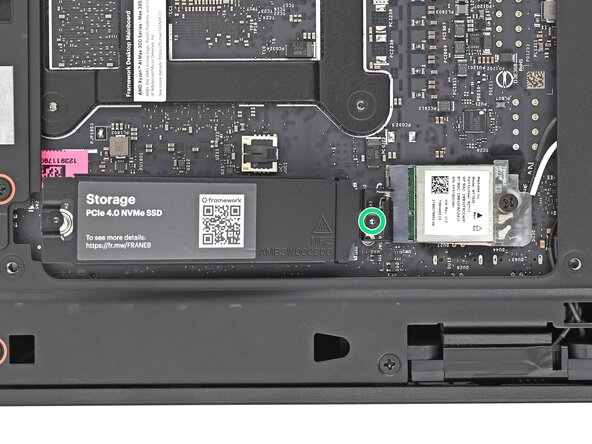
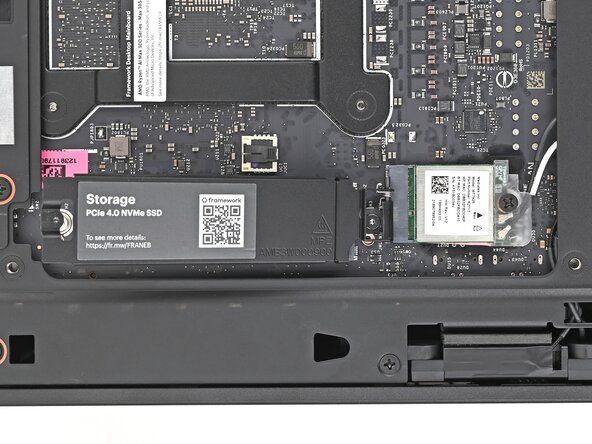
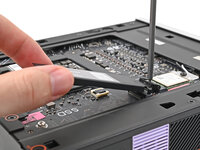
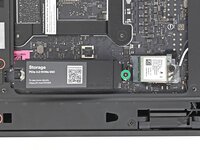
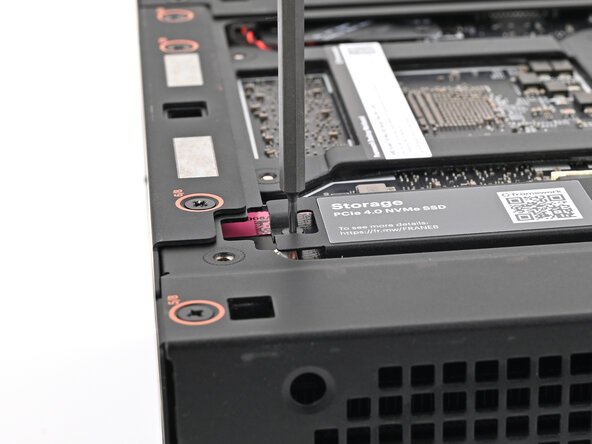
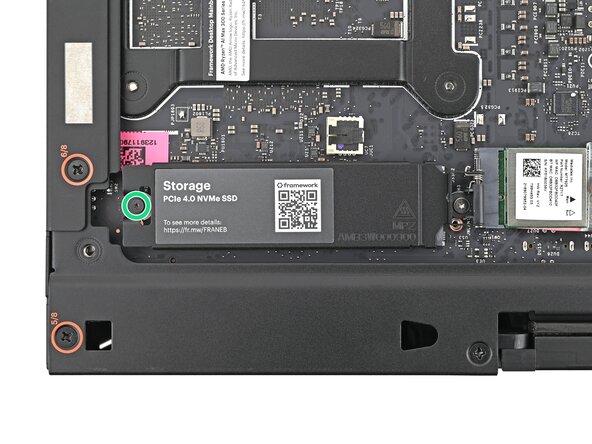
  8. Framework Desktop DIY Edition Quick Start Guide, Loosen the primary storage screw: paso 8, imagen 1 de 3 Framework Desktop DIY Edition Quick Start Guide, Loosen the primary storage screw: paso 8, imagen 2 de 3 Framework Desktop DIY Edition Quick Start Guide, Loosen the primary storage screw: paso 8, imagen 3 de 3
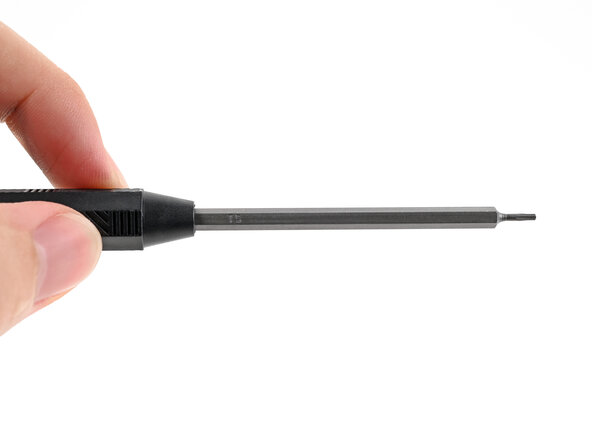
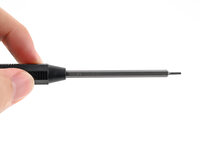
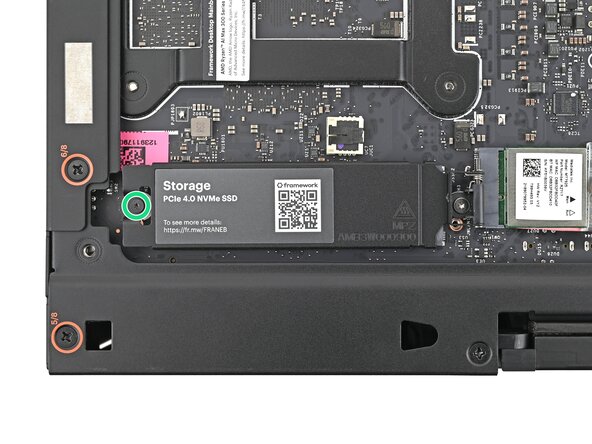
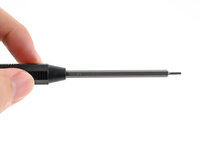
    • Make sure your Framework Desktop Screwdriver has the T5 Torx bit (labeled as T5) facing outwards. If it's not, pull the bit out and flip it.

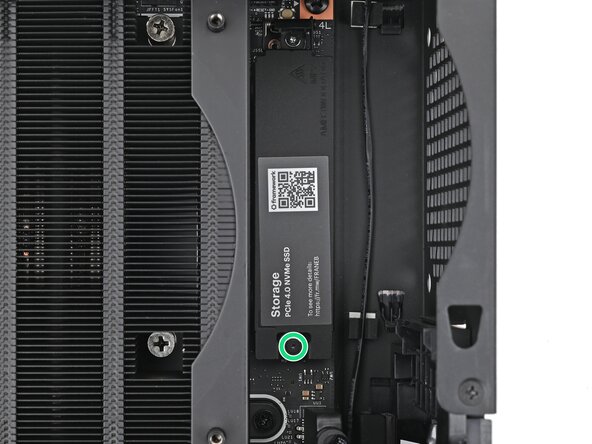
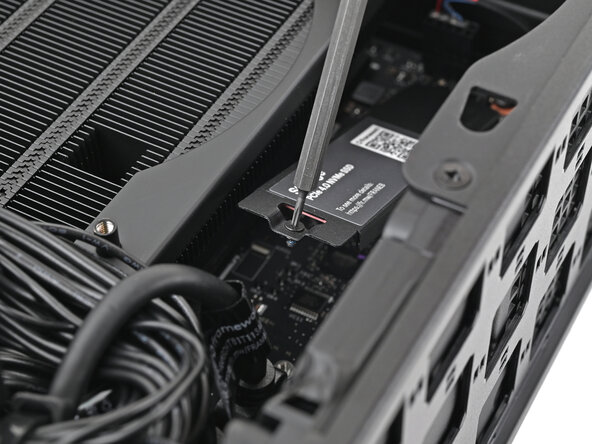
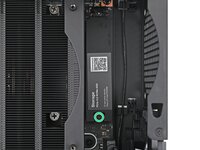
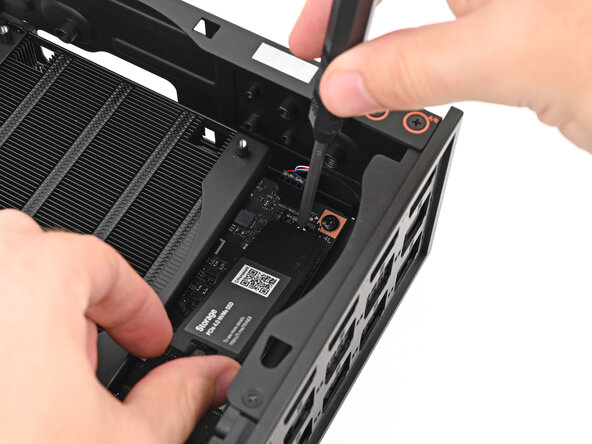
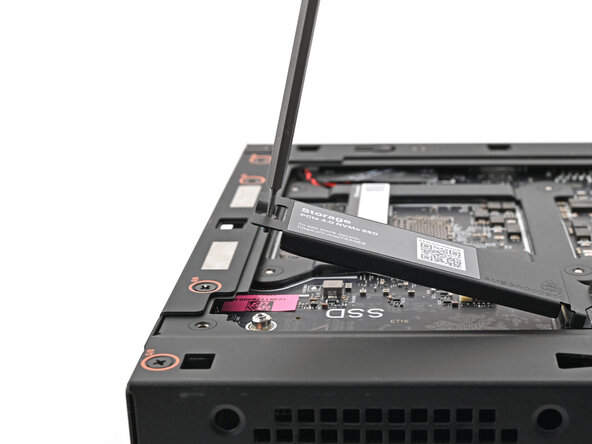
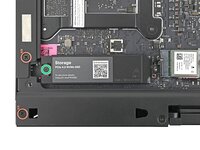
    • Use your Framework Desktop Screwdriver to loosen the captive screw T5 Torx securing the primary storage heat spreader.

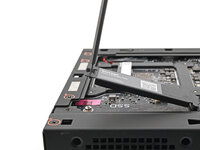
    • The heat spreader will pop up to an angle when its screw is fully loosened.

  9. Framework Desktop DIY Edition Quick Start Guide, Remove the primary storage heat spreader screw: paso 9, imagen 1 de 3 Framework Desktop DIY Edition Quick Start Guide, Remove the primary storage heat spreader screw: paso 9, imagen 2 de 3 Framework Desktop DIY Edition Quick Start Guide, Remove the primary storage heat spreader screw: paso 9, imagen 3 de 3
    • If your SSD comes with a pre-installed heat spreader, follow the next two steps. Otherwise skip here.

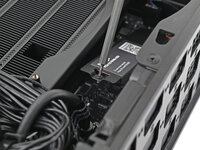
    • While securing the primary storage heat spreader with one hand, use your Framework Desktop Screwdriver to remove the 4.5 mm‑long T5 Torx screw securing it.

  10. Framework Desktop DIY Edition Quick Start Guide, Remove the primary storage heat spreader: paso 10, imagen 1 de 1
    • Lift the primary storage heat spreader out of the Desktop and remove it.

    • Follow the guide normally, making sure to ignore instructions that involve the primary storage heat spreader.

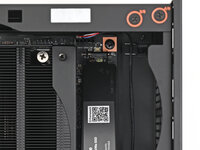
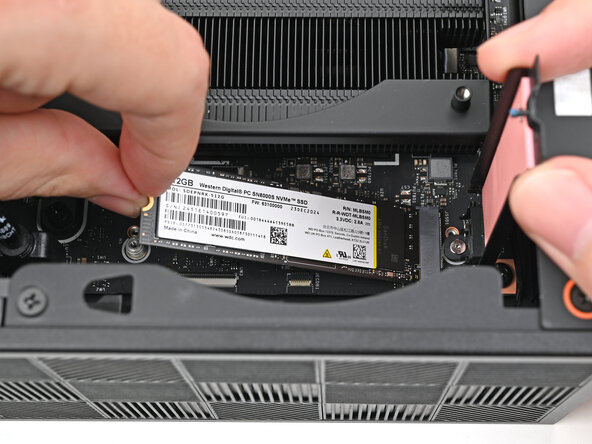
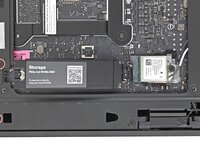
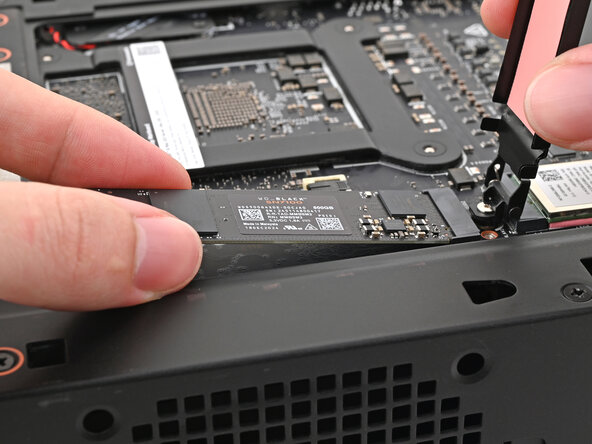
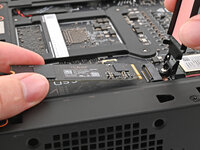
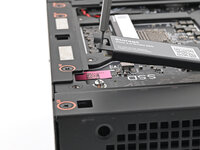
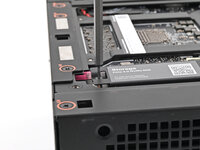
  11. Framework Desktop DIY Edition Quick Start Guide, Install the primary storage: paso 11, imagen 1 de 2 Framework Desktop DIY Edition Quick Start Guide, Install the primary storage: paso 11, imagen 2 de 2
    • Hold the SSD by its edges. Don't touch the gold contacts with your fingers. If you do, wipe the contacts with a clean, lint-free cloth to remove any finger oils.

    • While holding the heat spreader upright, align the SSD's gold contacts with its socket.

    • Insert the SSD into the socket at a shallow angle. The gold contacts should mostly be covered by the socket.

    • The SSD fits into the socket in one orientation. If it doesn't feel like it fits, try flipping the module.

    • Lay the heat spreader back onto the SSD.

  12. Framework Desktop DIY Edition Quick Start Guide: paso 12, imagen 1 de 3 Framework Desktop DIY Edition Quick Start Guide: paso 12, imagen 2 de 3 Framework Desktop DIY Edition Quick Start Guide: paso 12, imagen 3 de 3
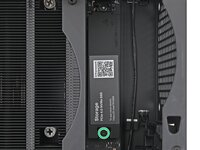
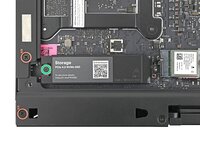
    • Insert your Framework Desktop Screwdriver into the captive screw on the primary storage heat spreader and press it flat to the Mainboard.

    • Tighten the screw securing the primary storage.

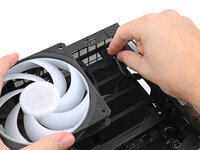
  13. Framework Desktop DIY Edition Quick Start Guide, Insert the CPU fan: paso 13, imagen 1 de 3 Framework Desktop DIY Edition Quick Start Guide, Insert the CPU fan: paso 13, imagen 2 de 3 Framework Desktop DIY Edition Quick Start Guide, Insert the CPU fan: paso 13, imagen 3 de 3
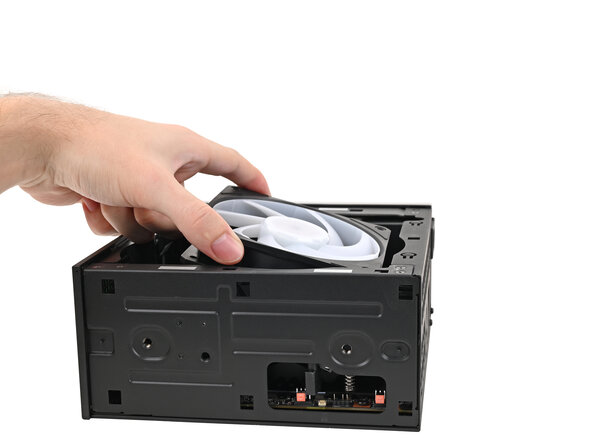
    • The next seven steps show how to install the CPU fan. Depending on which fan you have, these steps might look slightly different. Follow the directions closely to ensure you install your fan correctly.

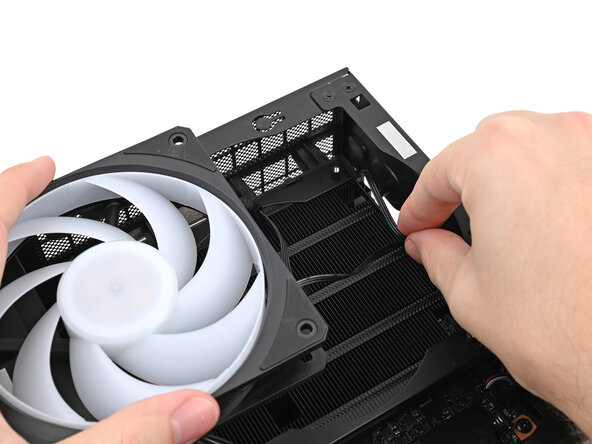
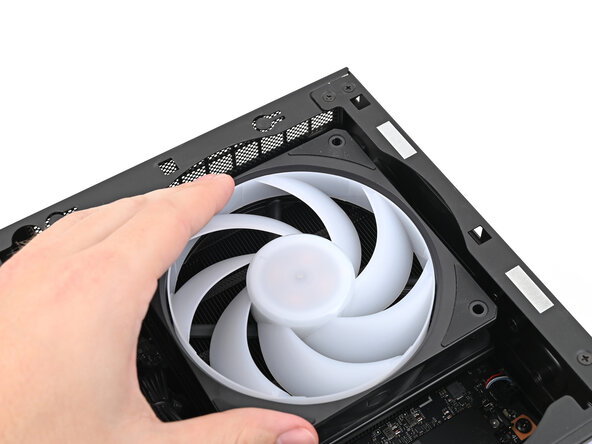
    • Orient the fan so its label is facing downward and the cable(s) is pointing towards the top of the computer.

    • If your fan has an arrow indicating airflow direction, make sure it's pointed towards the heatsink.

    • If you're using a different fan, orient it such that the fan is blowing towards the heatsink, not away.

    • Lay the fan on top of the heatsink, making sure the cable(s) are routed so they poke out of the hole on the top of the computer.

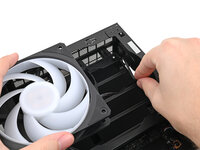
  14. Framework Desktop DIY Edition Quick Start Guide: paso 14, imagen 1 de 3 Framework Desktop DIY Edition Quick Start Guide: paso 14, imagen 2 de 3 Framework Desktop DIY Edition Quick Start Guide: paso 14, imagen 3 de 3
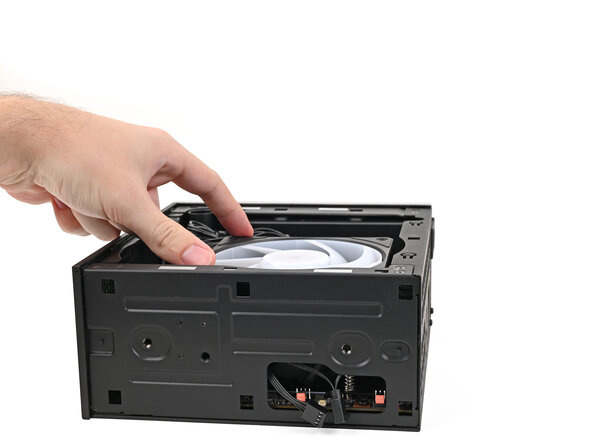
    • If the cable(s) aren't routed properly, lift the fan up slightly and use your fingers to reposition the cables over the side of the heatsink.

    • If you're installing an RGB fan, make sure the "male" end of the RGB cable is covered and set aside in the corner of the chassis.

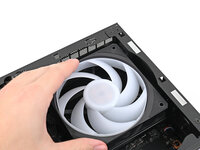
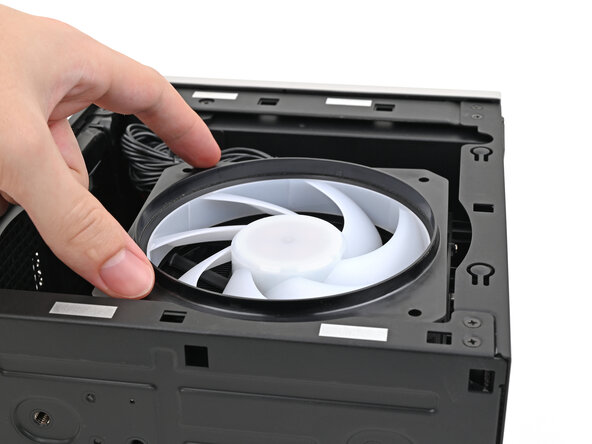
  15. Framework Desktop DIY Edition Quick Start Guide, Insert the fan duct: paso 15, imagen 1 de 2 Framework Desktop DIY Edition Quick Start Guide, Insert the fan duct: paso 15, imagen 2 de 2
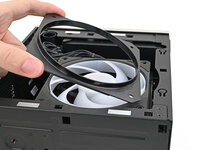
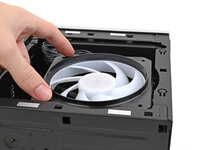
    • Lay the fan duct on top of the fan with the lip facing upward.

    • Align the screw holes on the fan duct with the ones on the fan.

  16. Framework Desktop DIY Edition Quick Start Guide, Install the fan screws: paso 16, imagen 1 de 2 Framework Desktop DIY Edition Quick Start Guide, Install the fan screws: paso 16, imagen 2 de 2
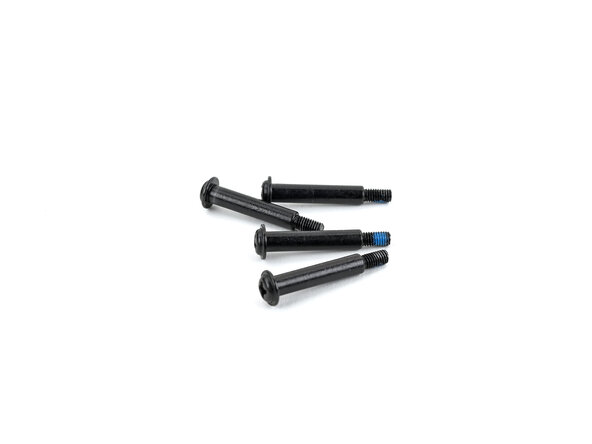
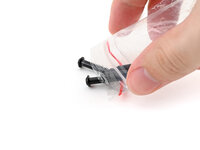
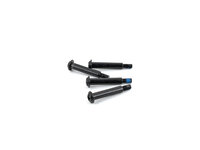
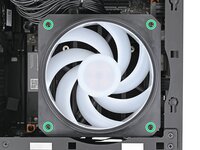
    • Remove the fan screws from their packaging and make sure there are four screws total.

  17. Framework Desktop DIY Edition Quick Start Guide: paso 17, imagen 1 de 3 Framework Desktop DIY Edition Quick Start Guide: paso 17, imagen 2 de 3 Framework Desktop DIY Edition Quick Start Guide: paso 17, imagen 3 de 3
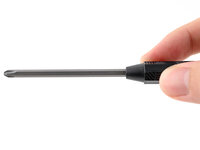
    • Make sure your Framework Desktop Screwdriver has the Phillips #2 bit (labeled as PH2) facing outwards. If it's not, pull the bit out and flip it.

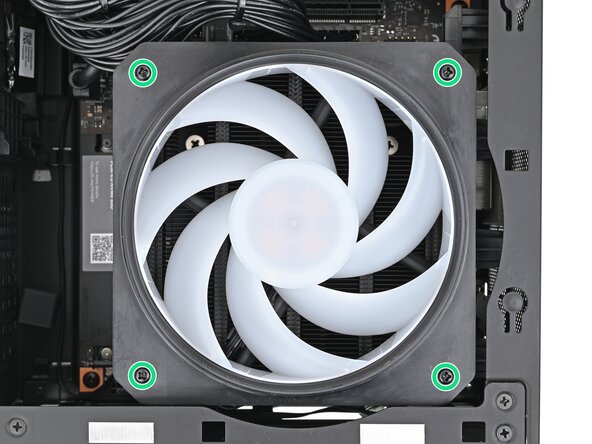
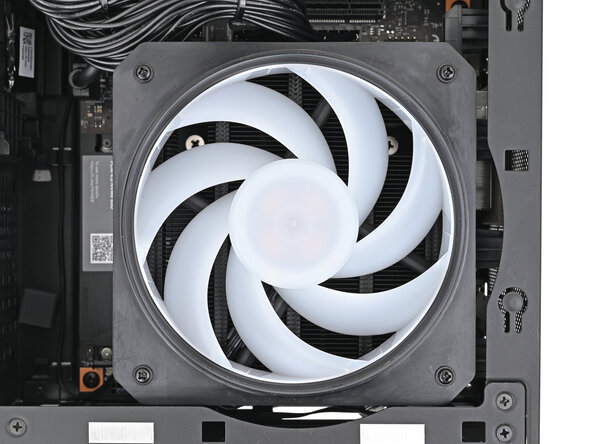
    • Use your Framework Desktop Screwdriver to install the four 27.3 mm‑long Phillips screws securing the fan and fan duct.

  18. Framework Desktop DIY Edition Quick Start Guide, Connect the fan: paso 18, imagen 1 de 2 Framework Desktop DIY Edition Quick Start Guide, Connect the fan: paso 18, imagen 2 de 2
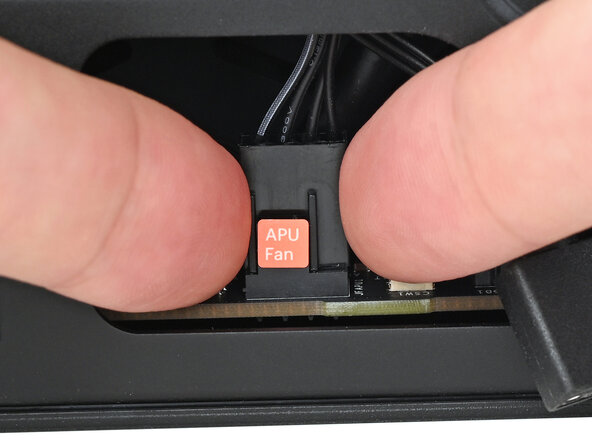
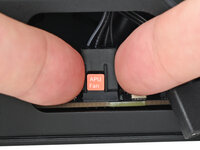
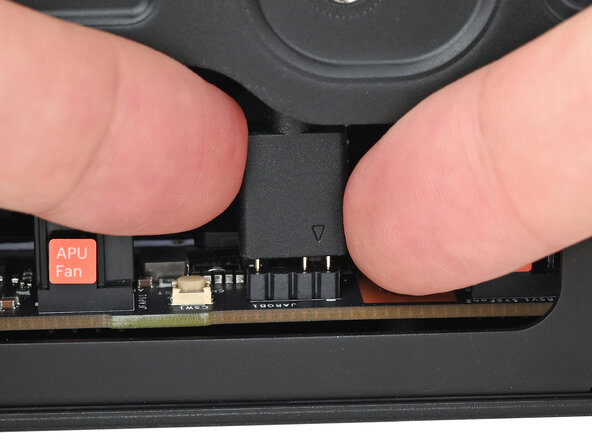
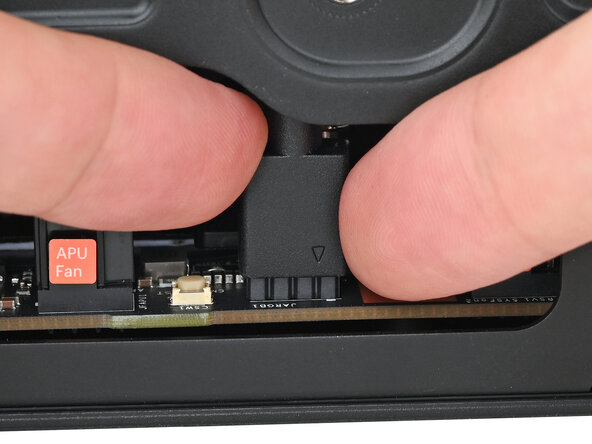
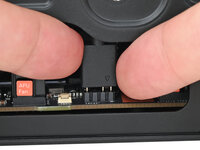
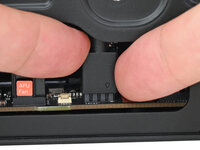
    • Orient the main fan cable so its two vertical lines are facing you.

    • Slide the main fan cable over the four-pronged connector labeled "APU Fan," making sure the orange label slots between the vertical lines.

  19. Framework Desktop DIY Edition Quick Start Guide, Connect the RGB cable: paso 19, imagen 1 de 3 Framework Desktop DIY Edition Quick Start Guide, Connect the RGB cable: paso 19, imagen 2 de 3 Framework Desktop DIY Edition Quick Start Guide, Connect the RGB cable: paso 19, imagen 3 de 3
    • If you aren't using an RGB fan, then skip this step.

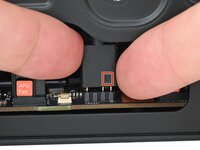
    • Orient the RGB cable so the arrow is on the right side of the connector.

    • Use your fingers to slide the RGB cable over the three pronged connector located to the right of the "APU Fan" connector.

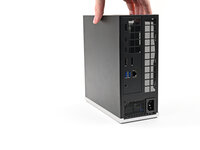
  20. Framework Desktop DIY Edition Quick Start Guide, Reposition the Desktop: paso 20, imagen 1 de 2 Framework Desktop DIY Edition Quick Start Guide, Reposition the Desktop: paso 20, imagen 2 de 2
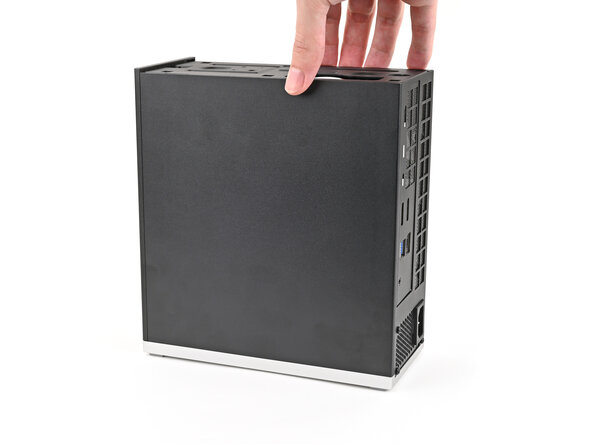
    • Rotate the Desktop so it sits upright on your work surface.

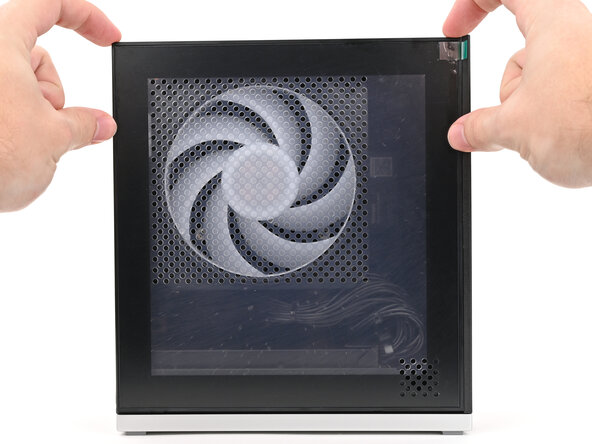
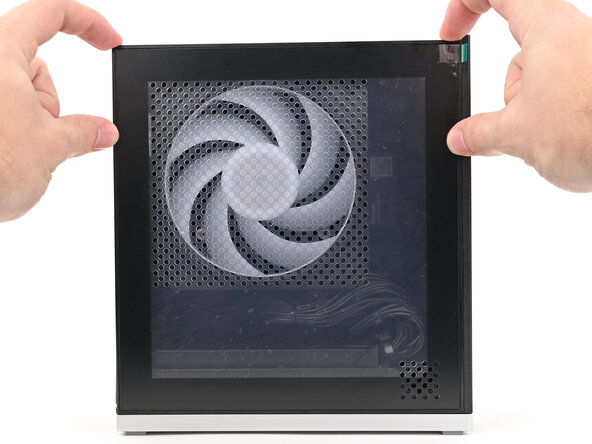
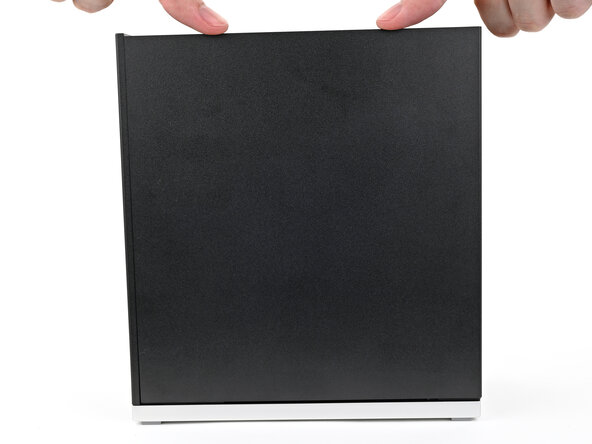
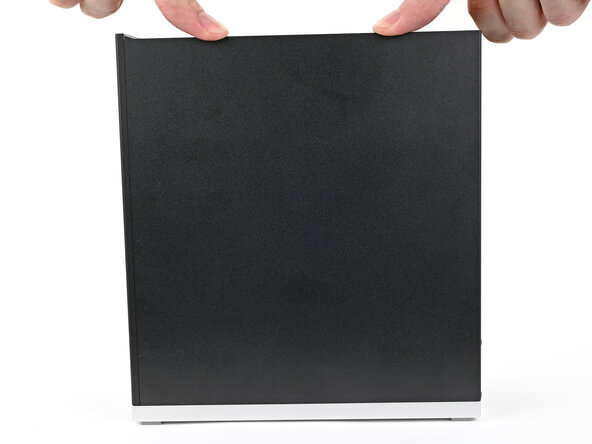
  21. Framework Desktop DIY Edition Quick Start Guide, Install the Left Panel: paso 21, imagen 1 de 3 Framework Desktop DIY Edition Quick Start Guide, Install the Left Panel: paso 21, imagen 2 de 3 Framework Desktop DIY Edition Quick Start Guide, Install the Left Panel: paso 21, imagen 3 de 3
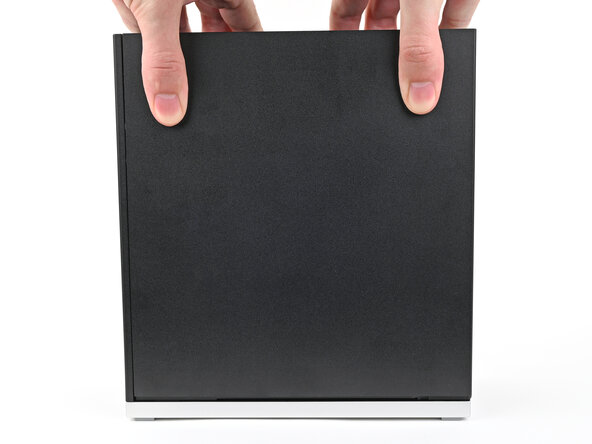
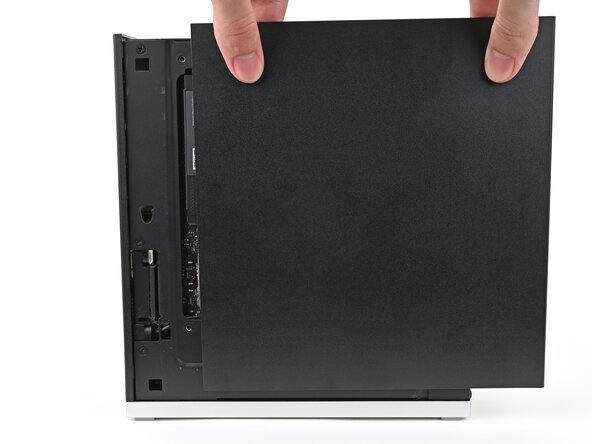
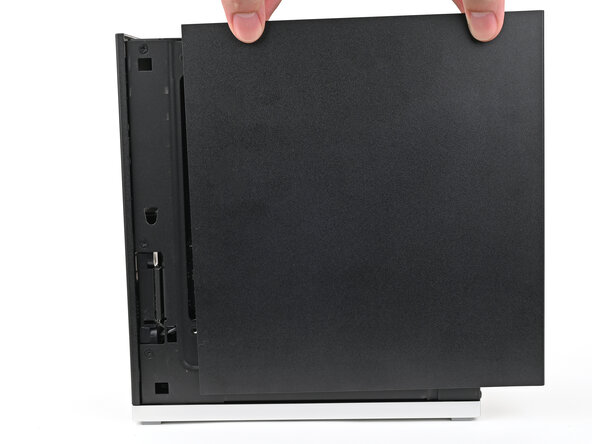
    • Slide the Left Panel onto the left edge of the chassis, from top to bottom, and press it flat to ensure its clips are slotted into place.

    • There should be a small gap between the bottom of the Left Panel and the silver base.

    • Push the Left Panel towards the base of the computer to engage the clips.

  22. Framework Desktop DIY Edition Quick Start Guide, Remove the Right Panel: paso 22, imagen 1 de 3 Framework Desktop DIY Edition Quick Start Guide, Remove the Right Panel: paso 22, imagen 2 de 3 Framework Desktop DIY Edition Quick Start Guide, Remove the Right Panel: paso 22, imagen 3 de 3
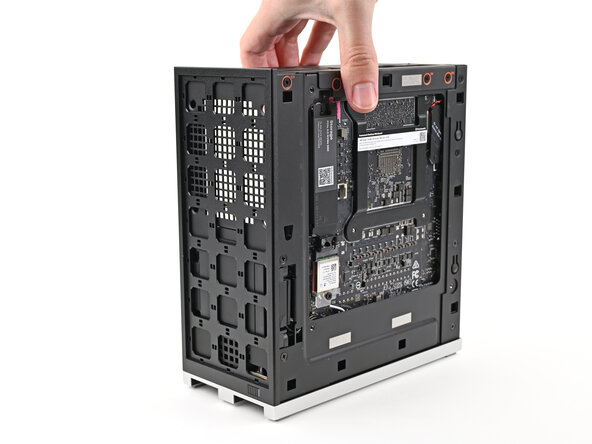
    • The next seven steps show how to install a secondary SSD. If you don't have another SSD, skip to here.

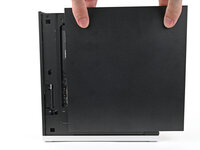
    • Use your fingers to grip the top of the Right Panel and slide it upward to release its clips.

    • Remove the Right Panel.

  23. Framework Desktop DIY Edition Quick Start Guide, Reposition the Desktop: paso 23, imagen 1 de 2 Framework Desktop DIY Edition Quick Start Guide, Reposition the Desktop: paso 23, imagen 2 de 2
    • Lay the left side of the Desktop on your work surface so the Mainboard is facing upward.

  24. Framework Desktop DIY Edition Quick Start Guide, Loosen the secondary storage screw: paso 24, imagen 1 de 3 Framework Desktop DIY Edition Quick Start Guide, Loosen the secondary storage screw: paso 24, imagen 2 de 3 Framework Desktop DIY Edition Quick Start Guide, Loosen the secondary storage screw: paso 24, imagen 3 de 3
    • Make sure your Framework Desktop Screwdriver has the T5 Torx bit (labeled as T5) facing outwards. If it's not, pull the bit out and flip it.

    • Use your Framework Desktop Screwdriver to loosen the captive T5 Torx screw securing the secondary storage.

    • The heat spreader will pop up to an angle when its screw is fully loosened.

  25. Framework Desktop DIY Edition Quick Start Guide, Remove the secondary storage heat spreader screw: paso 25, imagen 1 de 3 Framework Desktop DIY Edition Quick Start Guide, Remove the secondary storage heat spreader screw: paso 25, imagen 2 de 3 Framework Desktop DIY Edition Quick Start Guide, Remove the secondary storage heat spreader screw: paso 25, imagen 3 de 3
    • If your SSD comes with a pre-installed heat spreader, follow the next two steps. Otherwise skip here.

    • While securing the secondary storage heat spreader with one hand, use your Framework Desktop Screwdriver to remove the 4.5 mm‑long T5 Torx screw securing it.

  26. Framework Desktop DIY Edition Quick Start Guide, Remove the secondary storage heat spreader: paso 26, imagen 1 de 1
    • Lift the secondary storage heat spreader out of the Desktop and remove it.

    • Follow the guide normally, making sure to ignore instructions that involve the secondary heat spreader.

  27. Framework Desktop DIY Edition Quick Start Guide, Install the secondary storage: paso 27, imagen 1 de 2 Framework Desktop DIY Edition Quick Start Guide, Install the secondary storage: paso 27, imagen 2 de 2
    • Hold the SSD by its edges. Don't touch the gold contacts with your fingers. If you do, wipe the contacts with a clean, lint-free cloth to remove any finger oils.

    • While holding the heat spreader upright, align the SSD's gold contacts with its socket.

    • Insert the SSD into the socket at a shallow angle. The gold contacts should be mostly covered by the socket.

    • The SSD fits into the socket in one orientation. If it doesn't feel like it fits, try flipping the module.

  28. Framework Desktop DIY Edition Quick Start Guide: paso 28, imagen 1 de 3 Framework Desktop DIY Edition Quick Start Guide: paso 28, imagen 2 de 3 Framework Desktop DIY Edition Quick Start Guide: paso 28, imagen 3 de 3
    • Insert your Framework Desktop Screwdriver into the captive screw on the secondary storage heat spreader and press it flat to the Mainboard.

    • Tighten the screw securing the secondary storage.

  29. Framework Desktop DIY Edition Quick Start Guide, Reposition the Desktop: paso 29, imagen 1 de 2 Framework Desktop DIY Edition Quick Start Guide, Reposition the Desktop: paso 29, imagen 2 de 2
    • Lift the Desktop so it stands upright on your work surface.

  30. Framework Desktop DIY Edition Quick Start Guide, Install the Right Panel: paso 30, imagen 1 de 3 Framework Desktop DIY Edition Quick Start Guide, Install the Right Panel: paso 30, imagen 2 de 3 Framework Desktop DIY Edition Quick Start Guide, Install the Right Panel: paso 30, imagen 3 de 3
    • Slide the Right Panel onto the right edge of the chassis and press it flat to ensure its clips are slotted into place.

    • There should be a small gap between the bottom of the Right Panel and the silver base.

    • Push the Right Panel towards the base of the computer to engage the clips.

  31. Framework Desktop DIY Edition Quick Start Guide, Install the Top Panel: paso 31, imagen 1 de 3 Framework Desktop DIY Edition Quick Start Guide, Install the Top Panel: paso 31, imagen 2 de 3 Framework Desktop DIY Edition Quick Start Guide, Install the Top Panel: paso 31, imagen 3 de 3
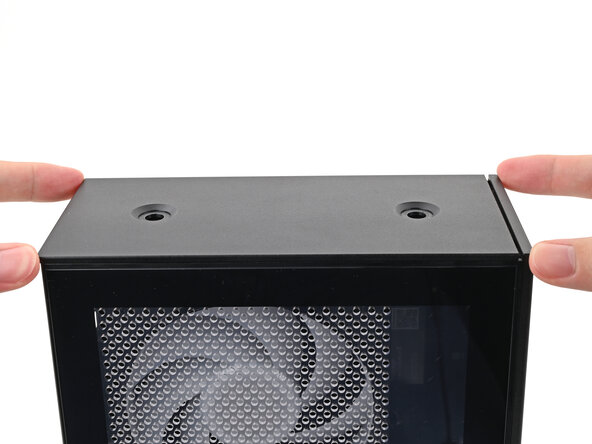
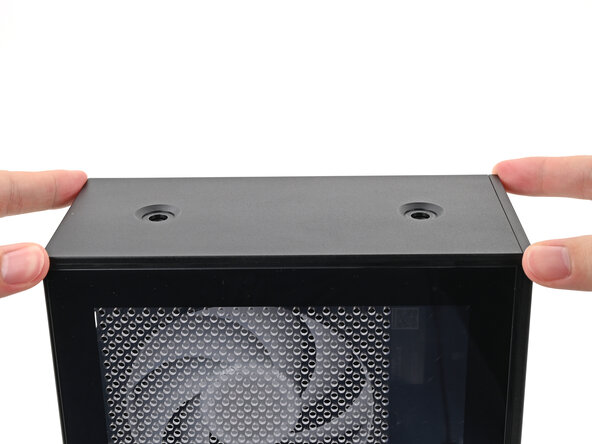
    • Orient the Top Panel so its arrow is pointing towards the rear of the computer.

    • While holding the Top Panel at a slight downward angle, slide it across the top of the chassis (from rear to front) until you feel its clips catch.

    • There should be a small gap between the Top Panel and the front of the Desktop

    • Lay the Top Panel flat on the chassis to align the remaining clips.

  32. Framework Desktop DIY Edition Quick Start Guide: paso 32, imagen 1 de 2 Framework Desktop DIY Edition Quick Start Guide: paso 32, imagen 2 de 2
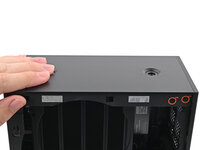
    • While securing the computer with one hand, use the other hand to slide the Top Panel towards the front of the computer and engage the clips.

  33. Framework Desktop DIY Edition Quick Start Guide, Install the Top Panel screws: paso 33, imagen 1 de 3 Framework Desktop DIY Edition Quick Start Guide, Install the Top Panel screws: paso 33, imagen 2 de 3 Framework Desktop DIY Edition Quick Start Guide, Install the Top Panel screws: paso 33, imagen 3 de 3
    • Insert the Top Panel screw into its hole and twist clockwise until it feels snug.

  34. Framework Desktop DIY Edition Quick Start Guide: paso 34, imagen 1 de 3 Framework Desktop DIY Edition Quick Start Guide: paso 34, imagen 2 de 3 Framework Desktop DIY Edition Quick Start Guide: paso 34, imagen 3 de 3
    • Repeat the same procedure for the other Top Panel screw.

  35. Framework Desktop DIY Edition Quick Start Guide: paso 35, imagen 1 de 3 Framework Desktop DIY Edition Quick Start Guide: paso 35, imagen 2 de 3 Framework Desktop DIY Edition Quick Start Guide: paso 35, imagen 3 de 3
    • Use your finger to close the two D-rings on the Top Panel screws.

  36. Framework Desktop DIY Edition Quick Start Guide, Remove the Front Panel: paso 36, imagen 1 de 3 Framework Desktop DIY Edition Quick Start Guide, Remove the Front Panel: paso 36, imagen 2 de 3 Framework Desktop DIY Edition Quick Start Guide, Remove the Front Panel: paso 36, imagen 3 de 3
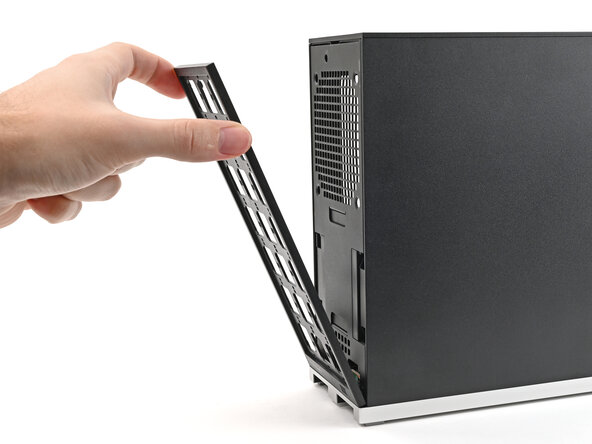
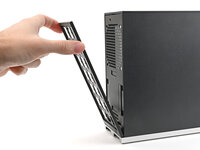
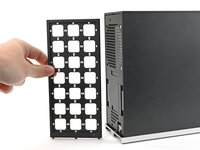
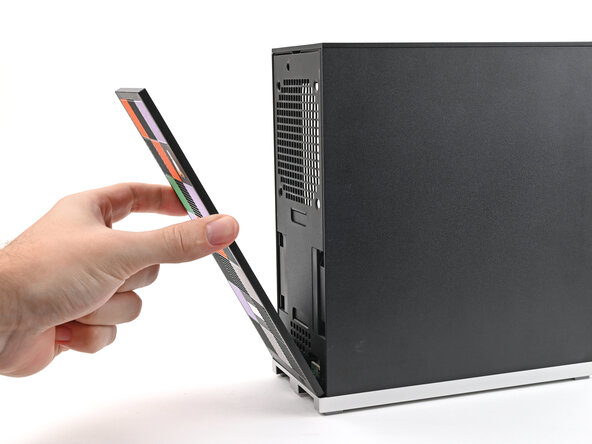
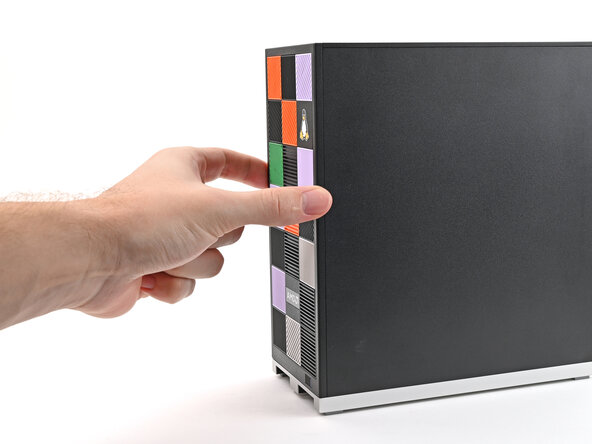
    • Use your fingers to pull the Front Panel off the magnets securing it to the chassis.

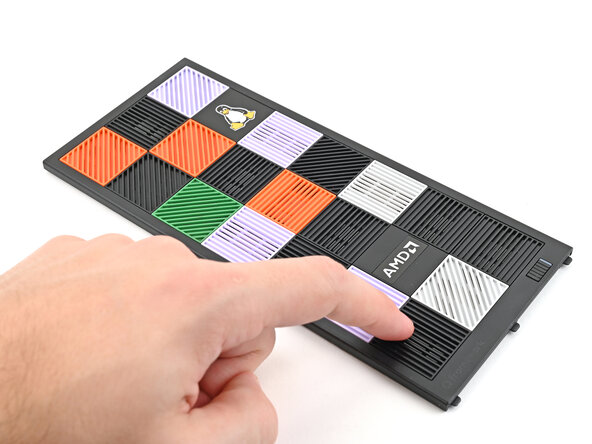
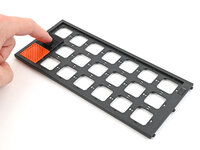
  37. Framework Desktop DIY Edition Quick Start Guide, Install the Tiles: paso 37, imagen 1 de 3 Framework Desktop DIY Edition Quick Start Guide, Install the Tiles: paso 37, imagen 2 de 3 Framework Desktop DIY Edition Quick Start Guide, Install the Tiles: paso 37, imagen 3 de 3
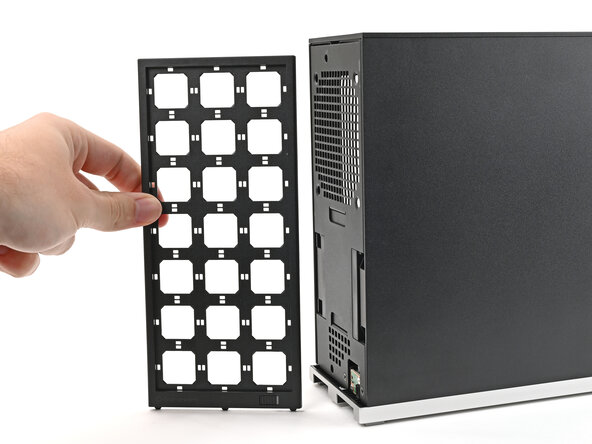
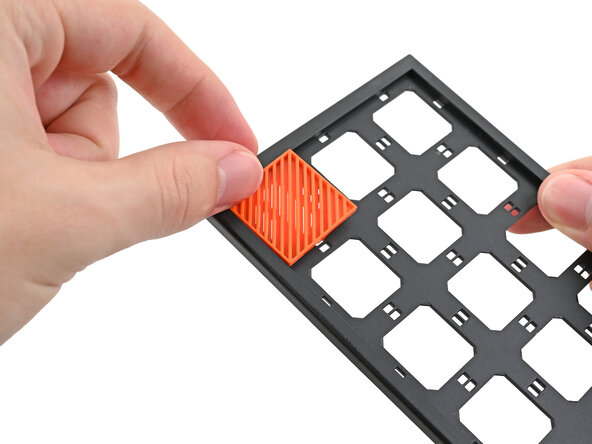
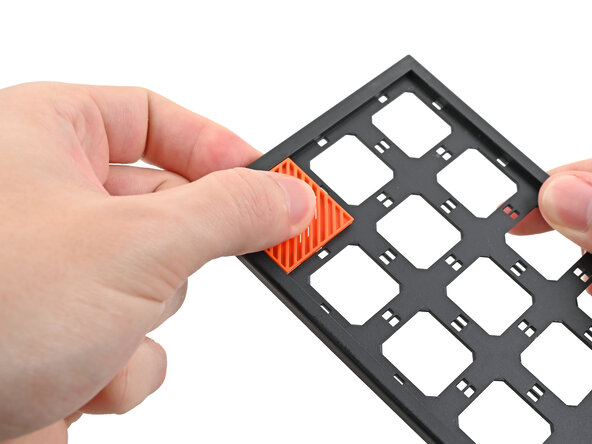
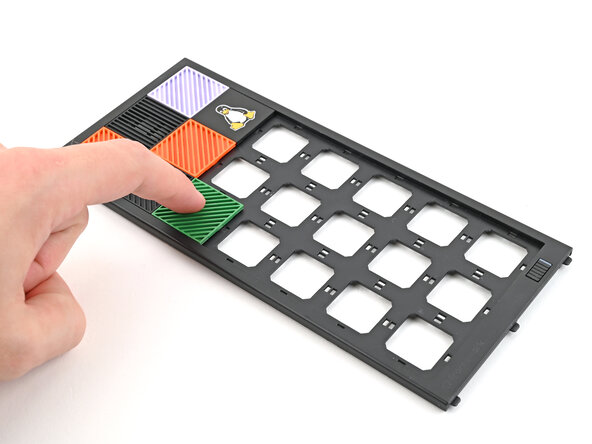
    • Depending on what Tiles you ordered, your setup could look different. You should have at least 21 tiles to completely fill out your Front Panel.

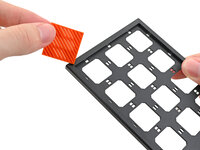
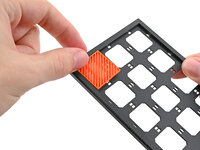
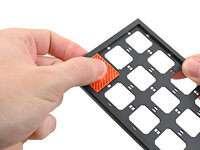
    • Lay a Tile over an open slot on the Front Panel.

    • Use your fingers to press the tile into the slot and engage the clips.

    • You'll hear and feel an audible "click" when the clips engage.

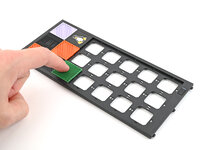
  38. Framework Desktop DIY Edition Quick Start Guide: paso 38, imagen 1 de 3 Framework Desktop DIY Edition Quick Start Guide: paso 38, imagen 2 de 3 Framework Desktop DIY Edition Quick Start Guide: paso 38, imagen 3 de 3
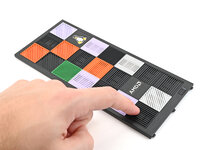
    • Install the remaining Tiles.

  39. Framework Desktop DIY Edition Quick Start Guide, Install the Front Panel: paso 39, imagen 1 de 3 Framework Desktop DIY Edition Quick Start Guide, Install the Front Panel: paso 39, imagen 2 de 3 Framework Desktop DIY Edition Quick Start Guide, Install the Front Panel: paso 39, imagen 3 de 3
    • Lay the bottom of the Front Panel on the small, protruding lip in the silver base to align its tabs.

    • Press the Front Panel flat to the chassis and let it align to the magnets.

  40. Framework Desktop DIY Edition Quick Start Guide, Reposition the Desktop: paso 40, imagen 1 de 2 Framework Desktop DIY Edition Quick Start Guide, Reposition the Desktop: paso 40, imagen 2 de 2
    • Rotate the Desktop so its rear is resting on your workspace.

  41. Framework Desktop DIY Edition Quick Start Guide, Install the Expansion Cards: paso 41, imagen 1 de 3 Framework Desktop DIY Edition Quick Start Guide, Install the Expansion Cards: paso 41, imagen 2 de 3 Framework Desktop DIY Edition Quick Start Guide, Install the Expansion Cards: paso 41, imagen 3 de 3
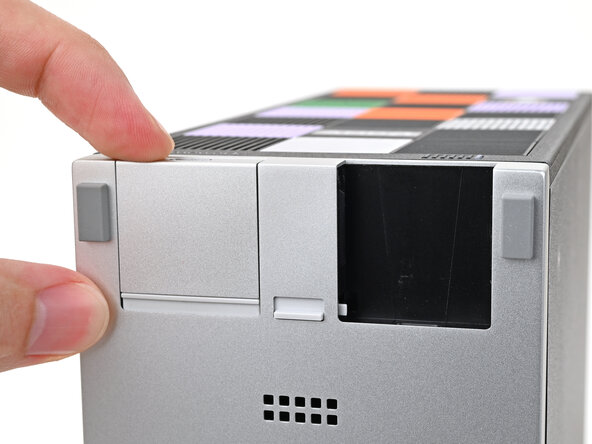
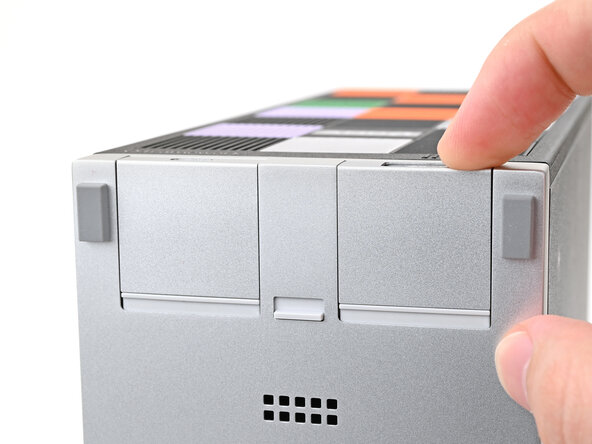
    • Slide an Expansion Card into an Expansion Card slot.

    • You don't need to unlock the latch to install the Expansion Cards—only when you want to remove them.

    • The Expansion Cards should click into place, and the front edge should be flush with silver base.

    • Repeat for the other Expansion Card slot.

  42. Framework Desktop DIY Edition Quick Start Guide: paso 42, imagen 1 de 2 Framework Desktop DIY Edition Quick Start Guide: paso 42, imagen 2 de 2
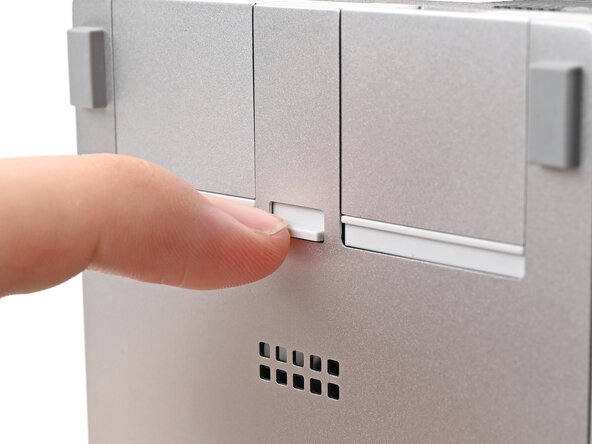
    • If there's a red bar showing under the Expansion Card latch, use your finger to flip the latch and lock the Expansion Cards into their slots.

    • Locking the Expansion Card slots helps keep the cards in place when you unplug cables from them.

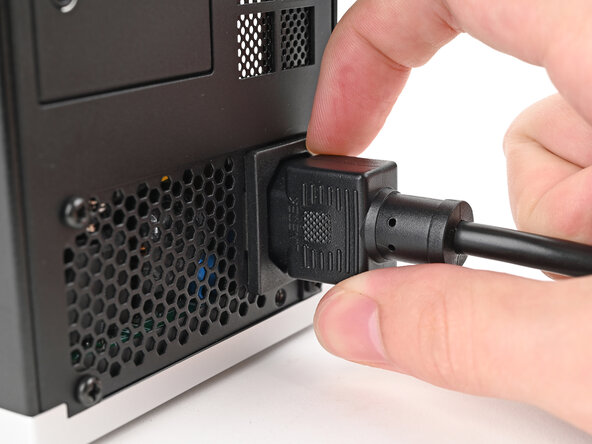
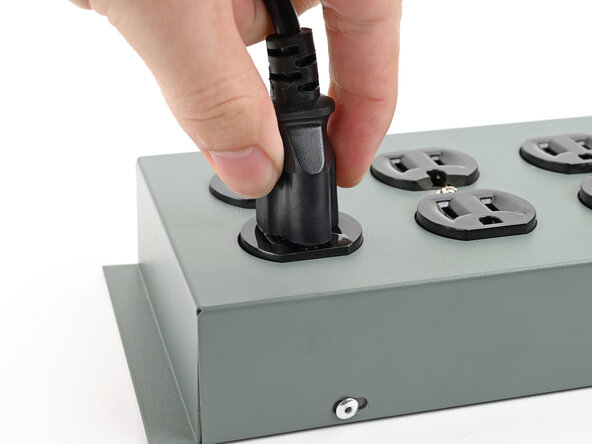
  43. Framework Desktop DIY Edition Quick Start Guide, Plug in the Desktop: paso 43, imagen 1 de 3 Framework Desktop DIY Edition Quick Start Guide, Plug in the Desktop: paso 43, imagen 2 de 3 Framework Desktop DIY Edition Quick Start Guide, Plug in the Desktop: paso 43, imagen 3 de 3
    • Plug the AC Cable into the back of the Desktop.

    • Plug the AC Cable into a power outlet. 

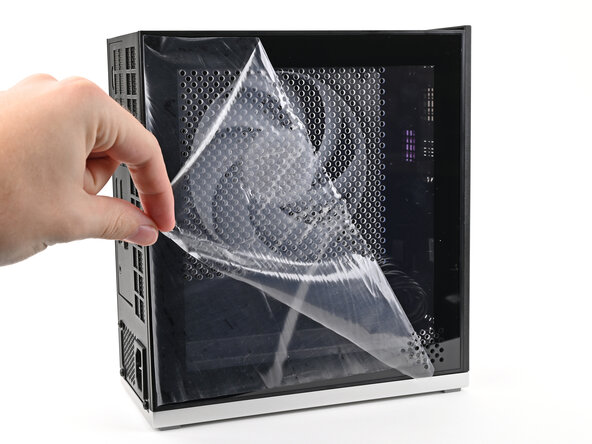
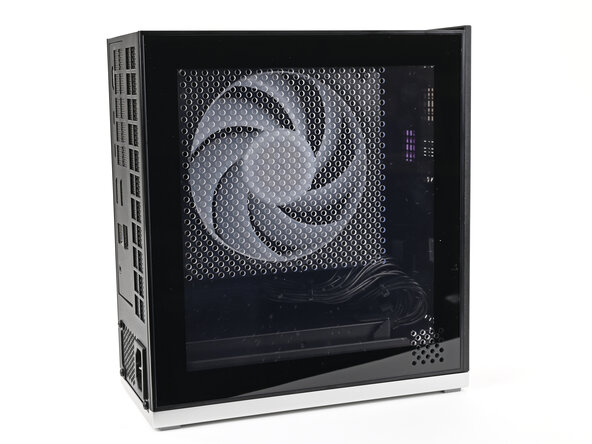
  44. Framework Desktop DIY Edition Quick Start Guide, Remove the protective liner: paso 44, imagen 1 de 2 Framework Desktop DIY Edition Quick Start Guide, Remove the protective liner: paso 44, imagen 2 de 2
    • If your Left Panel came with a protective liner, remove it.

  45. Framework Desktop DIY Edition Quick Start Guide, Install an OS: paso 45, imagen 1 de 2 Framework Desktop DIY Edition Quick Start Guide, Install an OS: paso 45, imagen 2 de 2
    • For information on the rear ports and what to plug in, click here.

    • Press the power button on the bottom right of the Front Panel to turn the Desktop on.

    • You're done assembling your Framework Desktop! Now, you'll need to install an OS.

    • If you're installing Microsoft Windows, check out this guide.

    • If you're installing Linux, check this page for more details.

Conclusión

For drivers, firmware, and software updates, check out this page.

If you need help, contact Framework support.

Alex Diaz-Kokaisl

Miembro Desde 01/16/22

212,557 Reputación

1,039 Guías creadas

0Guía Comentarios

Agregar Comentario

Ver Estadísticas:

Ultimas 24 horas: 3

Ultimos 7 días: 14

Ultimos 30 días: 52

Todo El Tiempo: 571