Saltar al contenido principal

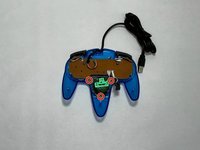
Miadore Classic N64 Controller Buttons Replacement

Qué necesitas

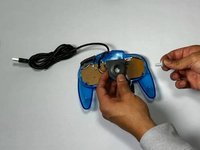
  1. Miadore Classic N64 Controller Buttons Replacement, Joystick: paso 1, imagen 1 de 3 Miadore Classic N64 Controller Buttons Replacement, Joystick: paso 1, imagen 2 de 3 Miadore Classic N64 Controller Buttons Replacement, Joystick: paso 1, imagen 3 de 3
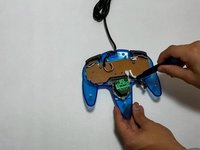
    • Use a Phillips #000 screwdriver to remove all nine 3.2 mm screws from the back of the controller.

    • Place the end of a spudger in the seam between the top and bottom of the controller to release the clips holding them together.

    • Separate the top and bottom cover of the controller.

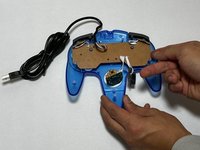
  2. Miadore Classic N64 Controller Buttons Replacement: paso 2, imagen 1 de 2 Miadore Classic N64 Controller Buttons Replacement: paso 2, imagen 2 de 2
    • Remove the three 3.2 mm Phillips #000 screws holding the motherboard in place.

    • The motherboard will still be in place after the screws are removed.

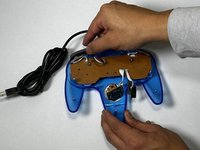
  3. Miadore Classic N64 Controller Buttons Replacement: paso 3, imagen 1 de 3 Miadore Classic N64 Controller Buttons Replacement: paso 3, imagen 2 de 3 Miadore Classic N64 Controller Buttons Replacement: paso 3, imagen 3 de 3
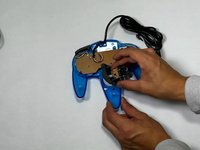
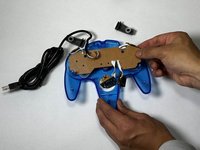
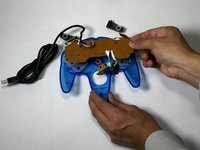
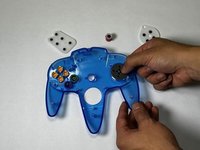
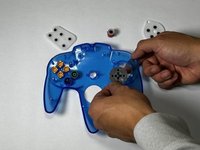
    • Remove the three 3.2 mm Phillips #000 screws holding the joystick module in place.

    • Remove the joystick module.

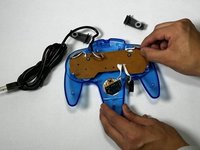
  4. Miadore Classic N64 Controller Buttons Replacement: paso 4, imagen 1 de 2 Miadore Classic N64 Controller Buttons Replacement: paso 4, imagen 2 de 2
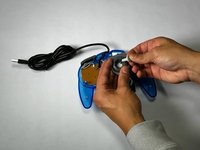
    • Remove the joystick by pulling it away from the plastic needle-like object holding it in place.

    • Replace it with a new or custom joystick.

  5. Miadore Classic N64 Controller Buttons Replacement, Buttons: paso 5, imagen 1 de 3 Miadore Classic N64 Controller Buttons Replacement, Buttons: paso 5, imagen 2 de 3 Miadore Classic N64 Controller Buttons Replacement, Buttons: paso 5, imagen 3 de 3
    • Remove the right and left bumper.

    • If the bumper buttons are the buttons that need to be replaced, you can stop here.

  6. Miadore Classic N64 Controller Buttons Replacement: paso 6, imagen 1 de 3 Miadore Classic N64 Controller Buttons Replacement: paso 6, imagen 2 de 3 Miadore Classic N64 Controller Buttons Replacement: paso 6, imagen 3 de 3
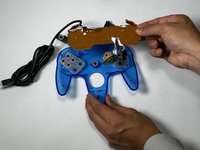
    • Pull the motherboard up with even pressure on all sides.

    • Set the motherboard to the side.

  7. Miadore Classic N64 Controller Buttons Replacement: paso 7, imagen 1 de 3 Miadore Classic N64 Controller Buttons Replacement: paso 7, imagen 2 de 3 Miadore Classic N64 Controller Buttons Replacement: paso 7, imagen 3 de 3
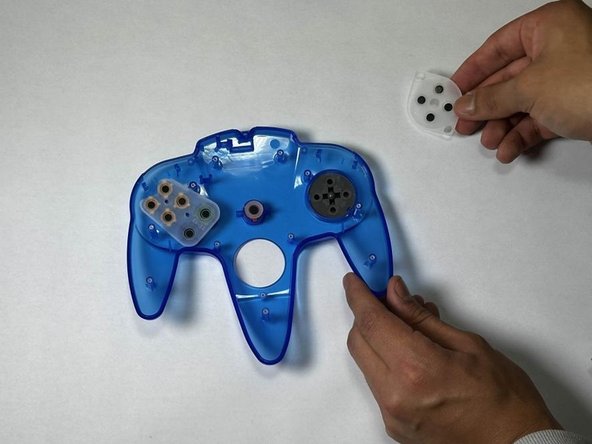
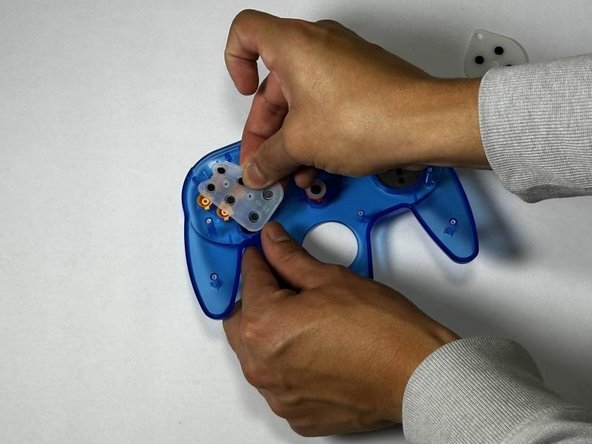
    • Remove the rubber gaskets.

    • This will reveal the buttons underneath.

  8. Miadore Classic N64 Controller Buttons Replacement: paso 8, imagen 1 de 2 Miadore Classic N64 Controller Buttons Replacement: paso 8, imagen 2 de 2
    • Push up from the bottom of the controller to pop the buttons out.

Conclusión

To reassemble your device, follow these instructions in reverse order.

2 personas más completaron esta guía.

Equipo

CSU Los Angeles, Team 5-3, Kershman Fall 2024 Miembro de CSU Los Angeles, Team 5-3, Kershman Fall 2024

CSULA-KERSHMAN-F24S5G3

Miembros de 5

2 Guías creadas

0Guía Comentarios

Agregar Comentario

Ver Estadísticas:

Ultimas 24 horas: 0

Ultimos 7 días: 3

Ultimos 30 días: 12

Todo El Tiempo: 238