Saltar al contenido principal
Únete a la Comunidad de Reparación - Crear Cuenta

MacBook Pro 15" Unibody Mid 2009 Subwoofer/Right Speaker Replacement

Vistas: 18 k

Ver estadísticas:

Últimas 24 horas:
2
Últimos 7 días:
19
Últimos 30 días:
93
Todo El Tiempo:
17,811
Comentarios: 33

31 comments on steps, 2 guide comments.

Go to guide comments
Completado: 12

12 personas han marcado esta guía como "completada". ¿Serás tú la próxima persona en hacerlo?

Favoritos: 9

9 personas han marcado como "Favorita" y se han suscrito a esta guía. ¿Serás tú la próxima persona en hacerlo?

Tiempo Requerido: Sin estimación
Dificultad: Moderado
MacBook Pro 15" Unibody Mid 2009 Subwoofer/Right Speaker Replacement

Introducción

Ir al paso 1 ↓

Rock out too hard? Use this guide to replace your blown-out subwoofer/right speaker.

Qué necesitas

Partes

Herramientas

    1. MacBook Pro 15" Unibody Mid 2009 Subwoofer/Right Speaker Replacement, Lower Case: paso 1, imagen 1 de 1
      • Remove the following ten screws securing the lower case to the upper case:

      • Seven 3 mm Phillips screws.

      • Three 13.5 mm Phillips screws.

      Pregunta a FixBot

      Agregar Comentario

    2. MacBook Pro 15" Unibody Mid 2009 Subwoofer/Right Speaker Replacement: paso 2, imagen 1 de 2 MacBook Pro 15" Unibody Mid 2009 Subwoofer/Right Speaker Replacement: paso 2, imagen 2 de 2
      • Using both hands, lift the lower case near the vent to pop it off two clips securing it to the upper case.

      • Remove the lower case and set it aside.

      Pregunta a FixBot

      Agregar Comentario

    1. MacBook Pro 15" Unibody Mid 2009 Subwoofer/Right Speaker Replacement, Battery: paso 3, imagen 1 de 1
      Herramienta utilizada en este paso:
      P6 Pentalobe Screwdriver 2009 15" MacBook Pro Battery
      $5.49
      • Remove the two 5-Point Pentalobe screws along the top edge of the battery.

      • You do not necessarily have to follow steps 3-6 to remove the battery in order to replace the hard drive. However it is recommended to remove all power sources from electronics before working on them.

      Pregunta a FixBot

      Agregar Comentario

    2. MacBook Pro 15" Unibody Mid 2009 Subwoofer/Right Speaker Replacement: paso 4, imagen 1 de 1
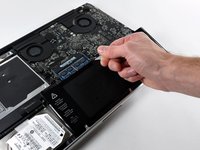
      • Use the tip of a spudger to bend back the finger of the "Warning: Do not remove the battery" sticker while you remove third five-point Pentalobe screw hidden underneath.

      Pregunta a FixBot

      Agregar Comentario

    3. MacBook Pro 15" Unibody Mid 2009 Subwoofer/Right Speaker Replacement: paso 5, imagen 1 de 2 MacBook Pro 15" Unibody Mid 2009 Subwoofer/Right Speaker Replacement: paso 5, imagen 2 de 2
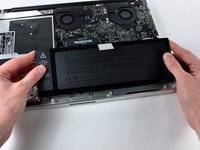
      • Lift the battery by its plastic pull tab and slide it away from the long edge of the upper case.

      • Do not try to completely remove the battery just yet.

      Pregunta a FixBot

      Agregar Comentario

    4. MacBook Pro 15" Unibody Mid 2009 Subwoofer/Right Speaker Replacement: paso 6, imagen 1 de 1
      • Tilt the battery back enough to access the battery cable connector.

      • Pull the battery cable connector away from its socket on the logic board and remove the battery from the upper case.

      • If you're installing a new battery, you should calibrate it after installation.

      Pregunta a FixBot

      Agregar Comentario

    1. MacBook Pro 15" Unibody Mid 2009 Subwoofer/Right Speaker Replacement, Optical Drive: paso 7, imagen 1 de 1
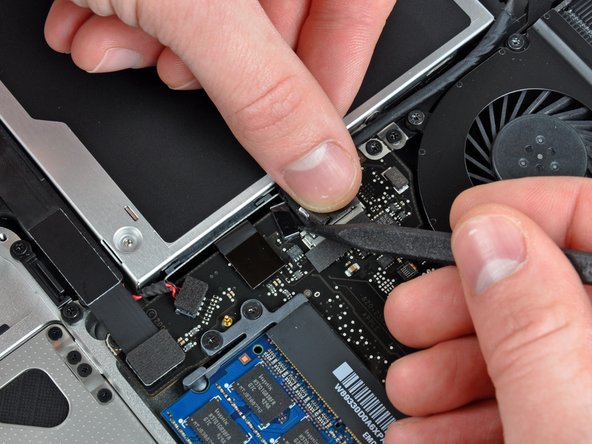
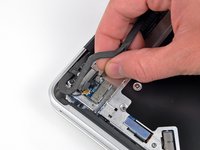
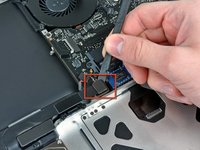
      • Apple sticks a small strip of clear plastic with adhesive applied to one side to the logic board behind the camera cable connector to keep it in its socket. When moving it out of the way, be sure not to break any surface-mount components off the logic board.

      • Hold the end of the cable retainer down with one finger while you use the tip of a spudger to slightly lift the other end and rotate it away from the camera cable connector.

      Pregunta a FixBot

      Agregar Comentario

    2. MacBook Pro 15" Unibody Mid 2009 Subwoofer/Right Speaker Replacement: paso 8, imagen 1 de 2 MacBook Pro 15" Unibody Mid 2009 Subwoofer/Right Speaker Replacement: paso 8, imagen 2 de 2
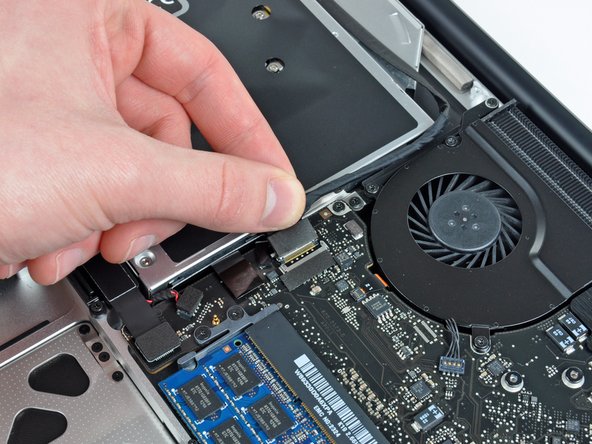
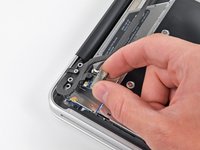
      • Disconnect the camera cable by pulling the male end straight away from its socket.

      • Pull the connector parallel to the face of the logic board, not straight up.

      Pregunta a FixBot

      Agregar Comentario

    3. MacBook Pro 15" Unibody Mid 2009 Subwoofer/Right Speaker Replacement: paso 9, imagen 1 de 1
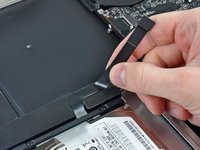
      • Peel the camera cable off the adhesive securing it to the optical drive.

      Pregunta a FixBot

      Agregar Comentario

    4. MacBook Pro 15" Unibody Mid 2009 Subwoofer/Right Speaker Replacement: paso 10, imagen 1 de 2 MacBook Pro 15" Unibody Mid 2009 Subwoofer/Right Speaker Replacement: paso 10, imagen 2 de 2
      • This step is only required if you have an anti-glare display. If you have a glossy display, skip this step.

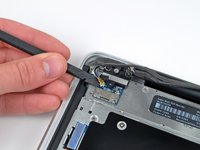
      • Disconnect the Bluetooth cable by pulling the male end straight away from its socket.

      • Pull the connector parallel to the face of the logic board, not straight up.

      • Use the flat end of a spudger to pry the Bluetooth antenna cable from its socket on the board.

      Pregunta a FixBot

      Agregar Comentario

    5. MacBook Pro 15" Unibody Mid 2009 Subwoofer/Right Speaker Replacement: paso 11, imagen 1 de 2 MacBook Pro 15" Unibody Mid 2009 Subwoofer/Right Speaker Replacement: paso 11, imagen 2 de 2
      • This step is only required if you have an anti-glare display.

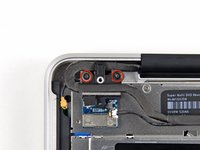
      • Remove the two 8 mm Phillips screws securing the Bluetooth/camera cable retainer to the upper case.

      • One of the screws may remain captive in the Bluetooth/camera cable ground loop. If replacing the display, be sure to transfer this screw to the new unit.

      • Lift the Bluetooth board/cable retainer assembly out of the upper case.

      Pregunta a FixBot

      Agregar Comentario

    6. MacBook Pro 15" Unibody Mid 2009 Subwoofer/Right Speaker Replacement: paso 12, imagen 1 de 1
      • Use a spudger to pry the optical drive connector straight up off the logic board.

      Pregunta a FixBot

      Agregar Comentario

    7. MacBook Pro 15" Unibody Mid 2009 Subwoofer/Right Speaker Replacement: paso 13, imagen 1 de 1
      • Remove the single 3.5 mm Phillips screw securing the inner side of the optical drive to the upper case.

      Pregunta a FixBot

      Agregar Comentario

    8. MacBook Pro 15" Unibody Mid 2009 Subwoofer/Right Speaker Replacement: paso 14, imagen 1 de 1
      • Remove the two 3.5 mm Phillips screws securing the outer side of the optical drive to the upper case.

      Pregunta a FixBot

      Agregar Comentario

    9. MacBook Pro 15" Unibody Mid 2009 Subwoofer/Right Speaker Replacement: paso 15, imagen 1 de 1
      • Lift the optical drive from its left edge and pull it out of the upper case.

      Pregunta a FixBot

      Agregar Comentario

    1. MacBook Pro 15" Unibody Mid 2009 Subwoofer/Right Speaker Replacement, Subwoofer/Right Speaker: paso 16, imagen 1 de 2 MacBook Pro 15" Unibody Mid 2009 Subwoofer/Right Speaker Replacement, Subwoofer/Right Speaker: paso 16, imagen 2 de 2
      • Use the flat end of a spudger to pry the hard drive/IR sensor cable connector up off the logic board.

      • Peel the hard drive cable up from the channel within the subwoofer and right speaker.

      Pregunta a FixBot

      Agregar Comentario

    2. MacBook Pro 15" Unibody Mid 2009 Subwoofer/Right Speaker Replacement: paso 17, imagen 1 de 1
      • Using the flat end of a spudger, pry the subwoofer/right speaker connector straight up off the logic board.

      Pregunta a FixBot

      Agregar Comentario

    3. MacBook Pro 15" Unibody Mid 2009 Subwoofer/Right Speaker Replacement: paso 18, imagen 1 de 1
      • Remove the following four screws securing the subwoofer and right speaker to the upper case:

      • Two 3.2 mm Phillips screws.

      • One 2.6 mm Phillips screw.

      • One 5 mm Phillips screw.

      Pregunta a FixBot

      Agregar Comentario

    4. MacBook Pro 15" Unibody Mid 2009 Subwoofer/Right Speaker Replacement: paso 19, imagen 1 de 1
      • Lift the subwoofer and right speaker assembly out of the upper case.

      Pregunta a FixBot

      Agregar Comentario

Conclusión

To reassemble your device, follow these instructions in reverse order.

Cancelar: No complete esta guía.

12 personas más completaron esta guía.

2Guía Comentarios

Excellent tutorial : be careful when removing the woofer connection : do it exactly as it is pictured otherwise you may harm the motherboard.

thierry28722 - Contestar Compartir

I followed these steps in order to inspect the cracked subwoofer of my MBP. After disassembly, the membrane was unglued and instead of replacing, finnally I glued it again with Neopren. It works perfectly again !

Laurence Bourgeois - Contestar Compartir

Agregar Comentario

Ver Estadísticas:

Ultimas 24 horas: 2

Ultimos 7 días: 19

Ultimos 30 días: 93

Todo El Tiempo: 17,811