Saltar al contenido principal
Únete a la Comunidad de Reparación - Crear Cuenta

Lenovo Ideapad 320-15ABR Fan Replacement

Qué necesitas

    1. Lenovo Ideapad 320-15ABR Fan Replacement, Back Panel: paso 1, imagen 1 de 1
      • Before you proceed, make sure your computer is turned off and is not connected to any power source.

      • Remove the single 7 mm Phillips #1 screw securing the optical drive.

      • Be sure to store the screws carefully as they are easy to lose. A magnetic project mat is recommended

      Pregunta a FixBot

      Agregar Comentario

    2. Lenovo Ideapad 320-15ABR Fan Replacement: paso 2, imagen 1 de 3 Lenovo Ideapad 320-15ABR Fan Replacement: paso 2, imagen 2 de 3 Lenovo Ideapad 320-15ABR Fan Replacement: paso 2, imagen 3 de 3
      • Carefully remove the optical drive bracket by pulling the bezel away from the laptop.

      Pregunta a FixBot

      Agregar Comentario

    3. Lenovo Ideapad 320-15ABR Fan Replacement: paso 3, imagen 1 de 2 Lenovo Ideapad 320-15ABR Fan Replacement: paso 3, imagen 2 de 2
      • Using the Phillips #1 screwdriver, remove the twelve screws around the back panel from the laptop.

      Pregunta a FixBot

      Agregar Comentario

    4. Lenovo Ideapad 320-15ABR Fan Replacement: paso 4, imagen 1 de 3 Lenovo Ideapad 320-15ABR Fan Replacement: paso 4, imagen 2 de 3 Lenovo Ideapad 320-15ABR Fan Replacement: paso 4, imagen 3 de 3
      • Use an opening tool to pry out the back cover.

      Pregunta a FixBot

      Agregar Comentario

    5. Lenovo Ideapad 320-15ABR Fan Replacement: paso 5, imagen 1 de 3 Lenovo Ideapad 320-15ABR Fan Replacement: paso 5, imagen 2 de 3 Lenovo Ideapad 320-15ABR Fan Replacement: paso 5, imagen 3 de 3
      • Remove the back panel by pulling it up and away from the laptop.

      Pregunta a FixBot

      Agregar Comentario

    1. Lenovo Ideapad 320-15ABR Fan Replacement, Battery: paso 6, imagen 1 de 1
      • Remove the four 6mm screws using the Phillips #1 screwdriver.

      Pregunta a FixBot

      Agregar Comentario

    2. Lenovo Ideapad 320-15ABR Fan Replacement: paso 7, imagen 1 de 2 Lenovo Ideapad 320-15ABR Fan Replacement: paso 7, imagen 2 de 2
      • Disconnect the battery connector by pulling toward the battery parallel to the motherboard.

      Pregunta a FixBot

      Agregar Comentario

    3. Lenovo Ideapad 320-15ABR Fan Replacement: paso 8, imagen 1 de 1
      • Remove the battery.

      Pregunta a FixBot

      Agregar Comentario

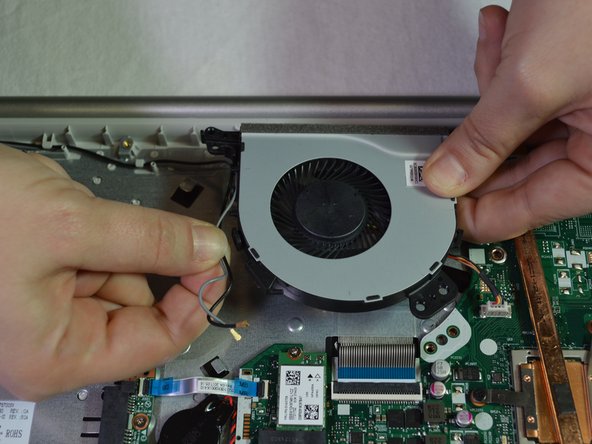
    1. Lenovo Ideapad 320-15ABR Fan Replacement, Fan: paso 9, imagen 1 de 2 Lenovo Ideapad 320-15ABR Fan Replacement, Fan: paso 9, imagen 2 de 2
      • Disconnect black and grey wires by simply giving them a light tug.

      Pregunta a FixBot

      Agregar Comentario

    2. Lenovo Ideapad 320-15ABR Fan Replacement: paso 10, imagen 1 de 1
      • Remove the 6mm Phillips #1 screw connecting the fan to the laptop.

      Pregunta a FixBot

      Agregar Comentario

    3. Lenovo Ideapad 320-15ABR Fan Replacement: paso 11, imagen 1 de 3 Lenovo Ideapad 320-15ABR Fan Replacement: paso 11, imagen 2 de 3 Lenovo Ideapad 320-15ABR Fan Replacement: paso 11, imagen 3 de 3
      • Lift the fan slightly and straight upward and unwind the black and grey wires from the fan.

      Pregunta a FixBot

      Agregar Comentario

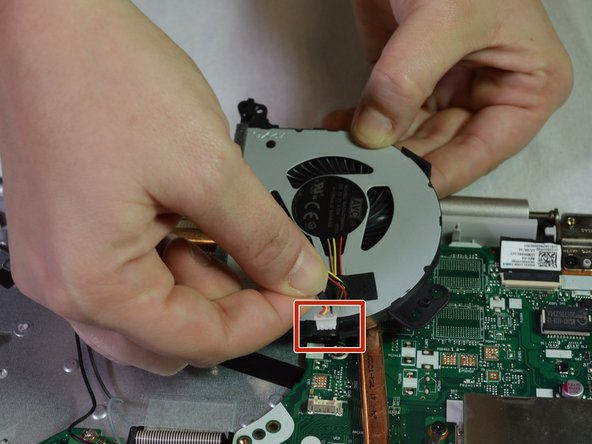
    4. Lenovo Ideapad 320-15ABR Fan Replacement: paso 12, imagen 1 de 1
      • Identify the red, black, yellow, and brown wire coming from the back of the fan connecting to the motherboard with a white connector piece.

      Pregunta a FixBot

      Agregar Comentario

    5. Lenovo Ideapad 320-15ABR Fan Replacement: paso 13, imagen 1 de 2 Lenovo Ideapad 320-15ABR Fan Replacement: paso 13, imagen 2 de 2
      • Slowly pull and wiggle the white connector piece until it comes loose from the laptop.

      Pregunta a FixBot

      Agregar Comentario

    6. Lenovo Ideapad 320-15ABR Fan Replacement: paso 14, imagen 1 de 1
      • Replace the new fan.

      Pregunta a FixBot

      Agregar Comentario

Conclusión

To reassemble your device, follow these instructions in reverse order.

Cancelar: No complete esta guía.

Una persona más ha completado esta guía.

0Guía Comentarios

Agregar Comentario

Ver Estadísticas:

Ultimas 24 horas: 1

Ultimos 7 días: 8

Ultimos 30 días: 41

Todo El Tiempo: 5,988