Saltar al contenido principal
Únete a la Comunidad de Reparación - Crear Cuenta
Kindle 1st Generation Keyboard/Buttons Replacement

Qué necesitas

  1. Kindle 1st Generation Keyboard/Buttons Replacement, Battery: paso 1, imagen 1 de 1
    • Slide the grey plastic cover laterally off the back of the device.

    Pregunta a FixBot

    Agregar Comentario

  2. Kindle 1st Generation Keyboard/Buttons Replacement: paso 2, imagen 1 de 2 Kindle 1st Generation Keyboard/Buttons Replacement: paso 2, imagen 2 de 2
    • Use a plastic opening tool to lift the battery on the side closest to the edge of the device.

    • Unplug the battery from the device by pinching the white connector and pulling.

    • Do not yank the battery or try to disconnect the battery by pulling the wires.

    Pregunta a FixBot

    Agregar Comentario

  3. Kindle 1st Generation Keyboard/Buttons Replacement, SD Card Reader: paso 3, imagen 1 de 1
    • Unscrew eight (8) Phillips #00 screws (3 mm).

    Pregunta a FixBot

    Agregar Comentario

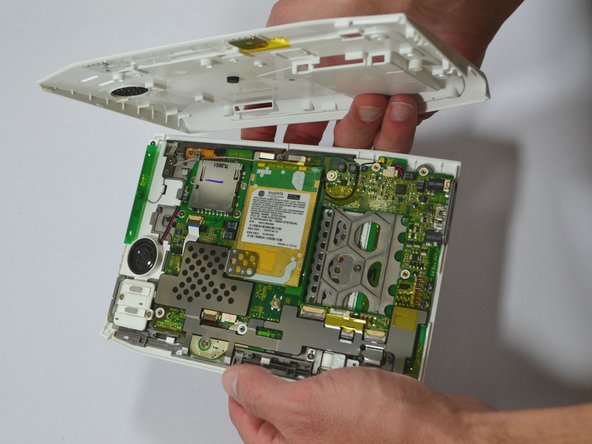
  4. Kindle 1st Generation Keyboard/Buttons Replacement: paso 4, imagen 1 de 2 Kindle 1st Generation Keyboard/Buttons Replacement: paso 4, imagen 2 de 2
    • Start at one side of the device. Use a plastic opening tool to separate the casing of the device. Slowly work your way around the entire device.

    • Avoid prying between the buttons and the device. This could cause damage to the buttons.

    Pregunta a FixBot

    Agregar Comentario

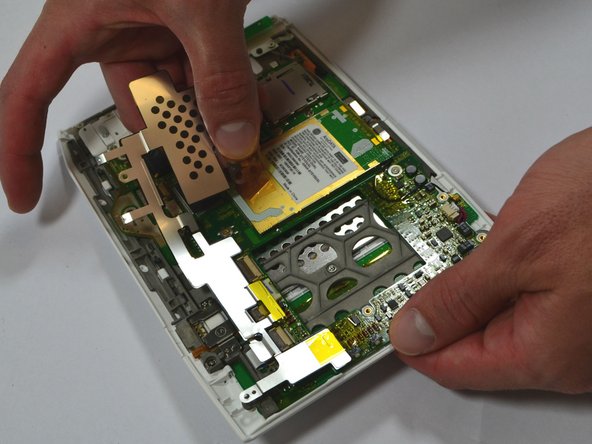
  5. Kindle 1st Generation Keyboard/Buttons Replacement: paso 5, imagen 1 de 2 Kindle 1st Generation Keyboard/Buttons Replacement: paso 5, imagen 2 de 2
    • Unscrew the two (2) Phillips #00 screws (3 mm) which fasten the metal casing shield.

    • Slowly remove the metal casing shield by lifting it and carefully peeling up the tape.

    Pregunta a FixBot

    Agregar Comentario

  6. Kindle 1st Generation Keyboard/Buttons Replacement: paso 6, imagen 1 de 1
    • Remove the four (4) Phillips #00 screws (3 mm) which fasten the SD Card Reader.

    Pregunta a FixBot

    Agregar Comentario

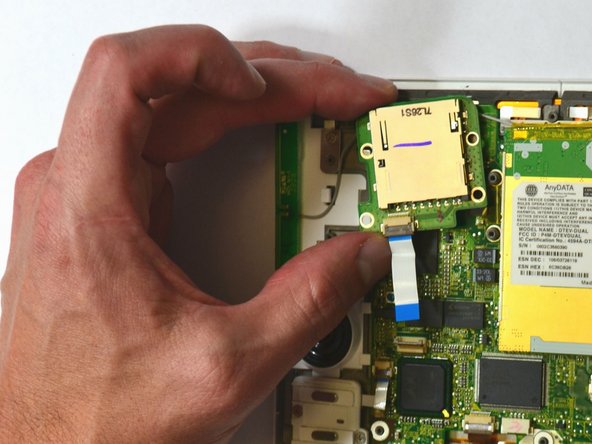
  7. Kindle 1st Generation Keyboard/Buttons Replacement: paso 7, imagen 1 de 2 Kindle 1st Generation Keyboard/Buttons Replacement: paso 7, imagen 2 de 2
    • Lift the flap attaching the blue and white ribbon cable to the motherboard by lifting it vertically with a spudger.

    • The flap is connected via a hinge. Once you lift the flap, it will stay up and the cable will be lose. Remember to snap it back down during reassembly.

    • Carefully lift the SD Card Reader vertically from the motherboard.

    Pregunta a FixBot

    Agregar Comentario

  8. Kindle 1st Generation Keyboard/Buttons Replacement, Page Turner Keys: paso 8, imagen 1 de 1
    • Remove the two (2) Phillips #00 screws (3 mm) connecting the ON/OFF Power and Wifi Switches.

    Pregunta a FixBot

    Agregar Comentario

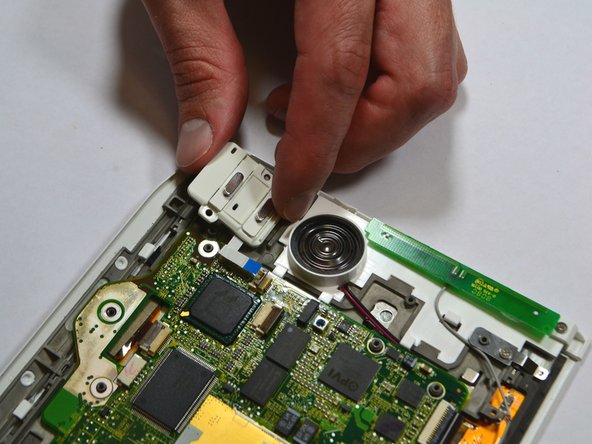
  9. Kindle 1st Generation Keyboard/Buttons Replacement: paso 9, imagen 1 de 2 Kindle 1st Generation Keyboard/Buttons Replacement: paso 9, imagen 2 de 2
    • Lift the flap attaching the blue and white ribbon cable to the motherboard by lifting it vertically with the pointed-end of the spudger.

    • The flap is connected via a hinge. Once you lift the flap, it will stay up and the cable will be lose. Remember to snap it back down during reassembly.

    • Carefully lift the ON/OFF Power and Wifi Switches vertically from the device motherboard.

    Pregunta a FixBot

    Agregar Comentario

  10. Kindle 1st Generation Keyboard/Buttons Replacement: paso 10, imagen 1 de 2 Kindle 1st Generation Keyboard/Buttons Replacement: paso 10, imagen 2 de 2
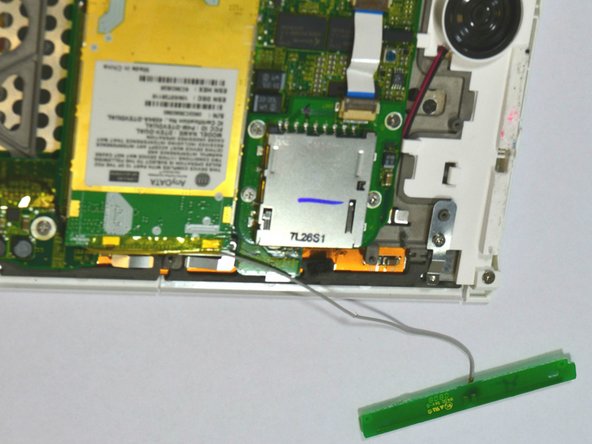
    • Use a spudger to remove the Wifi antenna from the device by carefully prying it up off the casing.

    • The Wifi antenna is attached to the device by a mild adhesive. Once the antenna is free from the adhesive, set the antenna off to the side.

    • Do not try to detach the antenna from the motherboard.

    Pregunta a FixBot

    Agregar Comentario

  11. Kindle 1st Generation Keyboard/Buttons Replacement: paso 11, imagen 1 de 3 Kindle 1st Generation Keyboard/Buttons Replacement: paso 11, imagen 2 de 3 Kindle 1st Generation Keyboard/Buttons Replacement: paso 11, imagen 3 de 3
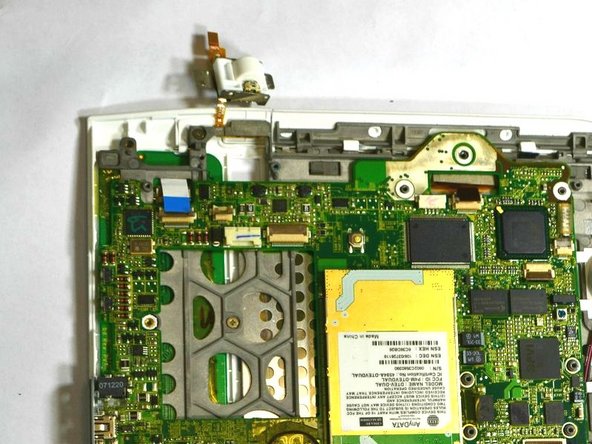
    • Unscrew the two (2) Phillips #00 screws (3 mm) attaching the scroll bar.

    • Use a spudger to lift the flap vertically in the second image to release the scroll bar from the motherboard.

    • The flap is connected via a hinge. Once you lift the flap, it will stay up and the cable will be lose. Remember to snap it back down during reassembly.

    • Do not pull the scroll bar off the device. Simply flip it around so it is out of the way for further disassembly, as seen in the third image.

    Pregunta a FixBot

    Agregar Comentario

  12. Kindle 1st Generation Keyboard/Buttons Replacement: paso 12, imagen 1 de 3 Kindle 1st Generation Keyboard/Buttons Replacement: paso 12, imagen 2 de 3 Kindle 1st Generation Keyboard/Buttons Replacement: paso 12, imagen 3 de 3
    Herramienta utilizada en este paso:
    Tweezers
    $4.99
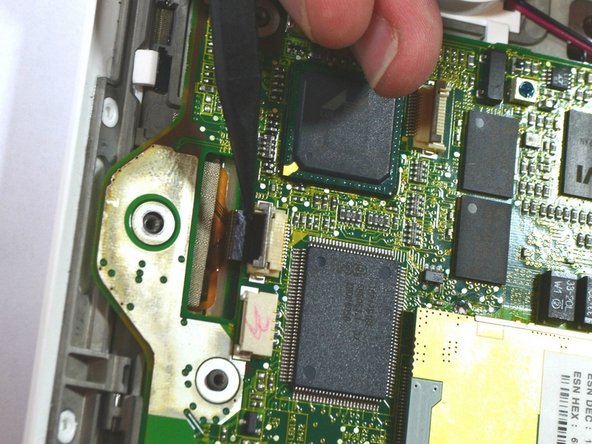
    • Lift the flap attaching the blue and white ribbon cable to the motherboard by lifting it vertically with the spudger.

    • Lift the flap with the pointed-end of the spudger to detach the ribbon cable indicated in the second image.

    • The flaps are connected via a hinge. Once you lift the flap, it will stay up and the cable will be lose. Remember to snap it back down during reassembly.

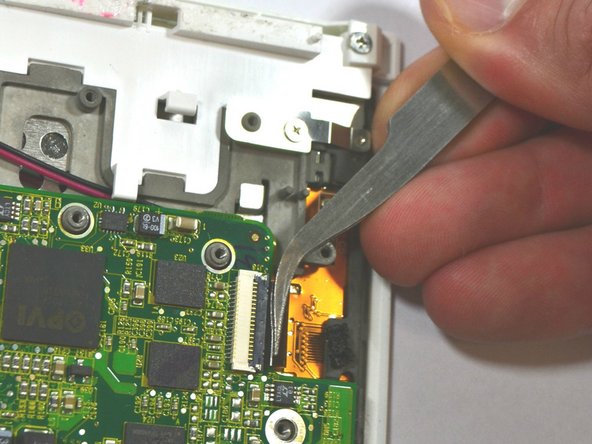
    • Use tweezers to pull the ribbon cable in the third image laterally to detach it.

    Pregunta a FixBot

    Agregar Comentario

  13. Kindle 1st Generation Keyboard/Buttons Replacement: paso 13, imagen 1 de 1
    • Detach the cable by pulling laterally with tweezers or your fingertips. Do this by grasping the edges of the white connector and pulling laterally.

    • Grasp the end of the cable with tweezers or your fingertips and pull upwards to detach it from the motherboard.

    • Do not grasp either cable by the wires and attempt to pull them.

    Pregunta a FixBot

    Agregar Comentario

  14. Kindle 1st Generation Keyboard/Buttons Replacement: paso 14, imagen 1 de 3 Kindle 1st Generation Keyboard/Buttons Replacement: paso 14, imagen 2 de 3 Kindle 1st Generation Keyboard/Buttons Replacement: paso 14, imagen 3 de 3
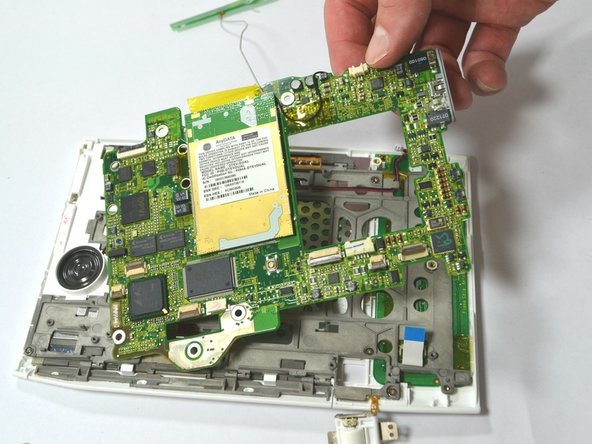
    • Remove the two (2) Phillips #00 screws (3 mm) which attach the motherboard to the front casing.

    • Carefully lift the motherboard off.

    • The piece marked in the third image may be loose and fall out freely. If it does not fall off, use your fingers or a plastic opening tool to snap it off. Make sure to place it under the motherboard during reassembly, as found in the image.

    Pregunta a FixBot

    Agregar Comentario

  15. Kindle 1st Generation Keyboard/Buttons Replacement: paso 15, imagen 1 de 1
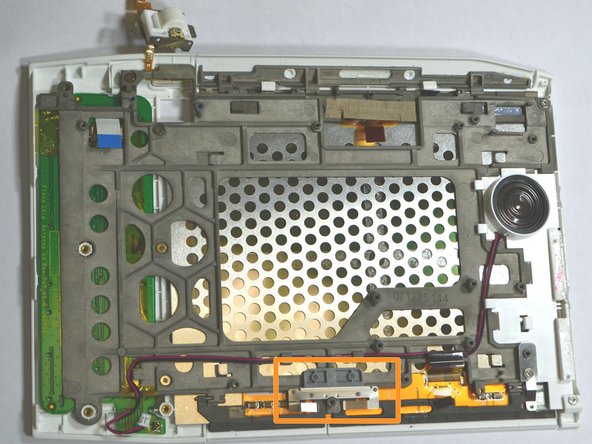
    • Remove the seven (7) Phillips #00 screws (3 mm) remaining on the frame.

    • The orange-marked metal piece is only held down by a screw and will become loose. Make sure to re-position it during assembly.

    Pregunta a FixBot

    Agregar Comentario

  16. Kindle 1st Generation Keyboard/Buttons Replacement: paso 16, imagen 1 de 2 Kindle 1st Generation Keyboard/Buttons Replacement: paso 16, imagen 2 de 2
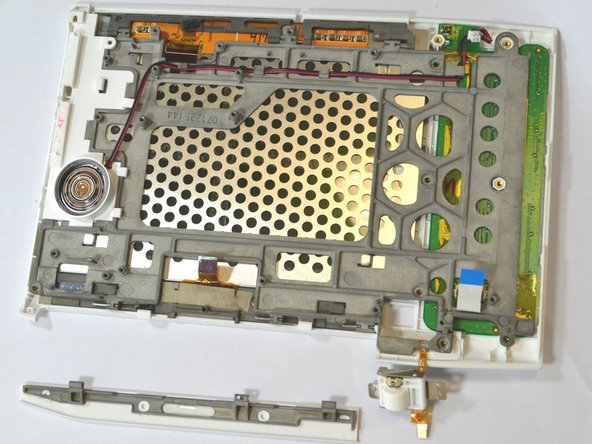
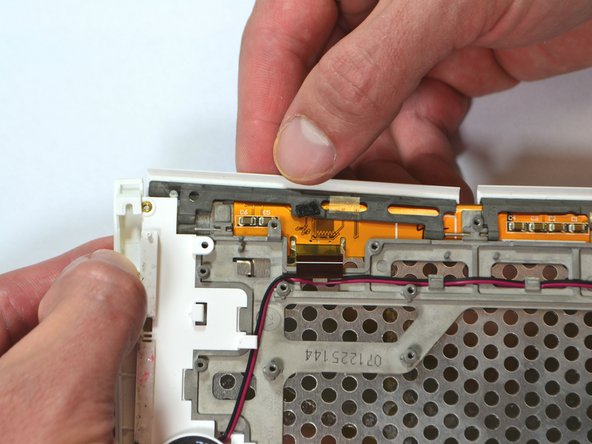
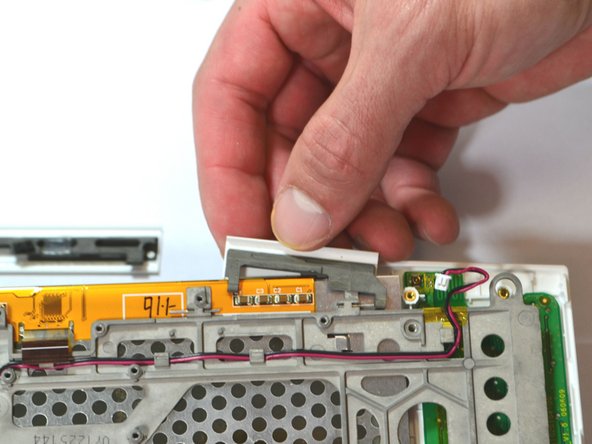
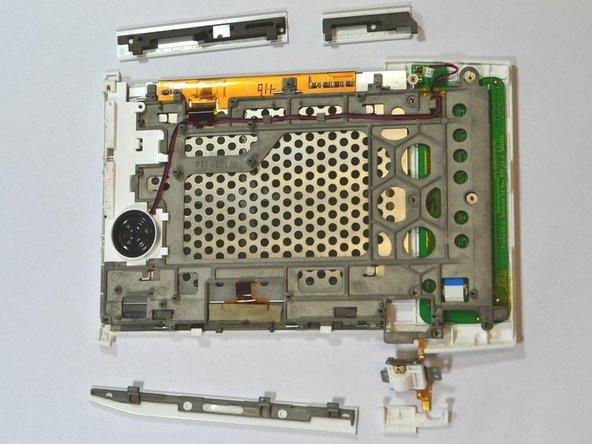
    • Press down firmly on the two white tabs, behind the large 'NEXT PAGE' button with the spudger. This will unsnap the front casing from the rest of the device.

    • The front case will begin to come loose. Do not try to pull it off.

    • Slide out the large 'NEXT PAGE' button laterally away from the keyboard.

    Pregunta a FixBot

    Agregar Comentario

  17. Kindle 1st Generation Keyboard/Buttons Replacement: paso 17, imagen 1 de 2 Kindle 1st Generation Keyboard/Buttons Replacement: paso 17, imagen 2 de 2
    • Slightly lift the top corner of the panel.

    • Slide the 'PREV PAGE' button out laterally towards the top corner.

    Pregunta a FixBot

    Agregar Comentario

  18. Kindle 1st Generation Keyboard/Buttons Replacement: paso 18, imagen 1 de 2 Kindle 1st Generation Keyboard/Buttons Replacement: paso 18, imagen 2 de 2
    • Slide out the small 'NEXT PAGE' button laterally towards the keyboard.

    Pregunta a FixBot

    Agregar Comentario

  19. Kindle 1st Generation Keyboard/Buttons Replacement: paso 19, imagen 1 de 2 Kindle 1st Generation Keyboard/Buttons Replacement: paso 19, imagen 2 de 2
    • Slide out the small 'BACK' button laterally towards the keyboard.

    Pregunta a FixBot

    Agregar Comentario

  20. Kindle 1st Generation Keyboard/Buttons Replacement, Keyboard/Buttons: paso 20, imagen 1 de 2 Kindle 1st Generation Keyboard/Buttons Replacement, Keyboard/Buttons: paso 20, imagen 2 de 2
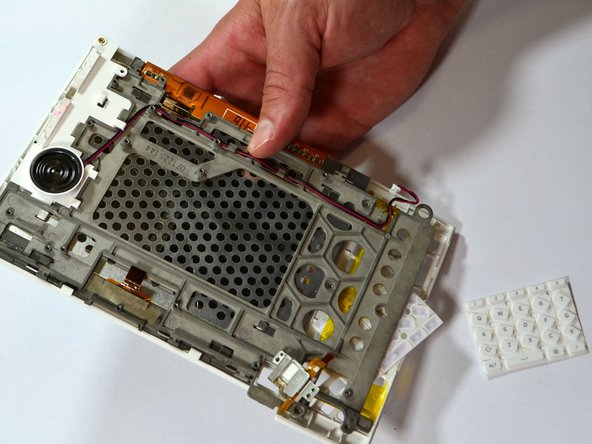
    • The keyboard and the blue and white ribbon cable will slide out horizontally from behind the frame.

    • The rubber key pads will slide out from behind the frame.

    Pregunta a FixBot

    Agregar Comentario

Conclusión

To reassemble your device, follow these instructions in reverse order.

Cancelar: No complete esta guía.

1Guía Comentario

Where do you get a replacement controller wheel/button. This is what failed on my 1st gen kindle.

Joyce stevenson - Contestar Compartir

Agregar Comentario

Ver Estadísticas:

Ultimas 24 horas: 1

Ultimos 7 días: 8

Ultimos 30 días: 52

Todo El Tiempo: 2,171