Saltar al contenido principal

How to Reset the Mainboard in your Framework Desktop

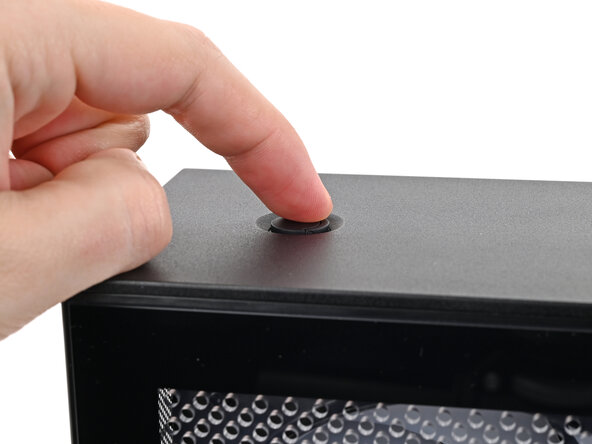
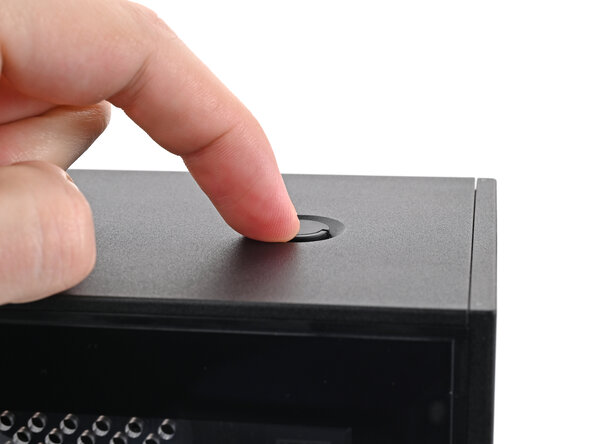
  1. How to Reset the Mainboard in your Framework Desktop, Power down your Desktop: paso 1, imagen 1 de 2 How to Reset the Mainboard in your Framework Desktop, Power down your Desktop: paso 1, imagen 2 de 2
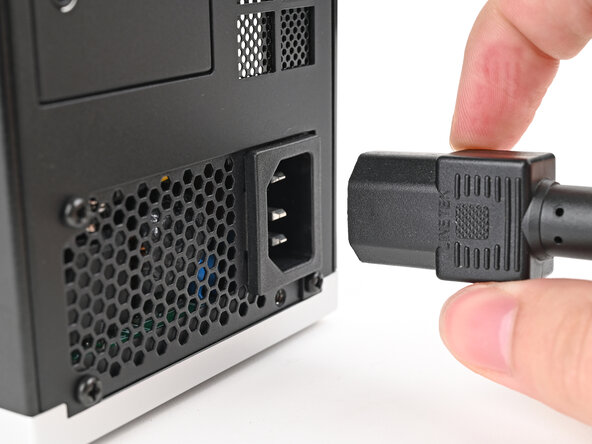
    • Before you begin repairs, shut down your Desktop from the operating system and unplug it.

    • Wait one minute before continuing to allow your Desktop to fully power down.

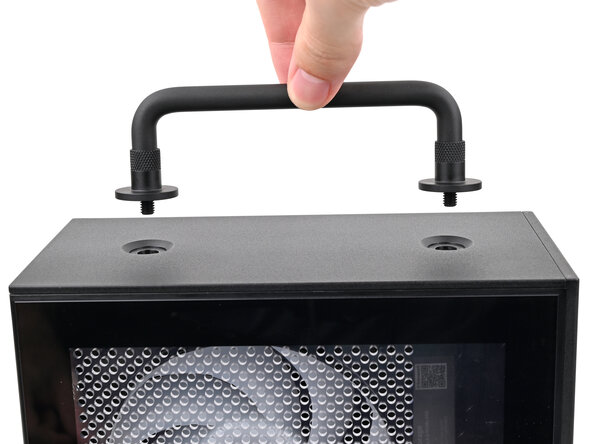
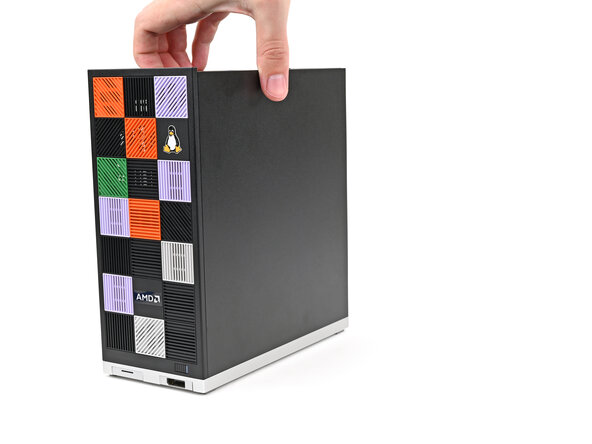
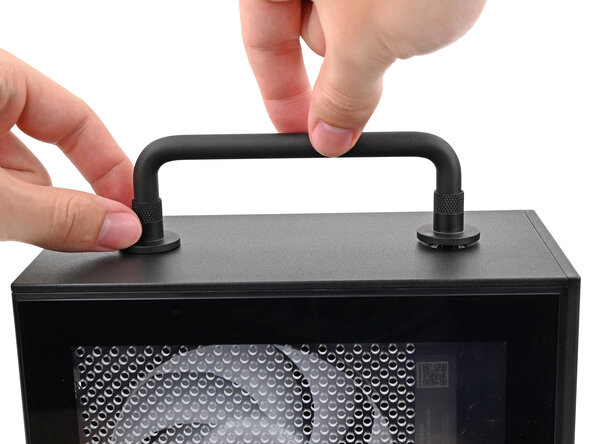
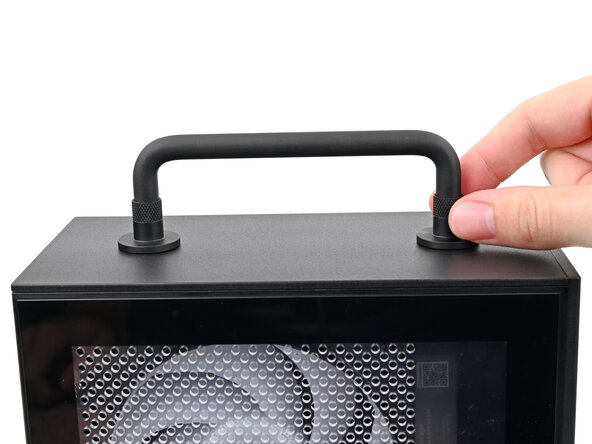
  2. How to Reset the Mainboard in your Framework Desktop, Remove the Handle: paso 2, imagen 1 de 3 How to Reset the Mainboard in your Framework Desktop, Remove the Handle: paso 2, imagen 2 de 3 How to Reset the Mainboard in your Framework Desktop, Remove the Handle: paso 2, imagen 3 de 3
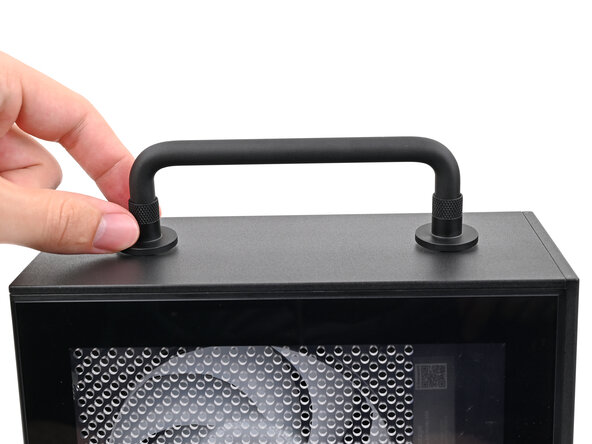
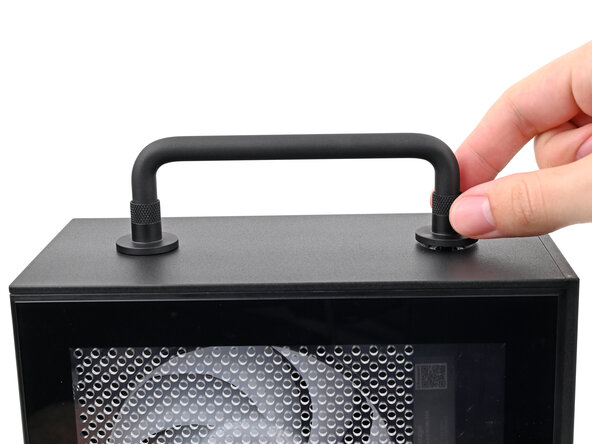
    • If you installed the Handle on your Desktop, follow this step. Otherwise, skip it.

    • Rotate the Handle's screw threads counterclockwise on both sides until it comes free.

    • Remove the Handle.

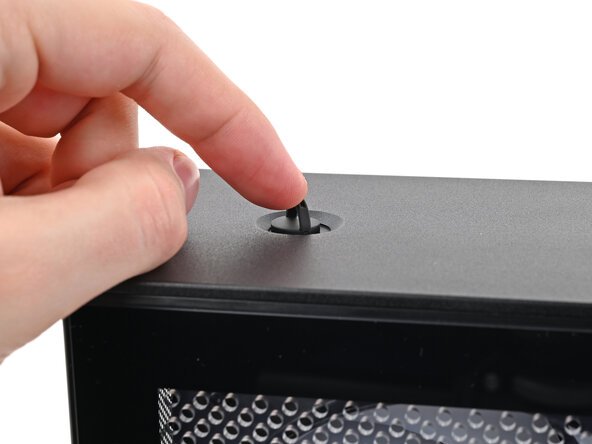
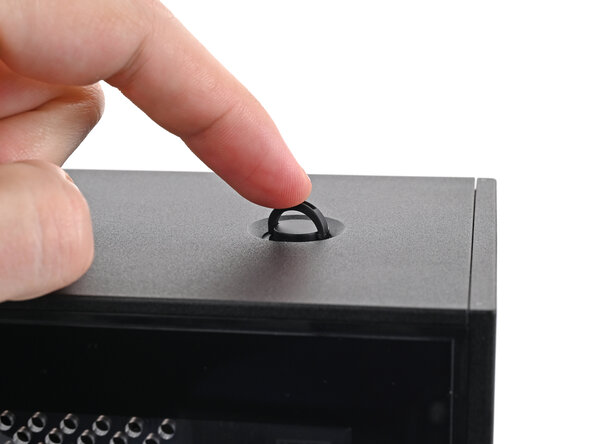
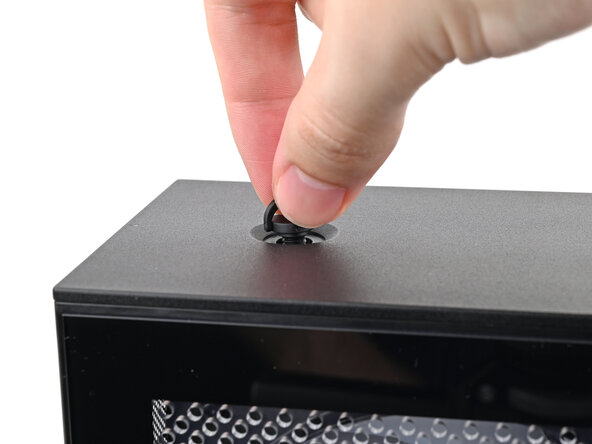
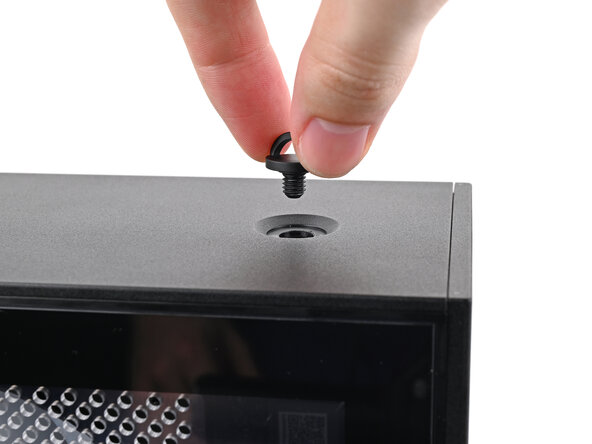
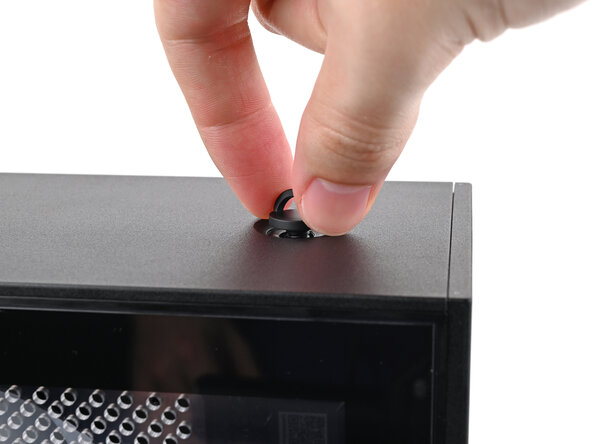
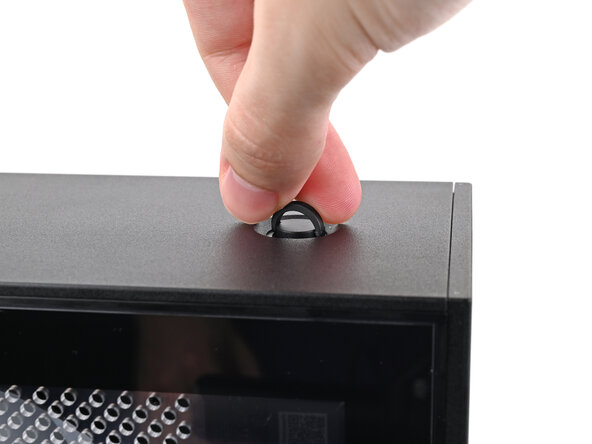
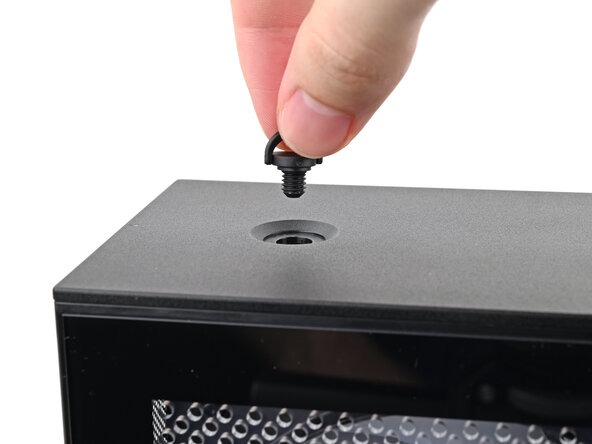
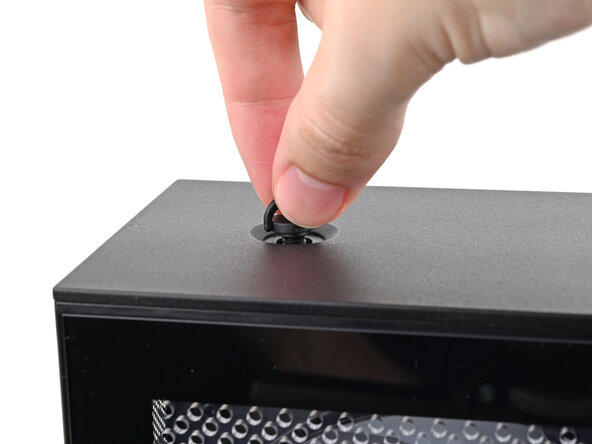
  3. How to Reset the Mainboard in your Framework Desktop, Remove the Top Panel screws: paso 3, imagen 1 de 3 How to Reset the Mainboard in your Framework Desktop, Remove the Top Panel screws: paso 3, imagen 2 de 3 How to Reset the Mainboard in your Framework Desktop, Remove the Top Panel screws: paso 3, imagen 3 de 3
    • Use your finger to lift up the two D-rings on the Top Panel screws.

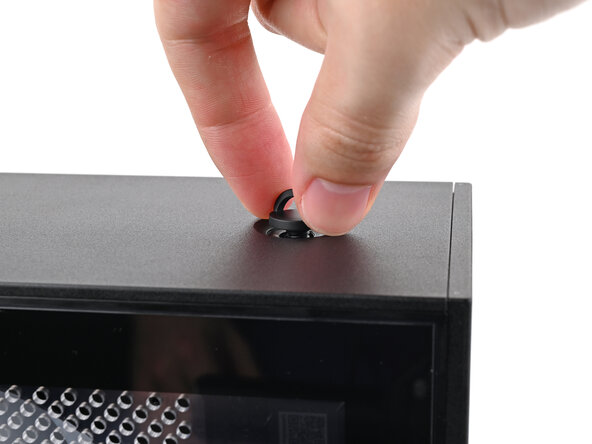
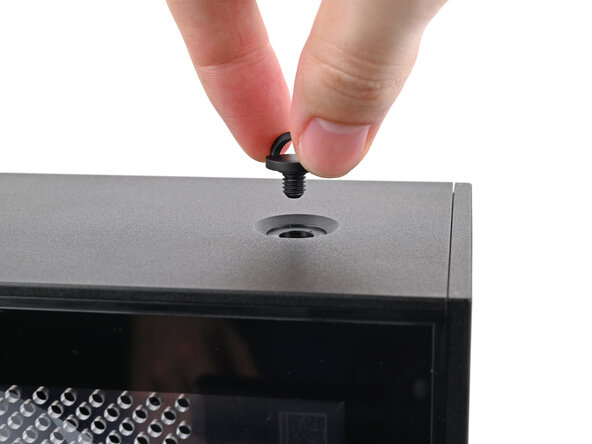
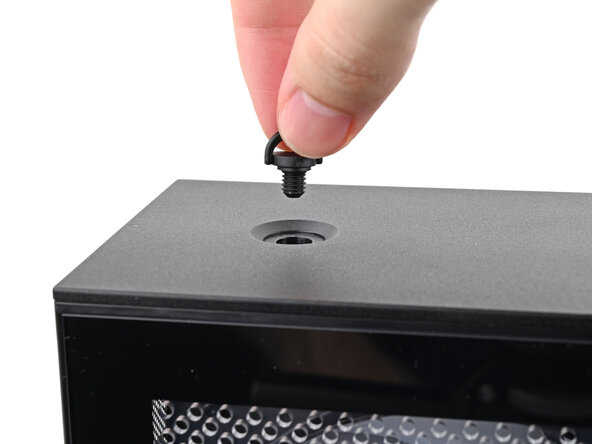
  4. How to Reset the Mainboard in your Framework Desktop: paso 4, imagen 1 de 3 How to Reset the Mainboard in your Framework Desktop: paso 4, imagen 2 de 3 How to Reset the Mainboard in your Framework Desktop: paso 4, imagen 3 de 3
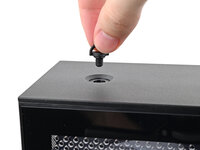
    • Use your fingers to twist the screw counter-clockwise and loosen it.

    • Remove the Top Panel screw.

  5. How to Reset the Mainboard in your Framework Desktop: paso 5, imagen 1 de 3 How to Reset the Mainboard in your Framework Desktop: paso 5, imagen 2 de 3 How to Reset the Mainboard in your Framework Desktop: paso 5, imagen 3 de 3
    • Repeat the same procedure for the other Top Panel screw.

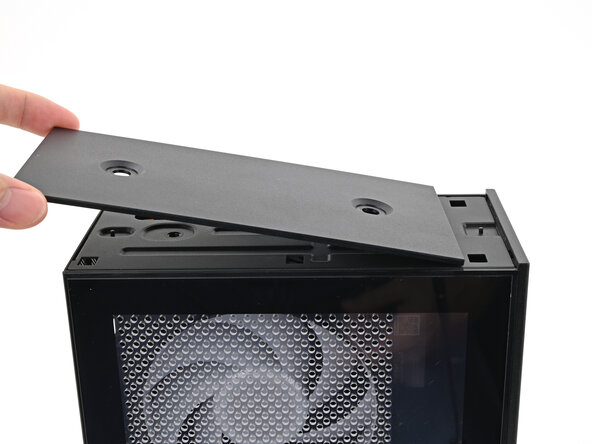
  6. How to Reset the Mainboard in your Framework Desktop, Remove the Top Panel: paso 6, imagen 1 de 3 How to Reset the Mainboard in your Framework Desktop, Remove the Top Panel: paso 6, imagen 2 de 3 How to Reset the Mainboard in your Framework Desktop, Remove the Top Panel: paso 6, imagen 3 de 3
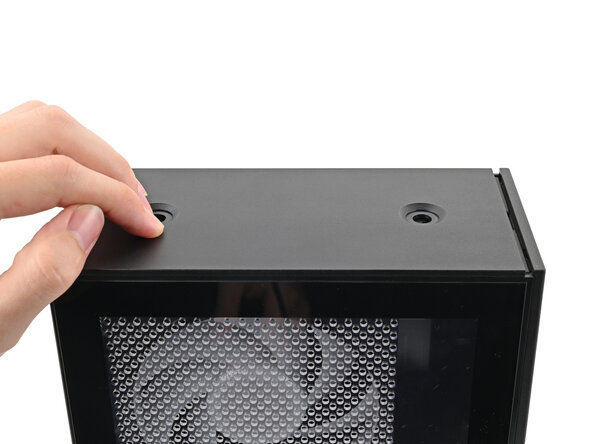
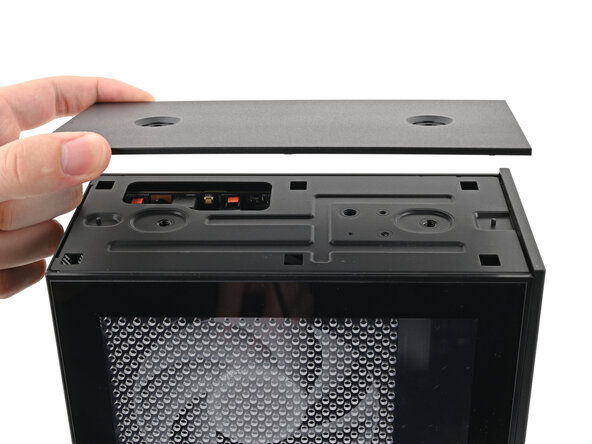
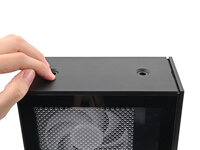
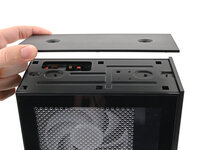
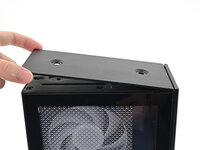
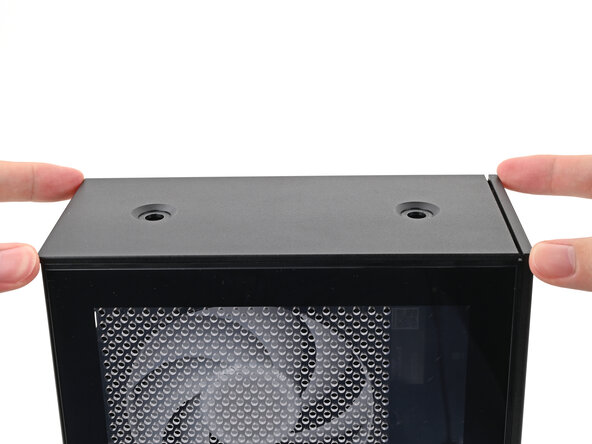
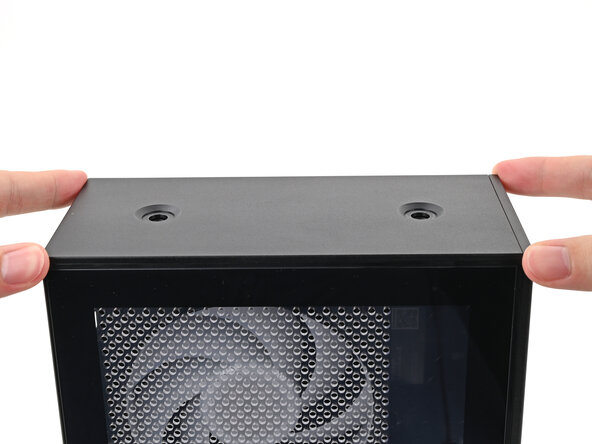
    • Slide the Top Panel towards the rear of the computer to release the clips securing it to the chassis.

    • If you're having a hard time gripping the Top Panel, use the screw holes to get a better handhold.

    • Lift the Top Panel off the chassis and remove it.

  7. How to Reset the Mainboard in your Framework Desktop, Lay down the Desktop: paso 7, imagen 1 de 2 How to Reset the Mainboard in your Framework Desktop, Lay down the Desktop: paso 7, imagen 2 de 2
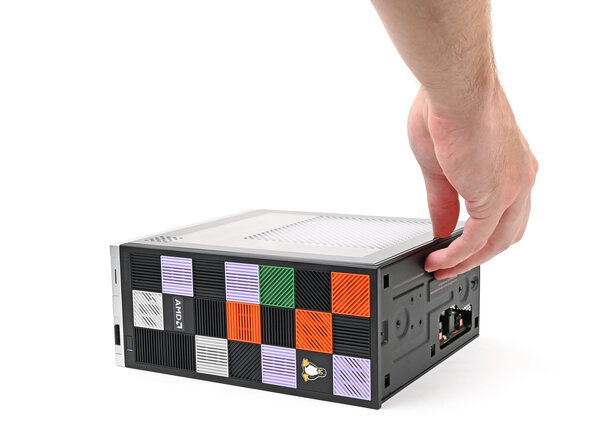
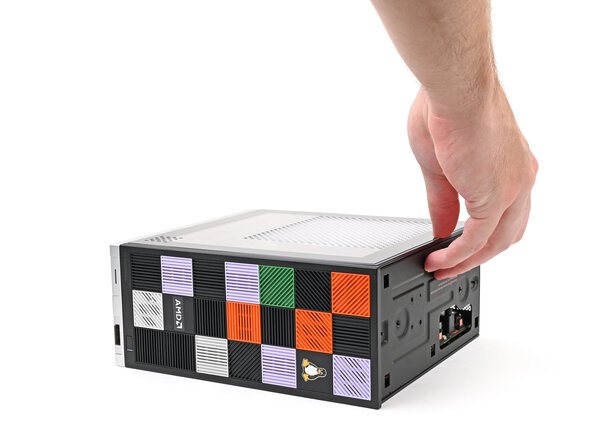
    • Lay down the Desktop on its right side.

  8. How to Reset the Mainboard in your Framework Desktop, Reset the Mainboard: paso 8, imagen 1 de 2 How to Reset the Mainboard in your Framework Desktop, Reset the Mainboard: paso 8, imagen 2 de 2
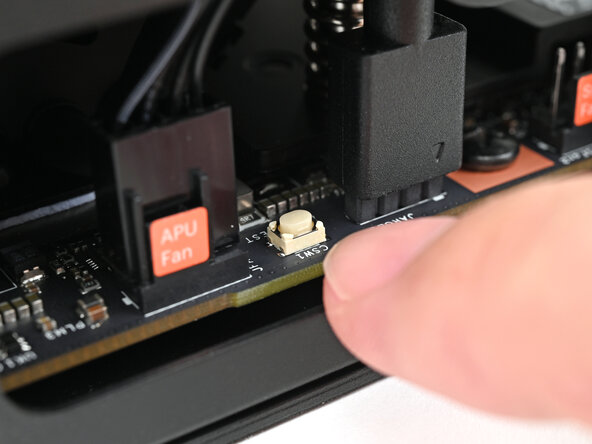
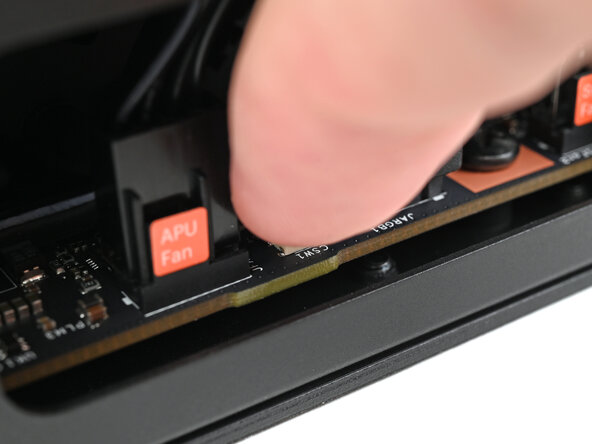
    • Press the white button labeled "CMOS RESET" next to the APU Fan connector and hold for 10 seconds.

  9. How to Reset the Mainboard in your Framework Desktop, Reposition the Desktop: paso 9, imagen 1 de 2 How to Reset the Mainboard in your Framework Desktop, Reposition the Desktop: paso 9, imagen 2 de 2
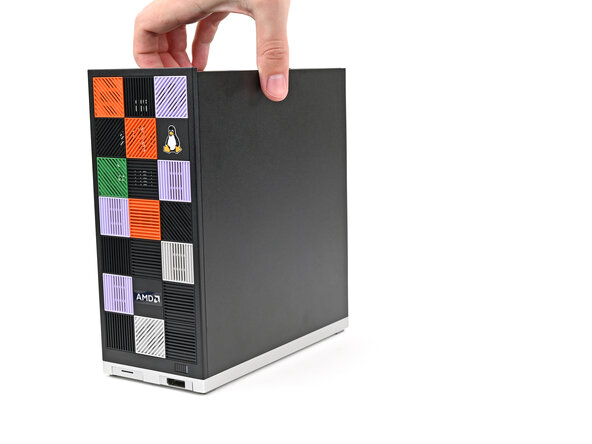
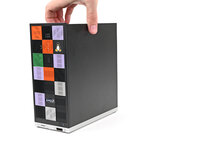
    • Lift the Desktop so it stands upright on your work surface.

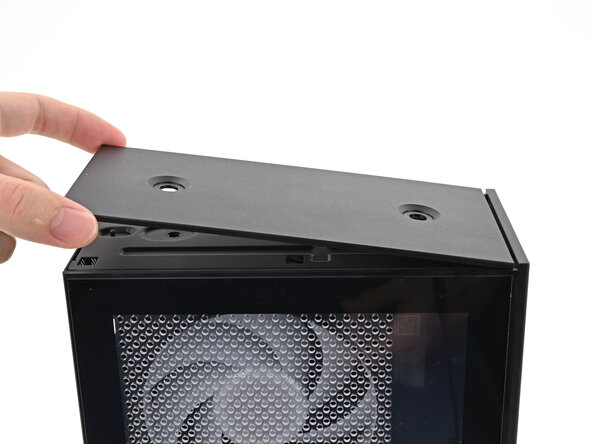
  10. How to Reset the Mainboard in your Framework Desktop, Install the Top Panel: paso 10, imagen 1 de 3 How to Reset the Mainboard in your Framework Desktop, Install the Top Panel: paso 10, imagen 2 de 3 How to Reset the Mainboard in your Framework Desktop, Install the Top Panel: paso 10, imagen 3 de 3
    • Orient the Top Panel so its arrow is pointing towards the rear of the computer.

    • While holding the Top Panel at a slight downward angle, slide it across the top of the chassis (from rear to front) until you feel its clips catch.

    • There should be a small gap between the Top Panel and the front of the Desktop.

    • Lay the Top Panel flat on the chassis to align the remaining clips.

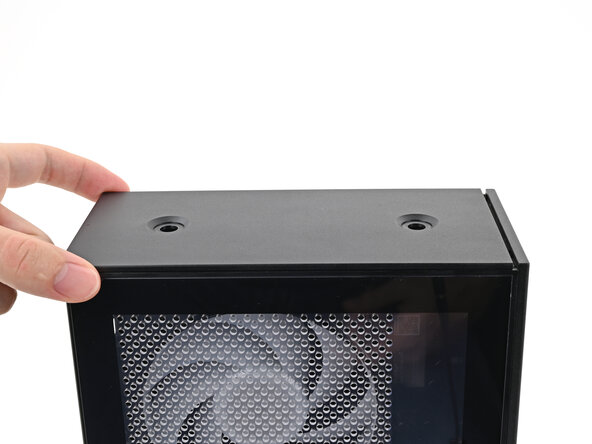
  11. How to Reset the Mainboard in your Framework Desktop: paso 11, imagen 1 de 2 How to Reset the Mainboard in your Framework Desktop: paso 11, imagen 2 de 2
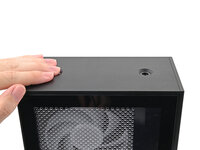
    • While securing the computer with one hand, use the other hand to slide the Top Panel towards the front of the computer to close the gap and engage the clips.

  12. How to Reset the Mainboard in your Framework Desktop, Install the Handle: paso 12, imagen 1 de 2 How to Reset the Mainboard in your Framework Desktop, Install the Handle: paso 12, imagen 2 de 2
    • If you're installing the Handle on your Desktop, follow this step. Otherwise, skip it.

    • Place the Handle over the Top Panel screw holes.

    • While holding the Handle in place, twist the screw threads on both sides clockwise until they're snug on the Top Panel.

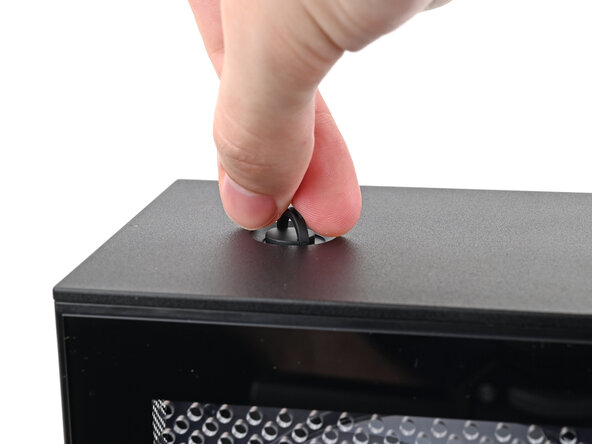
  13. How to Reset the Mainboard in your Framework Desktop, Install the top panel screws: paso 13, imagen 1 de 3 How to Reset the Mainboard in your Framework Desktop, Install the top panel screws: paso 13, imagen 2 de 3 How to Reset the Mainboard in your Framework Desktop, Install the top panel screws: paso 13, imagen 3 de 3
    • Insert the top panel screw into its hole and twist clockwise until it feels snug.

  14. How to Reset the Mainboard in your Framework Desktop: paso 14, imagen 1 de 3 How to Reset the Mainboard in your Framework Desktop: paso 14, imagen 2 de 3 How to Reset the Mainboard in your Framework Desktop: paso 14, imagen 3 de 3
    • Repeat the same procedure for the other top panel screw.

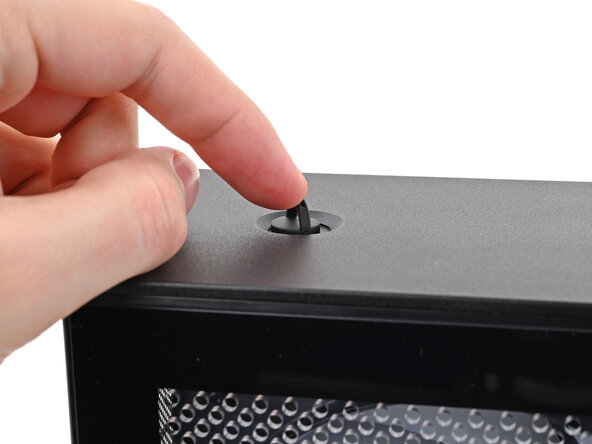
  15. How to Reset the Mainboard in your Framework Desktop: paso 15, imagen 1 de 3 How to Reset the Mainboard in your Framework Desktop: paso 15, imagen 2 de 3 How to Reset the Mainboard in your Framework Desktop: paso 15, imagen 3 de 3
    • Use your finger to close the two D-rings on the top panel screws.

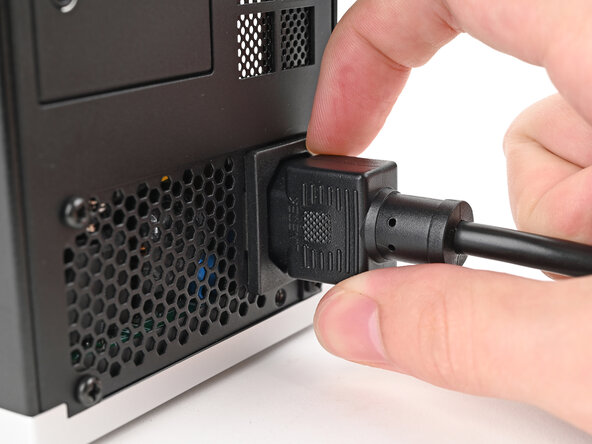
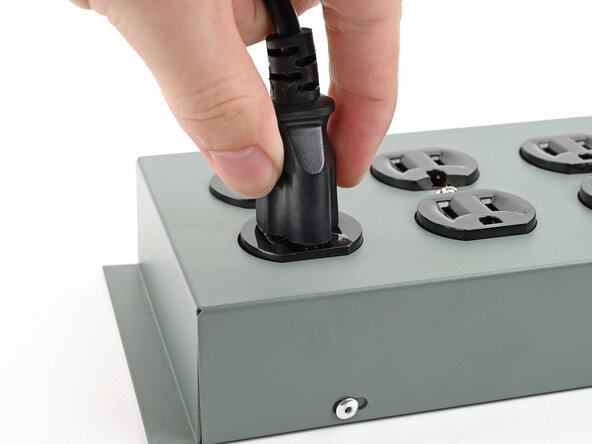
  16. How to Reset the Mainboard in your Framework Desktop, Plug in the Desktop: paso 16, imagen 1 de 2 How to Reset the Mainboard in your Framework Desktop, Plug in the Desktop: paso 16, imagen 2 de 2
    • Plug the Desktop back in.

    • Turn on your Desktop—it should boot up normally. If your BIOS settings haven't changed, or if you're still experiencing issues, repeat the Mainboard reset procedure.

Conclusión

If you need help, contact Framework support.

Una persona más ha completado esta guía.

Alex Diaz-Kokaisl

Miembro Desde 01/16/22

212,629 Reputación

1,039 Guías creadas

0Guía Comentarios

Agregar Comentario

Ver Estadísticas:

Ultimas 24 horas: 4

Ultimos 7 días: 25

Ultimos 30 días: 100

Todo El Tiempo: 333