Saltar al contenido principal

Envío gratis en pedidos nacionales de $75+

HP Pavilion x360 14m-cd0005dx Keyboard Replacement

Vistas: 3.4 k

Ver estadísticas:

Últimas 24 horas:
2
Últimos 7 días:
13
Últimos 30 días:
69
Todo El Tiempo:
3,383
Comentarios: 2

2 comentarios sobre los pasos.

Completado: 1

1 persona ha marcado esta guía como "completada". ¿Serás tú la próxima persona en hacerlo?

Favoritos: 1

1 persona ha marcado como "Favorita" y se ha suscrito a esta guía. ¿Serás tú la próxima persona en hacerlo?

Tiempo Requerido: 25 - 50 minutos
Dificultad: Moderado
Fotos de acción

Sé un héroe de acción! Esta guía necesita imágenes que demuestren mejor cómo llevar a cabo acciones específicas.

Necesita más imágenes

Unas imágenes más harían que los procedimientos de esta guía sean claros.

HP Pavilion x360 14m-cd0005dx Keyboard Replacement

Introducción

Ir al paso 1 ↓

Use this guide to aid in the removal and replacement of the keyboard to any HP Pavilion x360 14m-cd0005dx laptop. Replace the keyboard if the device fails to recognize a keypress. It should also be taken off and cleaned if, for some reason, a key cannot press down. For more information as to whether the keyboard should be replaced, look at this troubleshooting guide.

The keyboard is an essential part of any laptop. When replacing a keyboard, there may be some necessary software updates. Also, be aware that there are many wires to the keyboard; failing to replace a single cable can cause the keyboard to fail to work entirely. Neglecting the replacement of a keyboard may result in the system failing to recognize key inputs consistently.

Qué necesitas

Herramientas

    1. HP Pavilion x360 14m-cd0005dx Keyboard Replacement, Back Cover: paso 1, imagen 1 de 1
      • Turn off and shut down the computer.

      • Disconnect the power adapter and all external devices connected to the computer.

      • Do not work with the device powered on. It may result in bodily harm through electric shock.

      Pregunta a FixBot

      Agregar Comentario

    2. HP Pavilion x360 14m-cd0005dx Keyboard Replacement: paso 2, imagen 1 de 1
      • Flip the device with the backplate up and with the hinge on the far side.

      Pregunta a FixBot

      Agregar Comentario

    3. HP Pavilion x360 14m-cd0005dx Keyboard Replacement: paso 3, imagen 1 de 2 HP Pavilion x360 14m-cd0005dx Keyboard Replacement: paso 3, imagen 2 de 2
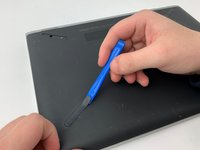
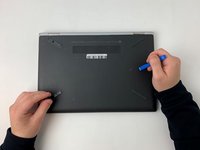
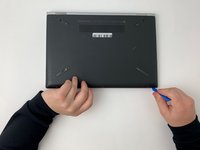
      • Use the opening tool to remove the rubber feet attached to the bottom of the device.

      Pregunta a FixBot

      Agregar Comentario

    4. HP Pavilion x360 14m-cd0005dx Keyboard Replacement: paso 4, imagen 1 de 2 HP Pavilion x360 14m-cd0005dx Keyboard Replacement: paso 4, imagen 2 de 2
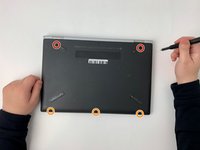
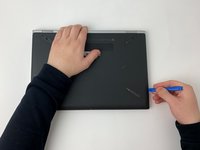
      • Remove all screws located on the bottom of the device:

      • Two Phillips #0 7.0mm screws

      • Three Phillips #00 4.5mm screws

      • Make sure to keep track of all screws removed from the device.

      Pregunta a FixBot

      Agregar Comentario

    5. HP Pavilion x360 14m-cd0005dx Keyboard Replacement: paso 5, imagen 1 de 3 HP Pavilion x360 14m-cd0005dx Keyboard Replacement: paso 5, imagen 2 de 3 HP Pavilion x360 14m-cd0005dx Keyboard Replacement: paso 5, imagen 3 de 3
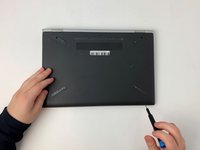
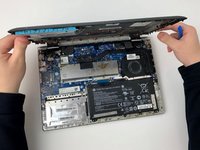
      • Using the opening tool, carefully remove the bottom cover from the device.

      Pregunta a FixBot

      Agregar Comentario

    1. HP Pavilion x360 14m-cd0005dx Keyboard Replacement, Battery: paso 6, imagen 1 de 3 HP Pavilion x360 14m-cd0005dx Keyboard Replacement, Battery: paso 6, imagen 2 de 3 HP Pavilion x360 14m-cd0005dx Keyboard Replacement, Battery: paso 6, imagen 3 de 3
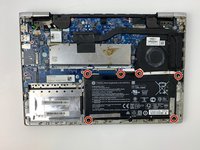
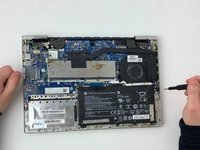
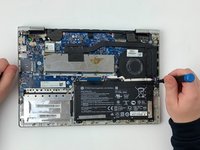
      • Use a #00 Phillips screwdriver to remove:

      • Six 2.5 mm screws

      Pregunta a FixBot

      Agregar Comentario

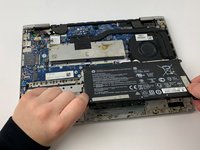
    2. HP Pavilion x360 14m-cd0005dx Keyboard Replacement: paso 7, imagen 1 de 2 HP Pavilion x360 14m-cd0005dx Keyboard Replacement: paso 7, imagen 2 de 2
      • Carefully lift from the base and remove the battery.

      Pregunta a FixBot

      Agregar Comentario

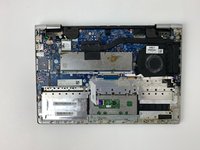
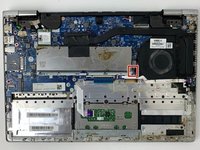
    1. HP Pavilion x360 14m-cd0005dx Keyboard Replacement, Heat Sink and Fan: paso 8, imagen 1 de 1
      • Remove the tape that secures the fan to the computer.

      Pregunta a FixBot

      Agregar Comentario

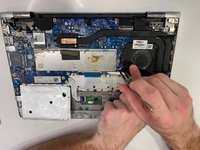
    2. HP Pavilion x360 14m-cd0005dx Keyboard Replacement: paso 9, imagen 1 de 2 HP Pavilion x360 14m-cd0005dx Keyboard Replacement: paso 9, imagen 2 de 2
      Herramienta utilizada en este paso:
      Tweezers
      $4.99
      • Find the fan cable

      • Use the Reverse Tweezers to unplug the fan cable

      Pregunta a FixBot

      Agregar Comentario

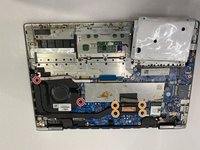
    3. HP Pavilion x360 14m-cd0005dx Keyboard Replacement: paso 10, imagen 1 de 3 HP Pavilion x360 14m-cd0005dx Keyboard Replacement: paso 10, imagen 2 de 3 HP Pavilion x360 14m-cd0005dx Keyboard Replacement: paso 10, imagen 3 de 3
      • Remove all screws securing the fan to the device:

      • Two Phillips #00 4.5mm screws

      • Four Phillips #00 4.5mm screws

      Pregunta a FixBot

      Agregar Comentario

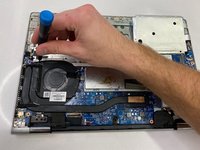
    4. HP Pavilion x360 14m-cd0005dx Keyboard Replacement: paso 11, imagen 1 de 2 HP Pavilion x360 14m-cd0005dx Keyboard Replacement: paso 11, imagen 2 de 2
      • Lift and remove the fan and heat sink from the device.

      • When removing the fan, there will be an adhesive strip attached to the bottom. There may be some resistance as the device is being removed. Use a spudger to hold the adhesive down during removal.

      Pregunta a FixBot

      Agregar Comentario

    1. HP Pavilion x360 14m-cd0005dx Keyboard Replacement, Keyboard: paso 12, imagen 1 de 2 HP Pavilion x360 14m-cd0005dx Keyboard Replacement, Keyboard: paso 12, imagen 2 de 2
      • Remove all screws securing the hinges to the device:

      • Four Phillips #0 4.5mm screws

      • After removing the hinge screws, it can be harder to turn the laptop. Be sure to not force it, but pressing on the hinge itself to make it move may help when manipulating the screen.

      Pregunta a FixBot

      Agregar Comentario

    2. HP Pavilion x360 14m-cd0005dx Keyboard Replacement: paso 13, imagen 1 de 2 HP Pavilion x360 14m-cd0005dx Keyboard Replacement: paso 13, imagen 2 de 2
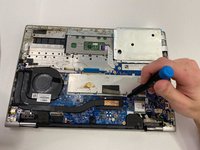
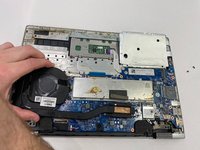
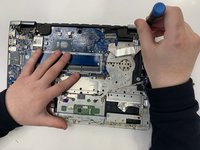
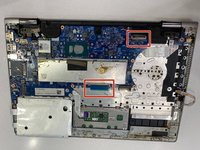
      • Grab the ribbon wires by the edge of the socket and pull to remove them from the motherboard.

      Pregunta a FixBot

      Agregar Comentario

    3. HP Pavilion x360 14m-cd0005dx Keyboard Replacement: paso 14, imagen 1 de 1
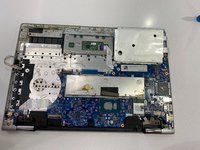
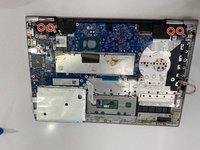
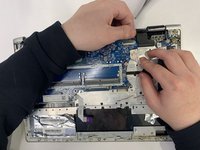
      • Rotate the screen backwards until only the keyboard is visible.

      Pregunta a FixBot

      Agregar Comentario

    4. HP Pavilion x360 14m-cd0005dx Keyboard Replacement: paso 15, imagen 1 de 1
      • Run an Opening Tool along the edge of the device.

      • Pull the plastic keyboard up and away from the base of the laptop.

      • There is adhesive attaching the keyboard to the base of the laptop. Continue to pull the keyboard up and out; ignore the resistance.

      • Pull up on the metal casing of the keyboard below the keyboard's surface once a hand can adequately fit under the gap.

      Pregunta a FixBot

      Agregar Comentario

    5. HP Pavilion x360 14m-cd0005dx Keyboard Replacement: paso 16, imagen 1 de 1
      • Gently raise the keyboard up and keep pulling to remove it from the base housing.

      • Do not pull just the top casing off. It is brittle and it may break. Ensure that the opening tool is beneath the keyboard in its entirety.

      Pregunta a FixBot

      Agregar Comentario

Conclusión

To reassemble your device, follow these instructions in reverse order.

Cancelar: No complete esta guía.

Una persona más ha completado esta guía.
Autor

con

Jacob Richardson Earl

Miembro Desde 01/14/20

966 Reputación

6 Guías creadas

0Guía Comentarios

Agregar Comentario

Ver Estadísticas:

Ultimas 24 horas: 2

Ultimos 7 días: 13

Ultimos 30 días: 69

Todo El Tiempo: 3,383