
HP Pavilion Sleekbook 14-b013cl Keyboard Replacement

Marcus y
Última actualización: 14 de jun. de 2018
Vistas: 1 k
Ver estadísticas:
- Últimas 24 horas:
- 5
- Últimos 7 días:
- 19
- Últimos 30 días:
- 67
- Todo El Tiempo:
- 1,042
Comentarios: 2
2 comentarios sobre los pasos.
Completado: 1 2
1 persona ha marcado esta guía como "completada". ¿Serás tú la próxima persona en hacerlo?
2 persona acaba de marcar esta guía como "completada". ¡Incluyéndote, excelente trabajo!
Favoritos: 0 1
Nadie ha marcado como "Favorita" ni se ha suscrito a esta guía. ¿Quieres hacerlo tú?
1 persona marcó (y se suscribió) a esta guía como favorita, ¡y ese eres tú!
Introducción
Ir al paso 1 ↓This guide will walk you through the steps required to remove and replace the keyboard of the HP Pavilion Sleekbook 14-b013cl.
Qué necesitas
Herramientas
-
Spudger4.9


-
-
-
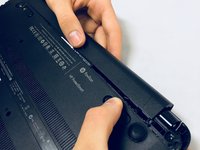
Flip the computer over and move the battery lock switch to the "unlocked" position (marked by an orange lock icon).
 Pregunta a FixBot
-
-
-
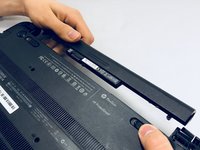
Press the switch on the right-hand side of the back of the device towards the center until the gray battery icon is no longer visible. This will eject the battery.
-
-
-
-
-
-
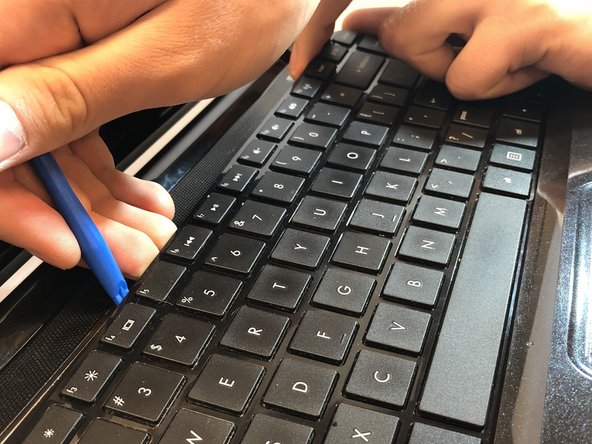
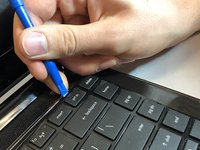
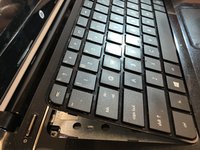
Use a plastic opening tool to pry up one of the upper counters on the keyboard
-
Run the tool along the upper edge of the keyboard and towards the opposite corner to release the latches.
-
-
-
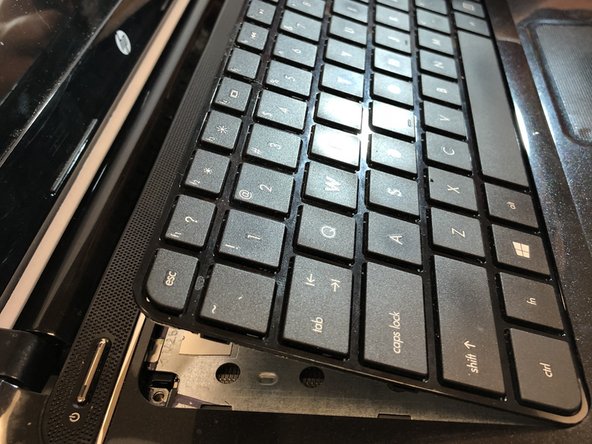
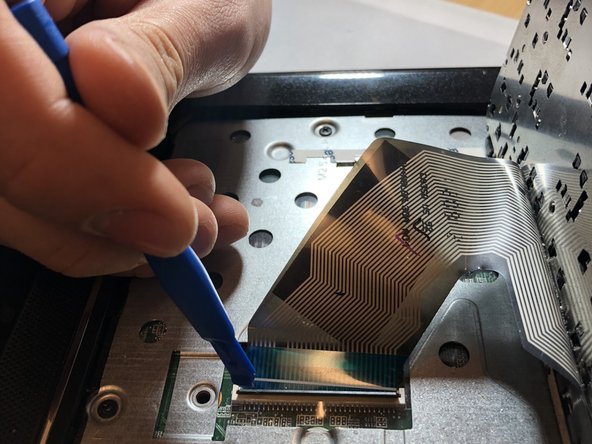
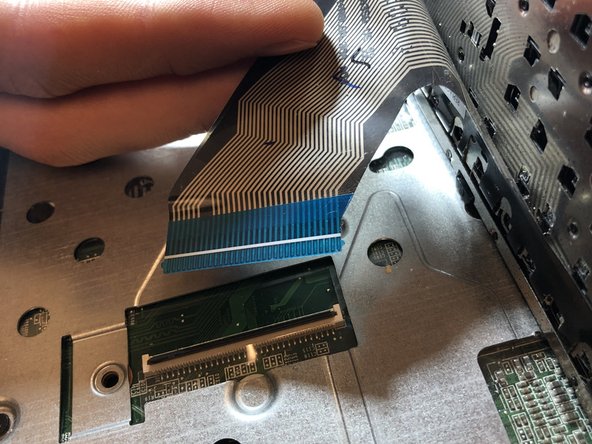
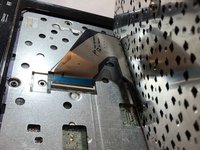
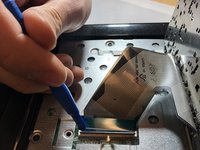
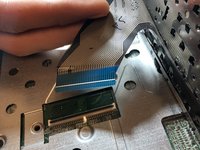
Push the button to release the connector and pull it out and remove the keyboard
-






To reassemble your device, follow these instructions in reverse order.
Cancelar: No complete esta guía.
Una persona más ha completado esta guía.
Equipo

Eastern Washington University, Team S2-G3, Ramos Spring 2018 Miembro de Eastern Washington University, Team S2-G3, Ramos Spring 2018
EWU-RAMOS-S18S2G3
Miembros de 5
60 Guías creadas
