Saltar al contenido principal

HP Pavilion 15-cs3065cl M.2 NVME SSD Install

Qué necesitas

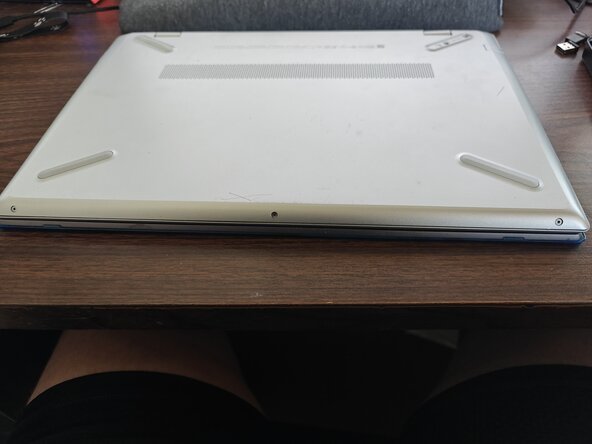
  1. HP Pavilion 15-cs3065cl  M.2 NVME SSD Install, Flip it over: paso 1, imagen 1 de 1
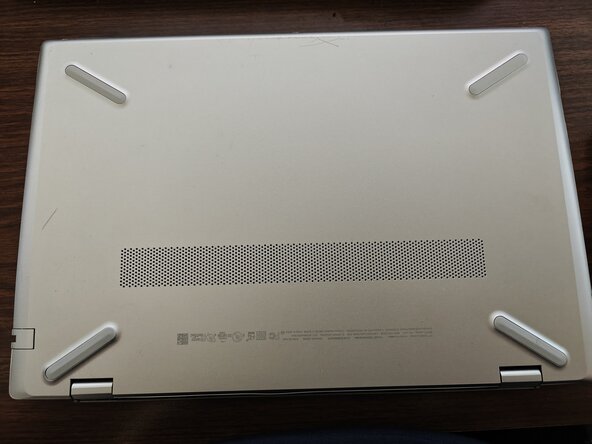
    • First thing you'll do is flip it over, remove any SD cards, USBs, and remove your case if you have one.

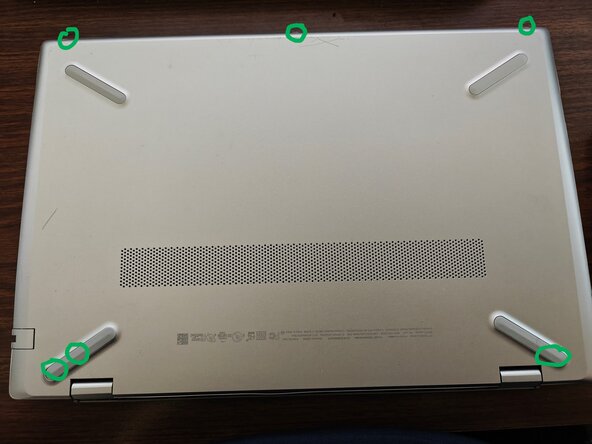
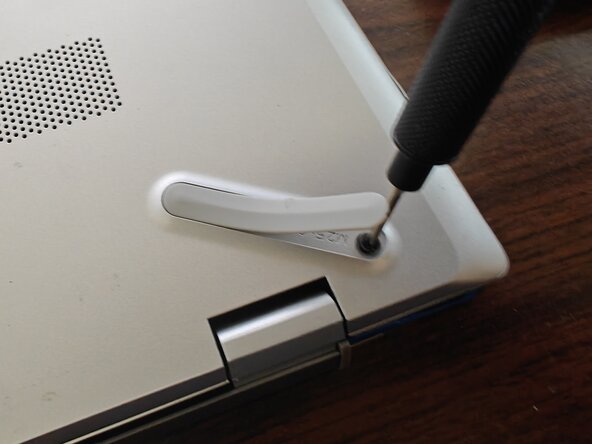
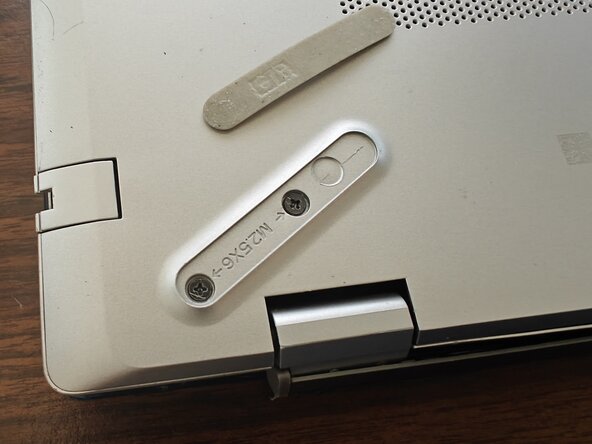
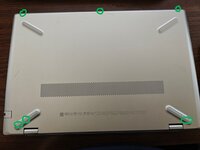
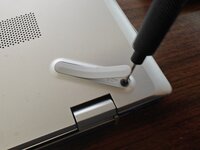
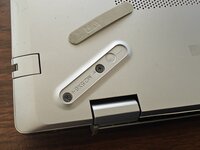
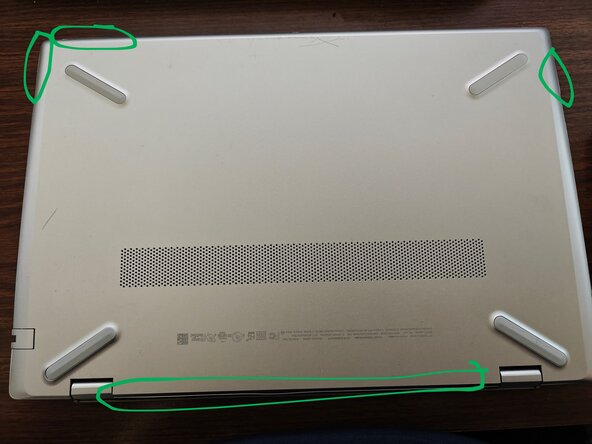
  2. HP Pavilion 15-cs3065cl  M.2 NVME SSD Install, Remove screws: paso 2, imagen 1 de 3 HP Pavilion 15-cs3065cl  M.2 NVME SSD Install, Remove screws: paso 2, imagen 2 de 3 HP Pavilion 15-cs3065cl  M.2 NVME SSD Install, Remove screws: paso 2, imagen 3 de 3
    • There will be about 6 screws you'll need to remove.

    • You will have to at least partially remove the rubber feet to access 3 of the screws.

    • The screws are really tiny, so I recommend putting them in a Tupperware or Ziploc if you don't have a magnetic screw tray.

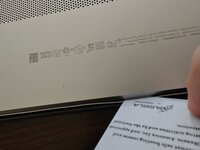
  3. HP Pavilion 15-cs3065cl  M.2 NVME SSD Install, Credit Card or Pry Tool Step: paso 3, imagen 1 de 2 HP Pavilion 15-cs3065cl  M.2 NVME SSD Install, Credit Card or Pry Tool Step: paso 3, imagen 2 de 2
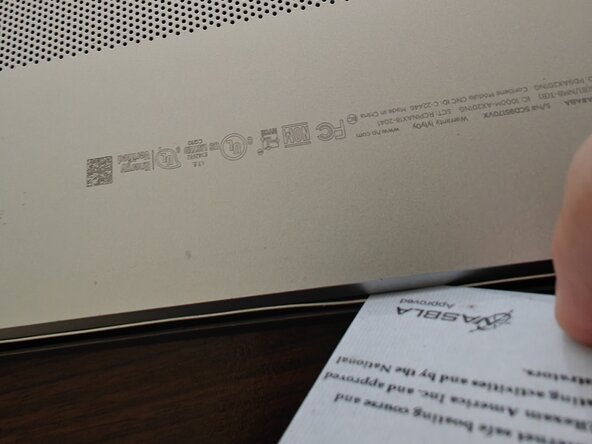
    • You'll use a credit card, ID card, or pry tool to separate the bottom of the laptop from the rest of it. Make sure it's plastic, not metal.

    • You might want to use multiple to hold sections open as you work your way around.

  4. HP Pavilion 15-cs3065cl  M.2 NVME SSD Install, Pop That Sucker Off: paso 4, imagen 1 de 1
    • You remove the bottom to reveal the guts.

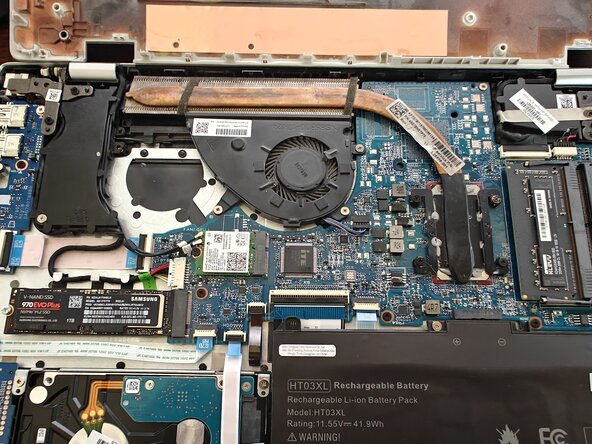
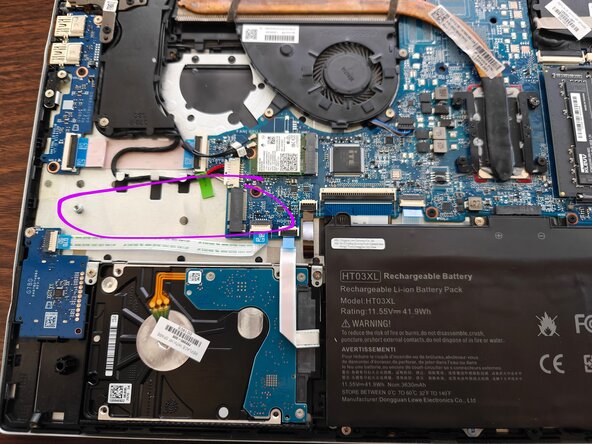
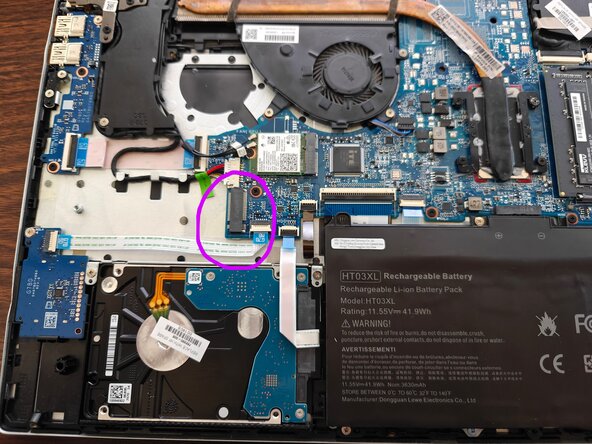
  5. HP Pavilion 15-cs3065cl  M.2 NVME SSD Install, Where's Waldo?: paso 5, imagen 1 de 2 HP Pavilion 15-cs3065cl  M.2 NVME SSD Install, Where's Waldo?: paso 5, imagen 2 de 2
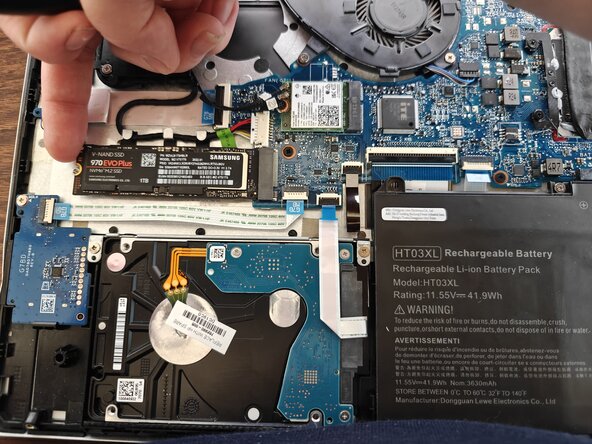
    • Find the M.2 slot.

  6. HP Pavilion 15-cs3065cl  M.2 NVME SSD Install: paso 6, imagen 1 de 1
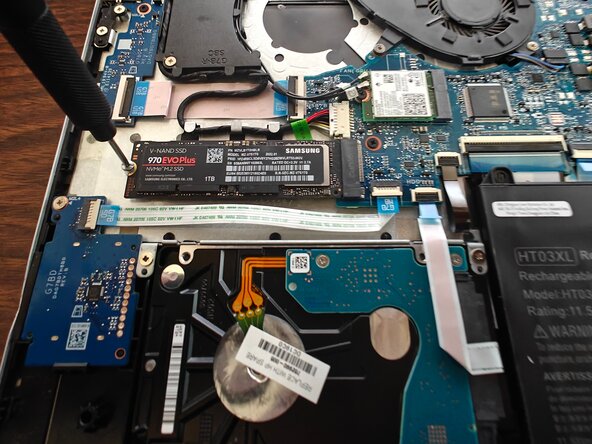
    • Push the NVME into the slot.

  7. HP Pavilion 15-cs3065cl  M.2 NVME SSD Install: paso 7, imagen 1 de 1
    • Screw it down.

  8. HP Pavilion 15-cs3065cl  M.2 NVME SSD Install, Close it up!: paso 8, imagen 1 de 1
    • Snap the lid back on

    • Put the lid screws back in

    • Stick the sticky rubber feetsies back on

    • Plug back in any SD cards, USBs, and put your case back on if you have one

Conclusión

If you want to make your NVME your new boot drive, you'll need a different, more difficult guide. Otherwise, you're set!

Quinn Enestvedt

Miembro Desde 09/05/25

493 Reputación

3 Guías creadas

0Guía Comentarios

Agregar Comentario

Ver Estadísticas:

Ultimas 24 horas: 0

Ultimos 7 días: 0

Ultimos 30 días: 8

Todo El Tiempo: 34