Saltar al contenido principal
Únete a la Comunidad de Reparación - Crear Cuenta
Easyshare C813 Speaker Replacement

Vistas: 2.5 k

Ver estadísticas:

Últimas 24 horas:
2
Últimos 7 días:
26
Últimos 30 días:
103
Todo El Tiempo:
2,466
Comentarios: 1

1 comment on steps.

Completado: 0

Nadie ha marcado esta guía como "completada". ¿Quieres marcarla tú?

Favoritos: 1

1 persona ha marcado como "Favorita" y se ha suscrito a esta guía. ¿Serás tú la próxima persona en hacerlo?

Tiempo Requerido: 30 - 45 minutos
Dificultad: Difícil
Guía Destacada

Esta guía ha sido valorada como excepcionalmente genial por el personal de iFixit.

Easyshare C813 Speaker Replacement

Introducción

Ir al paso 1 ↓

This guide demonstrates how to replace the camera's speaker.

Qué necesitas

Herramientas

    1. Easyshare C813 Speaker Replacement, Battery: paso 1, imagen 1 de 1
      • Turn off camera by firmly pressing the power button that is located on the top of the camera near the selector dial.

      Pregunta a FixBot

      Agregar Comentario

    2. Easyshare C813 Speaker Replacement: paso 2, imagen 1 de 3 Easyshare C813 Speaker Replacement: paso 2, imagen 2 de 3 Easyshare C813 Speaker Replacement: paso 2, imagen 3 de 3
      • Press thumb firmly on battery door and slide it in the direction of the arrow.

      • Lift thumb allowing the door to swing open.

      Pregunta a FixBot

      Agregar Comentario

    1. Easyshare C813 Speaker Replacement, Back Cover: paso 3, imagen 1 de 1
      Herramienta utilizada en este paso:
      Anti-Static Wrist Strap
      $7.95
      Pregunta a FixBot

      Agregar Comentario

    2. Easyshare C813 Speaker Replacement: paso 4, imagen 1 de 1
      • Turn the camera off by firmly pressing the power button located on top of the camera.

      Pregunta a FixBot

      Agregar Comentario

    3. Easyshare C813 Speaker Replacement: paso 5, imagen 1 de 3 Easyshare C813 Speaker Replacement: paso 5, imagen 2 de 3 Easyshare C813 Speaker Replacement: paso 5, imagen 3 de 3
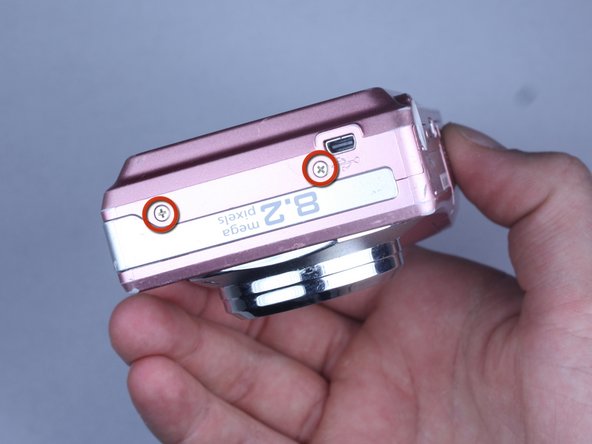
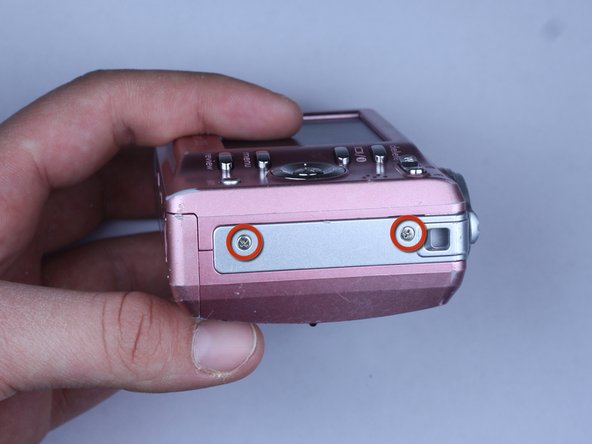
      • Locate the 7 screws holding the back cover on.

      • Three screws are located on the bottom of the camera.

      • Two screws are located on the side shown in the photograph.

      • Two final screws are located on the opposite side shown in the photograph.

      Pregunta a FixBot

      Agregar Comentario

    4. Easyshare C813 Speaker Replacement: paso 6, imagen 1 de 3 Easyshare C813 Speaker Replacement: paso 6, imagen 2 de 3 Easyshare C813 Speaker Replacement: paso 6, imagen 3 de 3
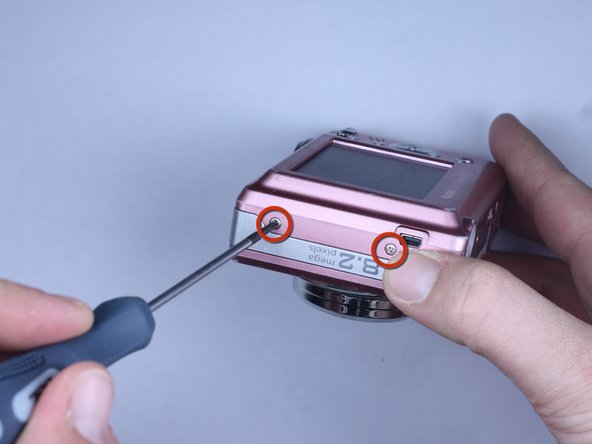
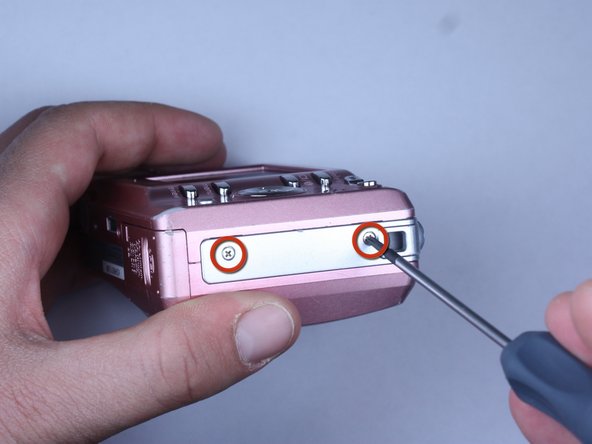
      • Remove all 7 screws:

      • Hold the camera firmly with one hand so that you can still see a screw.

      • Place the Philips 00(Found here)screwdriver into the screw.

      • Turn the screwdriver to the left until it is free.

      • Repeat for the remaining screws.

      Pregunta a FixBot

      Agregar Comentario

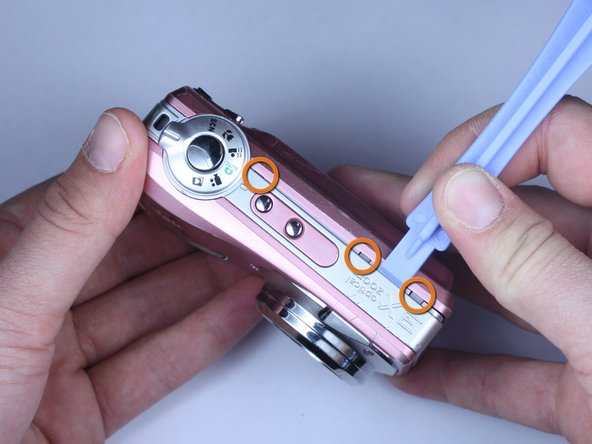
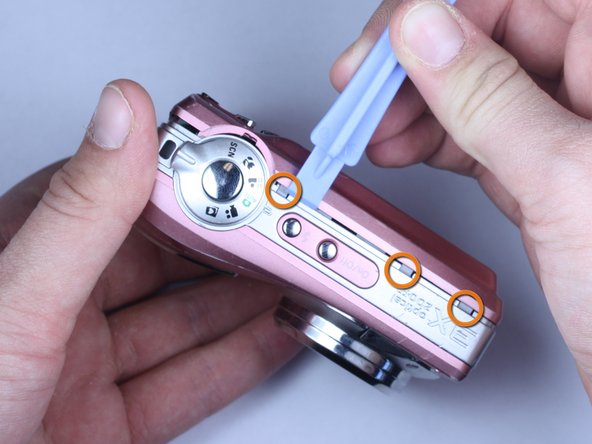
    5. Easyshare C813 Speaker Replacement: paso 7, imagen 1 de 3 Easyshare C813 Speaker Replacement: paso 7, imagen 2 de 3 Easyshare C813 Speaker Replacement: paso 7, imagen 3 de 3
      • Use plastic opening tools to slightly open the side of the case.

      • Insert a plastic opening tool and apply pressure to the internal three tabs at the top.

      • The first two are near the words "3X Optical Zoom".

      • The third is near the shutter button.

      Pregunta a FixBot

      Agregar Comentario

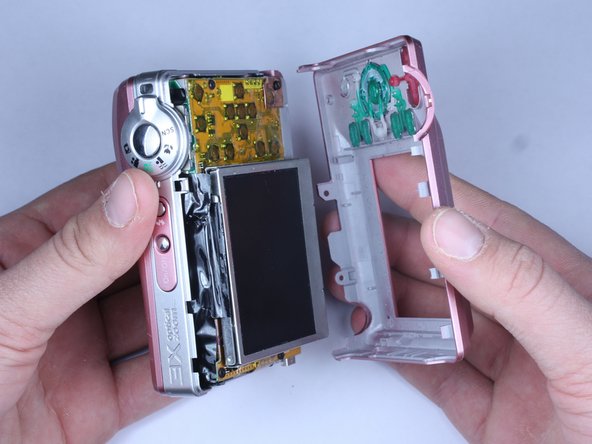
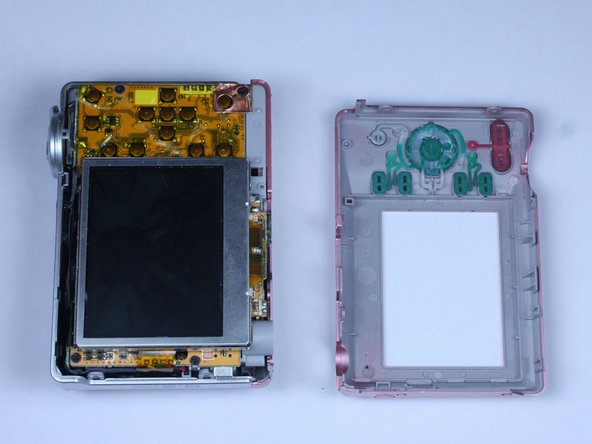
    6. Easyshare C813 Speaker Replacement: paso 8, imagen 1 de 3 Easyshare C813 Speaker Replacement: paso 8, imagen 2 de 3 Easyshare C813 Speaker Replacement: paso 8, imagen 3 de 3
      • Gently pull apart the back cover from the rest of the camera.

      • Make sure there are no more screws or tabs keeping the cover on.

      • Use the plastic opening tool to separate any sides still closely connected.

      Pregunta a FixBot

      Agregar Comentario

    1. Easyshare C813 Speaker Replacement, Front Cover: paso 9, imagen 1 de 2 Easyshare C813 Speaker Replacement, Front Cover: paso 9, imagen 2 de 2
      • Open the battery door.

      • Press thumb firmly on battery door and slide it in the direction of the arrow.

      • Lift thumb allowing the door to swing open.

      Pregunta a FixBot

      Agregar Comentario

    2. Easyshare C813 Speaker Replacement: paso 10, imagen 1 de 3 Easyshare C813 Speaker Replacement: paso 10, imagen 2 de 3 Easyshare C813 Speaker Replacement: paso 10, imagen 3 de 3
      • Use the plastic opening tool to lift the casing around the shutter button.

      • Gently remove the front cover from the device.

      Pregunta a FixBot

      Agregar Comentario

    3. Easyshare C813 Speaker Replacement: paso 11, imagen 1 de 1
      • Do not touch the terminals shown in the photo. These link to the capacitor which could shock you if not discharged.

      • To discharge the capacitor follow this guide.

      Pregunta a FixBot

      Agregar Comentario

    1. Easyshare C813 Speaker Replacement, LCD: paso 12, imagen 1 de 3 Easyshare C813 Speaker Replacement, LCD: paso 12, imagen 2 de 3 Easyshare C813 Speaker Replacement, LCD: paso 12, imagen 3 de 3
      • Once the front cover is removed, the battery door maybe closed for convenience.

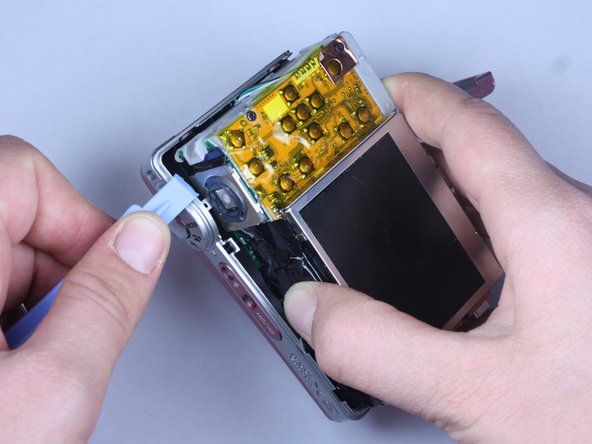
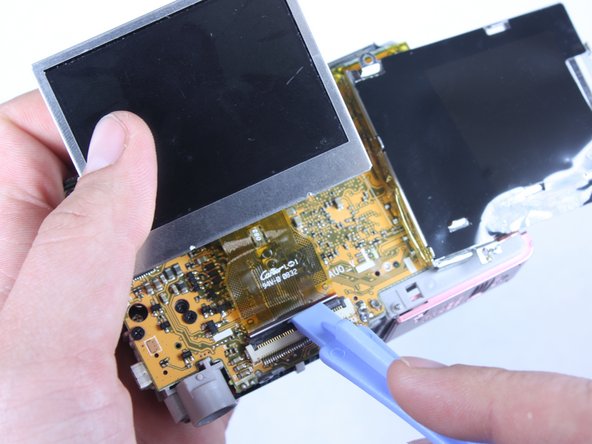
      • Locate the exposed portion of the LCD screen.

      • Use a wedge to free the LCD screen from the medal housing.

      • Do not pull the screen away completely, it is still attached to the logic board via the yellow cable.

      Pregunta a FixBot

      Agregar Comentario

    2. Easyshare C813 Speaker Replacement: paso 13, imagen 1 de 1
      • Remove the screw at the upper right corner of the metal housing.

      Pregunta a FixBot

      Agregar Comentario

    3. Easyshare C813 Speaker Replacement: paso 14, imagen 1 de 3 Easyshare C813 Speaker Replacement: paso 14, imagen 2 de 3 Easyshare C813 Speaker Replacement: paso 14, imagen 3 de 3
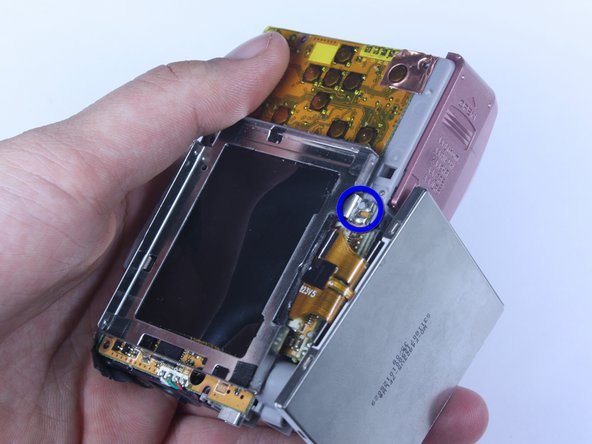
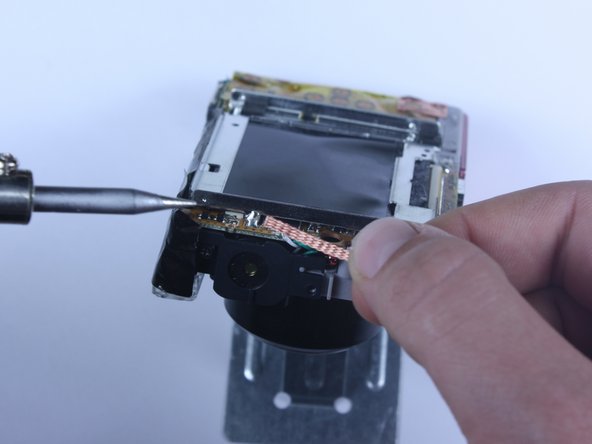
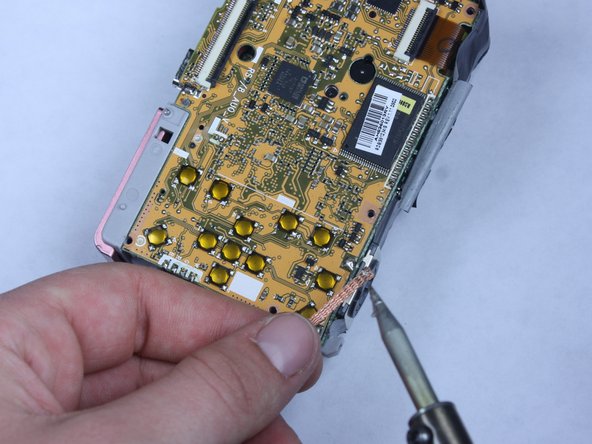
      • Locate the 2 solder joints holding down the medal housing.

      • Remove the solder.

      • Place wick on solder.

      • Place solder iron on wick

      • The wick should be sandwiched between the iron and the solder.

      Pregunta a FixBot

      Agregar Comentario

    4. Easyshare C813 Speaker Replacement: paso 15, imagen 1 de 3 Easyshare C813 Speaker Replacement: paso 15, imagen 2 de 3 Easyshare C813 Speaker Replacement: paso 15, imagen 3 de 3
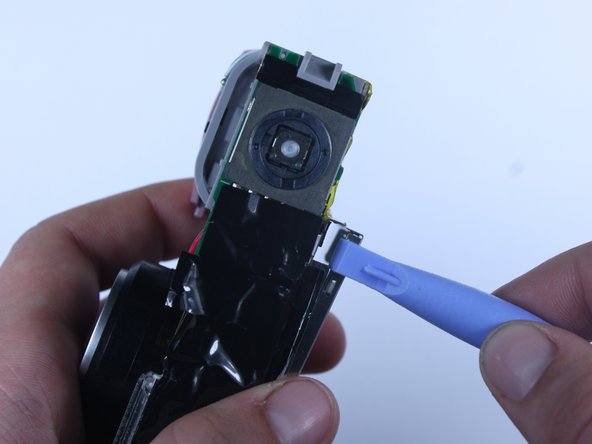
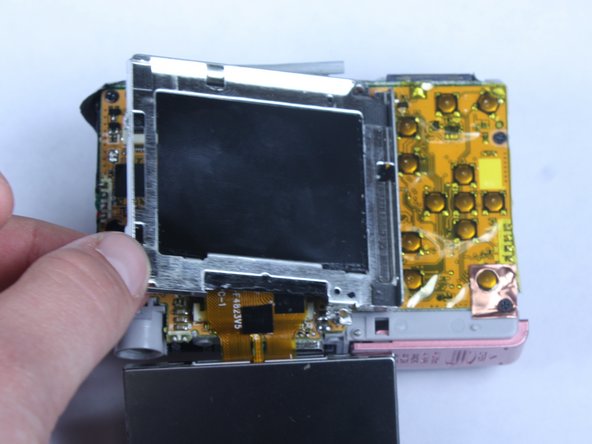
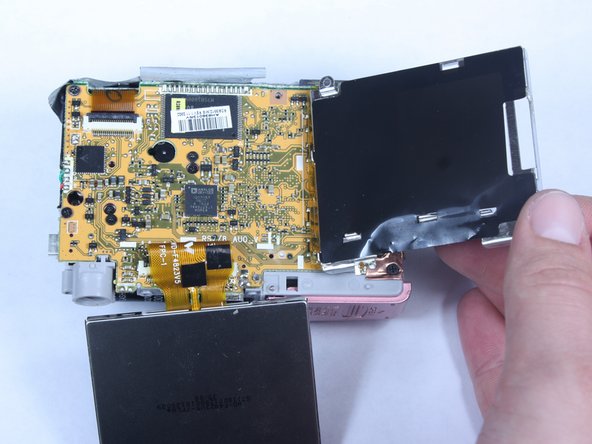
      • Peel back the black tape from the metal housing.

      • Lift the metal housing from the left so that it hinges on its right side.

      • The metal housing is still loosely attached on its right side.

      Pregunta a FixBot

      Agregar Comentario

    5. Easyshare C813 Speaker Replacement: paso 16, imagen 1 de 3 Easyshare C813 Speaker Replacement: paso 16, imagen 2 de 3 Easyshare C813 Speaker Replacement: paso 16, imagen 3 de 3
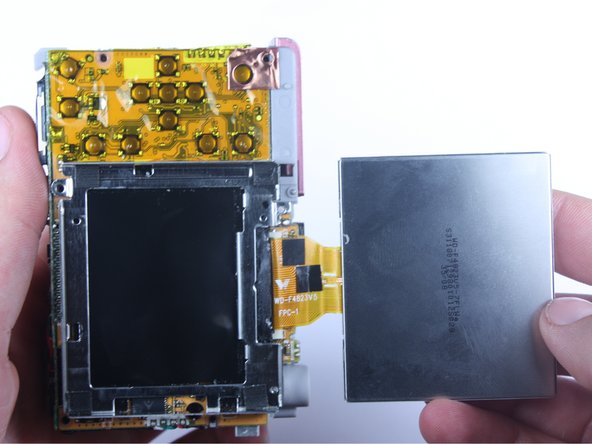
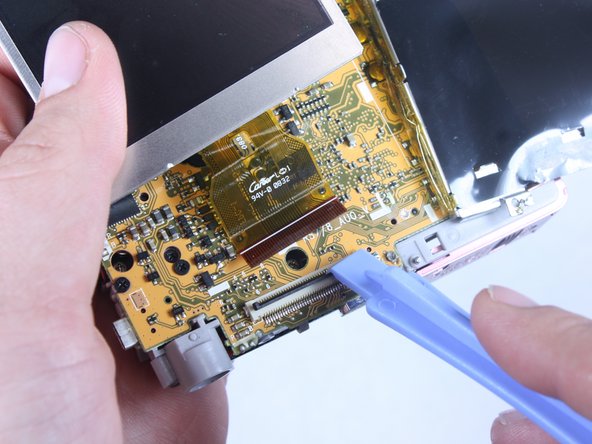
      • Locate black tab holding the LCD screen connector in the port.

      • Use wedge or fingernail to lift the black tab.

      • Pull the the LCD screen connector out of the port.

      Pregunta a FixBot

      Agregar Comentario

    1. Easyshare C813 Speaker Replacement, Logic Board: paso 17, imagen 1 de 1
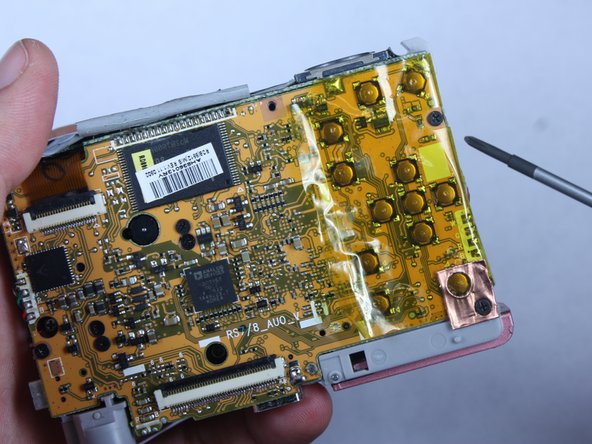
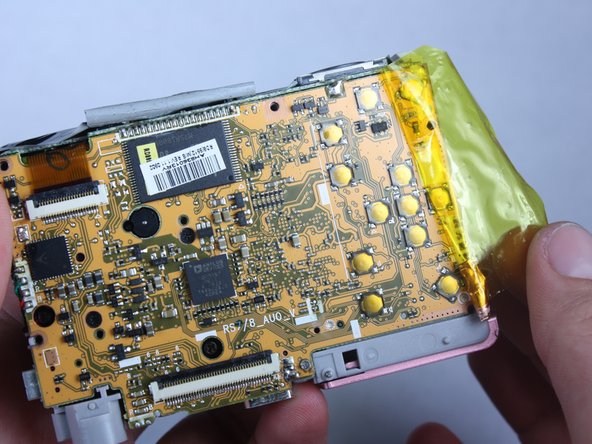
      • Remove the medal housing from the logic board by carefully peeling the yellow tape off of the metal housing.

      Pregunta a FixBot

      Agregar Comentario

    2. Easyshare C813 Speaker Replacement: paso 18, imagen 1 de 3 Easyshare C813 Speaker Replacement: paso 18, imagen 2 de 3 Easyshare C813 Speaker Replacement: paso 18, imagen 3 de 3
      • Locate the 2 screws on the yellow tape.

      • Remove the 2 screws.

      • Remove the yellow tape.

      Pregunta a FixBot

      Agregar Comentario

    3. Easyshare C813 Speaker Replacement: paso 19, imagen 1 de 2 Easyshare C813 Speaker Replacement: paso 19, imagen 2 de 2
      • Locate the 2 solder joints near the shutter button.

      • Remove the solder on both joints with the wick and soldering iron in the same manner as Step 11.

      Pregunta a FixBot

      Agregar Comentario

    4. Easyshare C813 Speaker Replacement: paso 20, imagen 1 de 3 Easyshare C813 Speaker Replacement: paso 20, imagen 2 de 3 Easyshare C813 Speaker Replacement: paso 20, imagen 3 de 3
      • Turn the camera over.

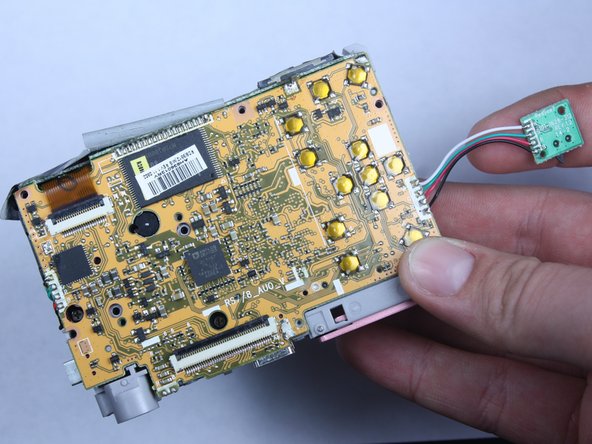
      • Remove the screw holding the small green board.

      • Lift the small green board.

      • The small green board is still attached to the logic board via wires.

      Pregunta a FixBot

      Agregar Comentario

    5. Easyshare C813 Speaker Replacement: paso 21, imagen 1 de 1
      • Desolder the remaining 20 solder joints connecting the logic board to the camera.

      Pregunta a FixBot

      Agregar Comentario

    6. Easyshare C813 Speaker Replacement: paso 22, imagen 1 de 2 Easyshare C813 Speaker Replacement: paso 22, imagen 2 de 2
      • Locate the black tab holding the yellow cable in place.

      • Use a plastic opening tool or fingernail to lift the black tab.

      • Pull the yellow cable from the port.

      Pregunta a FixBot

      Agregar Comentario

    7. Easyshare C813 Speaker Replacement: paso 23, imagen 1 de 3 Easyshare C813 Speaker Replacement: paso 23, imagen 2 de 3 Easyshare C813 Speaker Replacement: paso 23, imagen 3 de 3
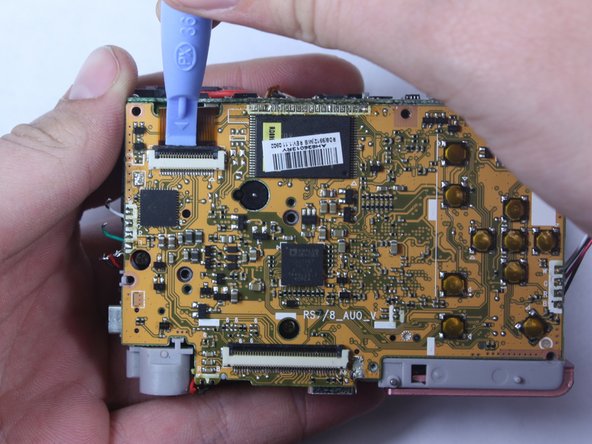
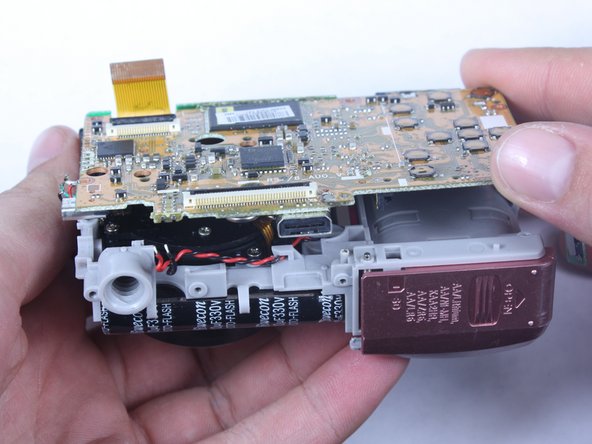
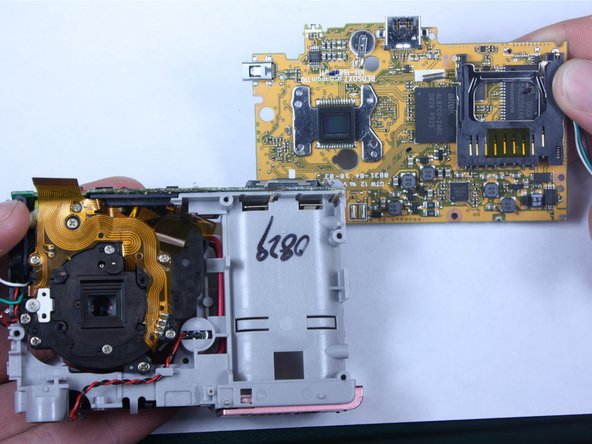
      • Use a plastic opening tool to lift the board from the camera.

      • Continue to remove the board completely.

      Pregunta a FixBot

      Agregar Comentario

    1. Easyshare C813 Speaker Replacement, Speaker: paso 24, imagen 1 de 1
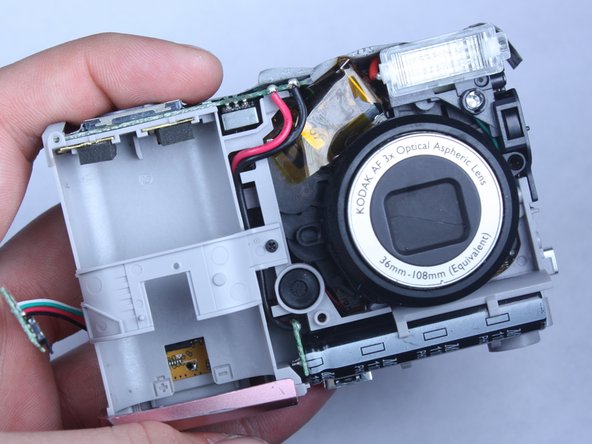
      • Carefully pull the red and black wires located on the side of the camera connected to the speaker.

      Pregunta a FixBot

      Agregar Comentario

Conclusión

To reassemble your device, follow these instructions in reverse order.

Cancelar: No complete esta guía.

Equipo

Cal Poly, Team 24-22, Regan Spring 2010 Miembro de Cal Poly, Team 24-22, Regan Spring 2010

CPSU-REGAN-S10S24G22

Miembros de 4

120 Guías creadas

0Guía Comentarios

Agregar Comentario

Ver Estadísticas:

Ultimas 24 horas: 2

Ultimos 7 días: 26

Ultimos 30 días: 103

Todo El Tiempo: 2,466