Saltar al contenido principal
Únete a la Comunidad de Reparación - Crear Cuenta

Desktop PC GPU Replacement

Qué necesitas

    1. Desktop PC GPU Replacement, Create an Anti-Static Work Area: paso 1, imagen 1 de 1
      • Minimize exposure to items that can charge up and produce static electricity.

      • Use an anti-static wrist band.

      Pregunta a FixBot

      Agregar Comentario

    2. Desktop PC GPU Replacement, Turn Off Computer: paso 2, imagen 1 de 1
      • Power off PC via Windows.

      • Switch off Power Supply

      Pregunta a FixBot

      Agregar Comentario

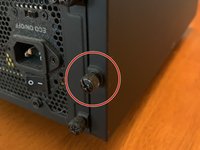
    3. Desktop PC GPU Replacement, Unscrew Case Side Panel: paso 3, imagen 1 de 2 Desktop PC GPU Replacement, Unscrew Case Side Panel: paso 3, imagen 2 de 2
      • Put screws where you wont lose them

      Pregunta a FixBot

      Agregar Comentario

    4. Desktop PC GPU Replacement, Unplug Power Connector to GPU: paso 4, imagen 1 de 1
      • Be gentle to not pull with to much force when removing power cables.

      Pregunta a FixBot

      Agregar Comentario

    5. Desktop PC GPU Replacement, Flip GPU Lock on Motherboard: paso 5, imagen 1 de 1
      • Try not to touch other components.

      Pregunta a FixBot

      Agregar Comentario

      • Gently pull the card out of the slot.

      Pregunta a FixBot

      Agregar Comentario

    6. Desktop PC GPU Replacement, Insert New GPU: paso 7, imagen 1 de 1
      • Verify that the notch in the connector matches the motherboard before sliding in.

      • Carefully slide in GPU until you hear a click on the motherboard.

      Pregunta a FixBot

      Agregar Comentario

    7. Desktop PC GPU Replacement, Connect Power Cables: paso 8, imagen 1 de 1
      • Insert wisdom here.

      Pregunta a FixBot

      Agregar Comentario

    8. Desktop PC GPU Replacement, Re-Attach Side Panel: paso 9, imagen 1 de 1
      • Use same screws from step 2.

      Pregunta a FixBot

      Agregar Comentario

      • Flip power supply switch back to on.

      • Plug in PC and turn on.

      • If PC does not post go back through the steps to see if you missed something.

      Pregunta a FixBot

      Agregar Comentario

      • Go to manufacturer's website or use the CD that came with the card to download the latest drivers for the GPU to ensure better stability of GPU.

      Pregunta a FixBot

      Agregar Comentario

      • Enjoy your new GPU.

      Pregunta a FixBot

      Agregar Comentario

Conclusión

To reassemble your device, follow these instructions in reverse order.

Cancelar: No complete esta guía.

3 personas más completaron esta guía.

0Guía Comentarios

Agregar Comentario

Ver Estadísticas:

Ultimas 24 horas: 1

Ultimos 7 días: 19

Ultimos 30 días: 113

Todo El Tiempo: 2,432