Saltar al contenido principal

Acer Chromebook CP5-471-C0EX Fan Replacement

Qué necesitas
  1. Acer Chromebook CP5-471-C0EX Fan Replacement, Back Cover: paso 1, imagen 1 de 2 Acer Chromebook CP5-471-C0EX Fan Replacement, Back Cover: paso 1, imagen 2 de 2
    • Turn off the laptop before starting.

    • Flip the laptop over so the model stickers face the ceiling.

  2. Acer Chromebook CP5-471-C0EX Fan Replacement: paso 2, imagen 1 de 3 Acer Chromebook CP5-471-C0EX Fan Replacement: paso 2, imagen 2 de 3 Acer Chromebook CP5-471-C0EX Fan Replacement: paso 2, imagen 3 de 3
    • Remove twelve 7 mm screws from the back of the laptop using a Phillips #1 screwdriver.

  3. Acer Chromebook CP5-471-C0EX Fan Replacement: paso 3, imagen 1 de 2 Acer Chromebook CP5-471-C0EX Fan Replacement: paso 3, imagen 2 de 2
    • Use a Jimmy to pry apart the bottom of the case from the laptop.

    • Be careful not to warp or crack the case.

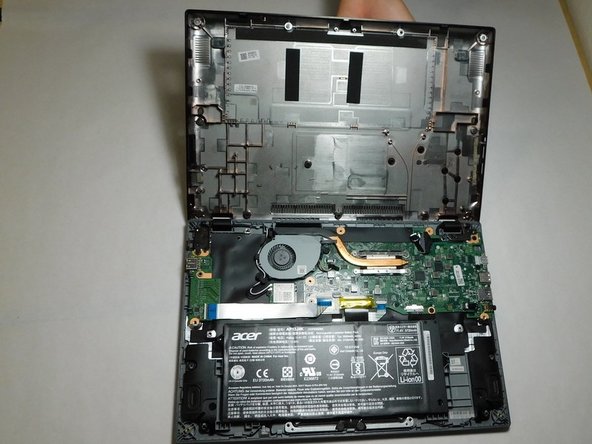
  4. Acer Chromebook CP5-471-C0EX Fan Replacement, Battery: paso 4, imagen 1 de 2 Acer Chromebook CP5-471-C0EX Fan Replacement, Battery: paso 4, imagen 2 de 2
    • Carefully detach the ribbon cable connecting the battery and the motherboard.

  5. Acer Chromebook CP5-471-C0EX Fan Replacement: paso 5, imagen 1 de 1
    • Use your hands to lift the battery out of the device.

  6. Acer Chromebook CP5-471-C0EX Fan Replacement, Fan: paso 6, imagen 1 de 2 Acer Chromebook CP5-471-C0EX Fan Replacement, Fan: paso 6, imagen 2 de 2
    • Gently pull the black and white cables up to disconnect them from the Wi-Fi card.

  7. Acer Chromebook CP5-471-C0EX Fan Replacement: paso 7, imagen 1 de 3 Acer Chromebook CP5-471-C0EX Fan Replacement: paso 7, imagen 2 de 3 Acer Chromebook CP5-471-C0EX Fan Replacement: paso 7, imagen 3 de 3
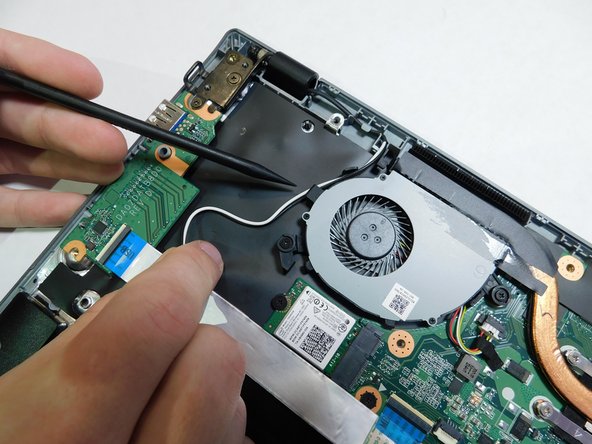
    • Unwind the Wi-Fi card wires from the side of the fan.

    • The wires need to be pulled down and around the first hook, as seen in image two.
    • Pull the black and white cables under the second hook and away from the fan.

  8. Acer Chromebook CP5-471-C0EX Fan Replacement: paso 8, imagen 1 de 3 Acer Chromebook CP5-471-C0EX Fan Replacement: paso 8, imagen 2 de 3 Acer Chromebook CP5-471-C0EX Fan Replacement: paso 8, imagen 3 de 3
    • Pull wires so they are out the way.

    • Loosen the six screws from the fan and heat sink.

    • The two screws closest to the fan cannot be removed from the fan, but will still loosen from the case.

  9. Acer Chromebook CP5-471-C0EX Fan Replacement: paso 9, imagen 1 de 3 Acer Chromebook CP5-471-C0EX Fan Replacement: paso 9, imagen 2 de 3 Acer Chromebook CP5-471-C0EX Fan Replacement: paso 9, imagen 3 de 3
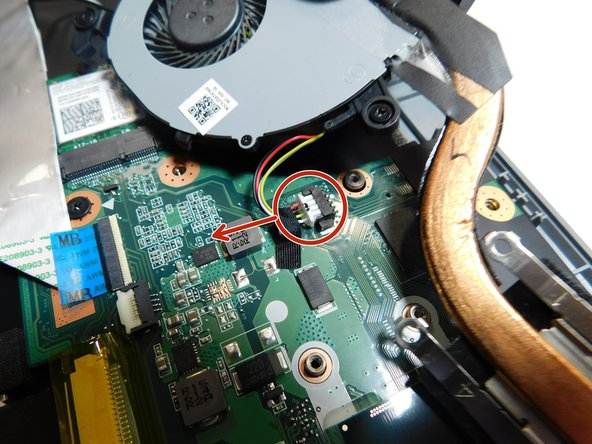
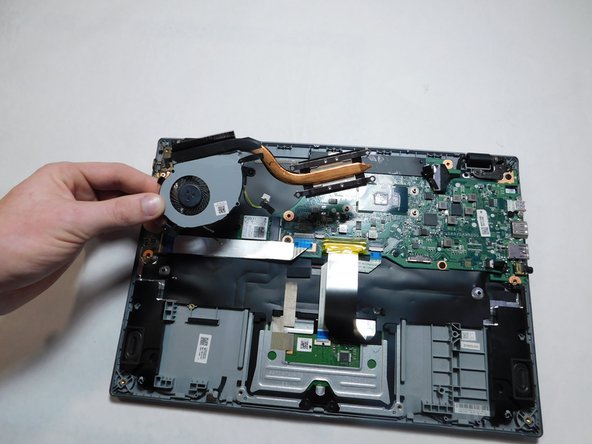
    • Gently lift the fan out of the case, but do not remove it fully; there is still one more cable attached.

    • Pull the cable out of its socket on the motherboard.

    • Remove the fan from the laptop.

Conclusión

To reassemble your device, follow these instructions in reverse order.

Una persona más ha completado esta guía.

Cody Venne

Miembro Desde 02/08/22

133 Reputación

1 Guía escrita

Equipo

Gateway, Team 1-1, Saknee Spring 2022 Miembro de Gateway, Team 1-1, Saknee Spring 2022

GCC-SAKNEE-S22S1G1

Miembros de 4

5 Guías creadas

0Guía Comentarios

Agregar Comentario

Ver Estadísticas:

Ultimas 24 horas: 1

Ultimos 7 días: 1

Ultimos 30 días: 12

Todo El Tiempo: 193